How to connect vLLM to Open WebUI
vLLM serves language models through a high-throughput OpenAI-compatible API. Connecting that server to Open WebUI lets users select a vLLM-served model in the chat interface while Open WebUI keeps its chat history, user access, and workspace features.
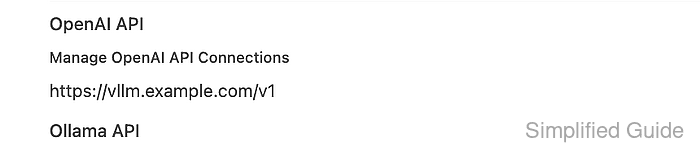
The vLLM API server exposes model listing and chat completion routes under /v1. Open WebUI stores the endpoint under Admin Panel → Settings → Connections → OpenAI, where it can refresh available models and send chat requests to the saved provider.
Container networking is the usual boundary to check before saving the connection. If Open WebUI runs in Docker and vLLM runs on the host, the saved base URL must use an address the container can reach instead of 127.0.0.1 inside the container.
Steps to connect vLLM to Open WebUI:
- Start the vLLM OpenAI-compatible server with the model that Open WebUI should expose.
$ vllm serve Qwen/Qwen2.5-1.5B-Instruct --host 0.0.0.0 --port 8000 --api-key vllm-local-key
Bind vLLM only to the network that needs it. A server listening on 0.0.0.0 can accept requests from other hosts, so protect it with a firewall, private network, reverse-proxy authentication, or a private API key.
- Confirm that vLLM lists the served model.
$ curl --fail-with-body --silent --show-error "http://127.0.0.1:8000/v1/models" \
  -H "Authorization: Bearer vllm-local-key"
{
  "object": "list",
  "data": [
    {
      "id": "Qwen/Qwen2.5-1.5B-Instruct",
      "object": "model",
      "owned_by": "vllm"
    }
  ]
}
The model id returned here is the value Open WebUI must discover or select later. If vLLM was started without --api-key, omit the authorization header.
- Probe the same endpoint from the Open WebUI runtime.
$ docker exec open-webui curl --fail-with-body --silent --show-error "http://host.docker.internal:8000/v1/models" \
  -H "Authorization: Bearer vllm-local-key"
{
  "object": "list",
  "data": [
    {
      "id": "Qwen/Qwen2.5-1.5B-Instruct",
      "object": "model",
      "owned_by": "vllm"
    }
  ]
}
Use http://host.docker.internal:8000/v1 when Open WebUI runs in Docker Desktop and vLLM runs on the host. Use a shared Docker network name, LAN address, or service DNS name when that is how the Open WebUI container reaches the vLLM server.
Related: How to troubleshoot Open WebUI provider connection errors - Open Admin Panel → Settings → Connections → OpenAI and add the vLLM endpoint as a connection.
Choose Standard / Compatible when tabs are shown, set Base URL to the container-reachable route such as http://host.docker.internal:8000/v1, and set API Key to the key used with --api-key.
- Refresh the Open WebUI model list and check for the vLLM model.
$ curl --fail-with-body --silent --show-error "https://openwebui.example.com/api/models?refresh=true" \
  -H "Authorization: Bearer <open-webui-token>"
{
  "data": [
    {
      "id": "Qwen/Qwen2.5-1.5B-Instruct",
      "name": "Qwen/Qwen2.5-1.5B-Instruct",
      "object": "model"
    }
  ]
}
The request uses an Open WebUI token, not the vLLM API key. If the model is missing here but the direct vLLM probe works, re-save the connection or refresh the model list again after the model finishes loading.
Related: How to refresh the Open WebUI model list - Open a new chat, select the vLLM model, and send a short prompt.
Reply with one short sentence that confirms the vLLM connection works.
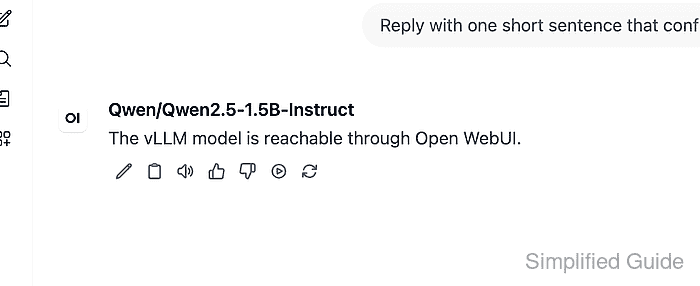
The visible reply proves the saved base URL, API key, model ID, and /v1/chat/completions route together.