How to create a filter function in Open WebUI
Open WebUI filter functions run Python code around chat traffic, which makes them useful for tagging prompts, enforcing small policy checks, or rewriting messages before a provider receives them. A minimal inlet filter keeps the first proof limited to one visible prompt rewrite before adding broader moderation, logging, or routing logic.
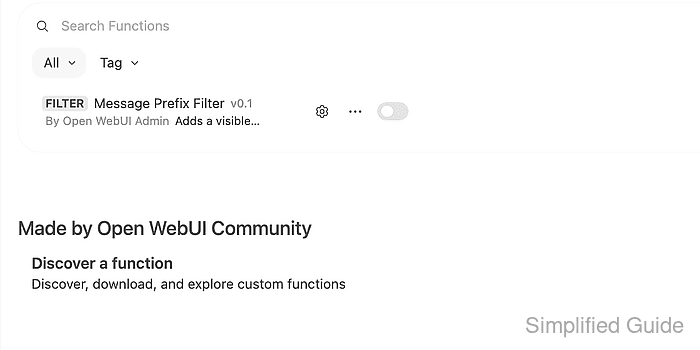
Functions are managed from Admin Panel → Functions. Open WebUI detects a filter from a class Filter definition, and an inlet() method receives the chat-completion request body before the selected model sees the latest user message.
Function code executes on the Open WebUI server, so treat it like application code rather than a prompt snippet. Keep the first test harmless, enable global scope only long enough to prove behavior, and attach production filters to the models or user groups that actually need them.
Steps to create an Open WebUI filter function:
- Sign in to Open WebUI as an administrator.
- Open Admin Panel → Functions.
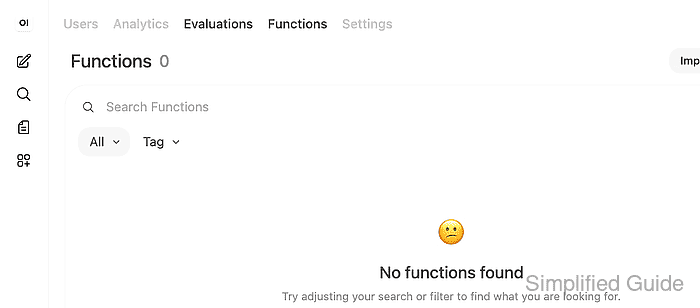
- Click New Function and choose New Function from the menu.
- Complete the New Function form with the filter source.
"""
title: Message Prefix Filter
author: Open WebUI admin
version: 0.1
"""

from typing import Optional


class Filter:
    def __init__(self):
        self.name = "Message Prefix Filter"

    async def inlet(self, body: dict, __user__: Optional[dict] = None) -> dict:
        messages = body.get("messages", [])
        if messages and messages[-1].get("role") == "user":
            content = messages[-1].get("content", "")
            messages[-1]["content"] = f"[reviewed] {content}"
        return body
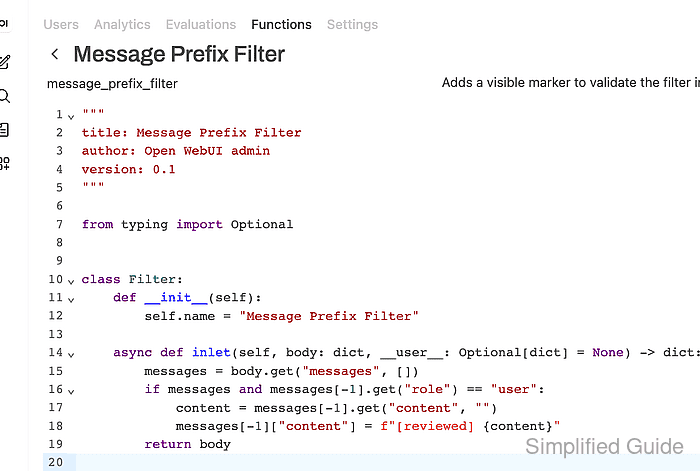
Use Message Prefix Filter for Function Name, message_prefix_filter for Function ID, and a short description. Open WebUI requires the ID to be a valid Python identifier, so lowercase letters and underscores avoid save errors.
- Click Save, review the arbitrary-code warning, acknowledge the trusted source, and click Confirm.
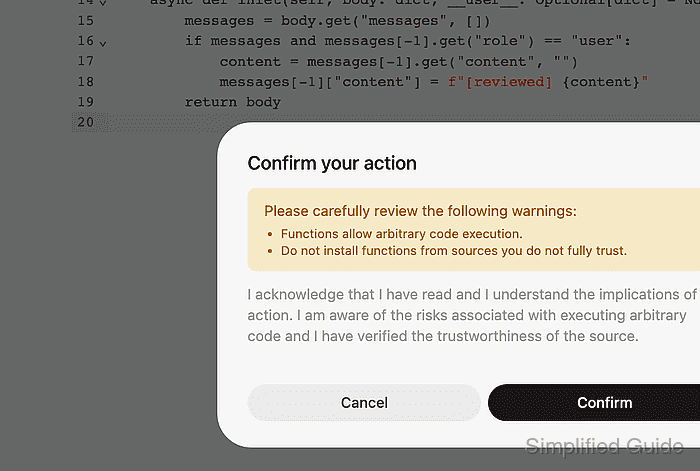
Functions execute server-side code. Do not paste functions from untrusted sources or enable a filter that logs prompts, files, user identifiers, or secrets unless retention and access controls are already approved.
- Confirm the saved row shows the FILTER type and the expected function name.
- Turn on the function row and scope it to the intended models.
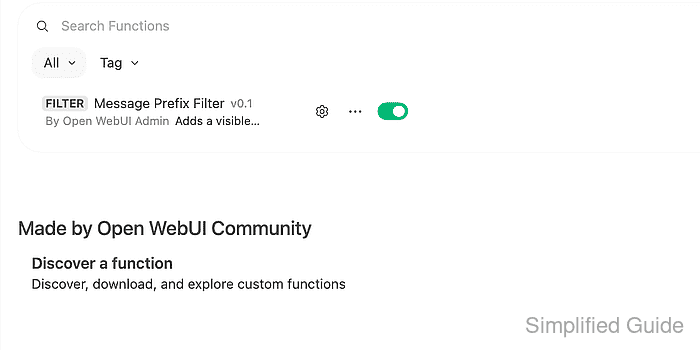
Use global scope only when every model should receive the filter. For narrower rollout, attach the filter under Workspace → Models → target model → Filters.
- Start a new chat with a model that should receive the filter and send a short test prompt.
Filter smoke test
- Confirm the model response includes the inlet marker before the original prompt text.
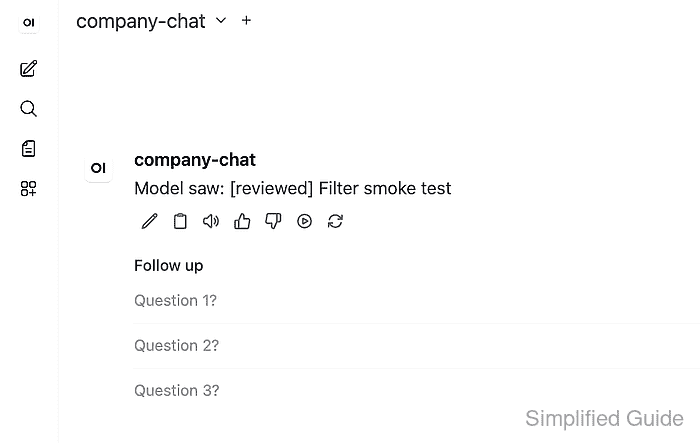
Model saw: [reviewed] Filter smoke test