How to enable the Nginx stub_status page
Nginx can expose a small status endpoint with live connection and request counters for monitoring agents, local checks, and quick troubleshooting. Keep that endpoint away from the public site path so the counters are available to administrators without publishing server activity to every visitor.
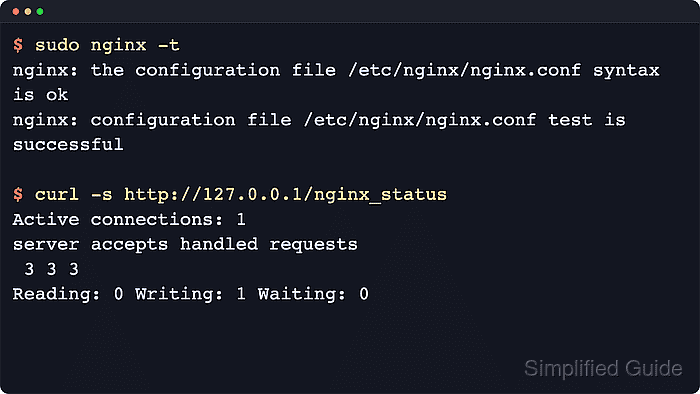
The stub_status directive returns fields such as Active connections, total accepted connections, total handled connections, total requests, and the current Reading, Writing, and Waiting connection counts. Current distro packages commonly include the module, while custom source builds need ngx_http_stub_status_module compiled in.
Use a dedicated status listener, restrict access with allow and deny rules, test the configuration before applying it, and reload Nginx only after the syntax check passes. The example below exposes /nginx_status on port 8080 for loopback and one private admin subnet, then confirms both the status output and the denied response for clients outside the allow list.
Steps to enable the Nginx stub_status page:
- Create a dedicated status server configuration file.
$ sudoedit /etc/nginx/conf.d/status.conf
Do not place the status location in a public virtual host unless it is protected by an allow list, firewall rule, VPN, or another administrative access boundary.
- Add the restricted stub_status server block.
- /etc/nginx/conf.d/status.conf
server {
    listen 8080;
    server_name status.example.internal;

    location = /nginx_status {
        stub_status;
        allow 127.0.0.1;
        allow ::1;
        allow 10.10.10.0/24;
        deny all;
        access_log off;
    }
}
Replace 10.10.10.0/24 with the private monitoring, VPN, or admin subnet that should reach the endpoint. Remove that line for a local-only status page. Related: How to restrict access by IP in Nginx
Nginx checks allow and deny rules in order, so keep the permitted addresses above deny all.
- Test the Nginx configuration syntax.
$ sudo nginx -t
nginx: the configuration file /etc/nginx/nginx.conf syntax is ok
nginx: configuration file /etc/nginx/nginx.conf test is successful
If the test reports an unknown stub_status directive, use an Nginx build that includes ngx_http_stub_status_module.
Related: How to test Nginx configuration
- Reload Nginx to apply the status endpoint.
$ sudo nginx -s reload
2026/06/06 11:23:16 [notice] 2946#2946: signal process started
On systemd hosts, sudo systemctl reload nginx sends the same configuration reload through the service manager.
Related: How to manage the Nginx service
- Request the status page from the local host.
$ curl http://127.0.0.1:8080/nginx_status
Active connections: 1
server accepts handled requests
 1 1 1
Reading: 0 Writing: 1 Waiting: 0
Active connections includes idle waiting connections. The three numbers under server accepts handled requests are accepted connections, handled connections, and total requests.
- Request the status page from a client outside the allow list.
$ curl -I http://status.example.internal:8080/nginx_status
HTTP/1.1 403 Forbidden
Server: nginx/1.28.3 (Ubuntu)
Date: Sat, 06 Jun 2026 11:23:37 GMT
Content-Type: text/html
Content-Length: 162
Connection: keep-alive
A 403 Forbidden response means the request reached Nginx but did not match an allowed address. A connection timeout usually points to a firewall, routing, listener, or security-group boundary before the HTTP access rules run.