How to create a Nextcloud app password
Nextcloud app passwords let desktop clients, mobile apps, WebDAV mounts, and other connected applications sign in without using the main account password. They are useful when a client needs its own revocable credential or when two-factor authentication is enabled for browser sign-ins.
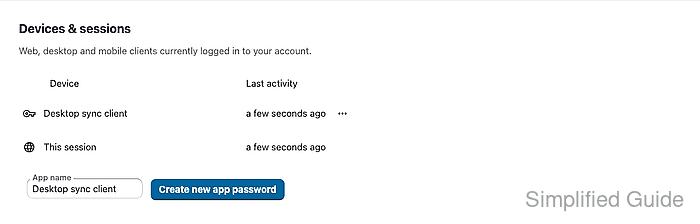
Each app password belongs to the signed-in account and appears in Settings → Security under Devices & sessions. The name entered during creation is the label that later identifies the connected client in the device list.
Create one app password per client or device and copy the generated value immediately. Nextcloud shows the plain password only during creation, while the saved row can be renamed or removed later without changing the main account password.
Steps to create a Nextcloud app password:
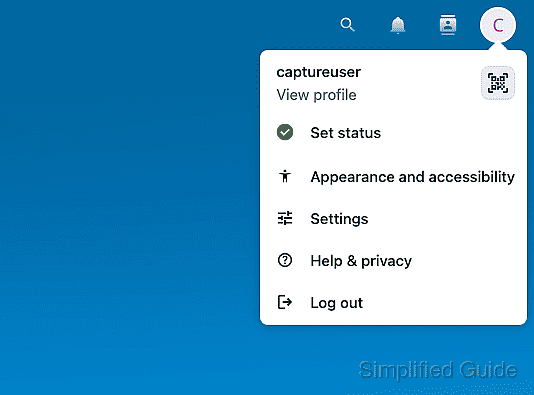
- Open the account menu from the top-right avatar and choose Settings.
- Select Security from the personal settings sidebar.
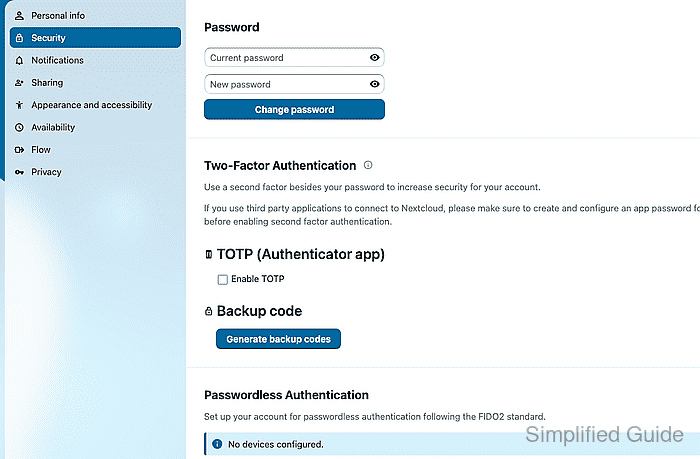
- Scroll to Devices & sessions.
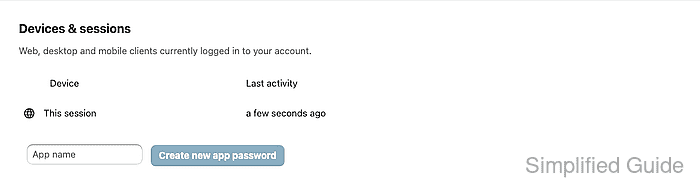
The list shows active browser sessions and app passwords already created for the account.
- Enter a recognizable client name in App name and click Create new app password.
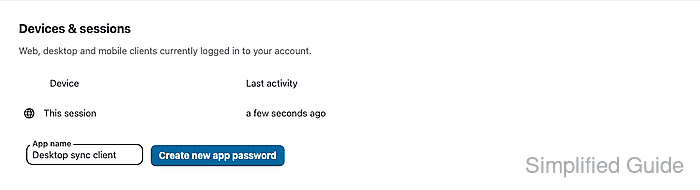
Use a name that identifies the device or integration, such as Desktop sync client or WebDAV mount.
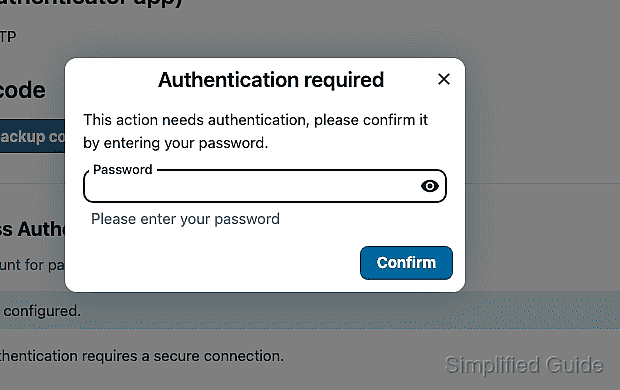
- Enter the current account password in the Authentication required prompt and click Confirm.
- Copy the generated Login and Password values into the client before leaving the page.
Nextcloud does not show the generated password again after creation. Create a new app password if the value is closed or lost before the client is configured.
- Confirm the named entry appears under Devices & sessions.
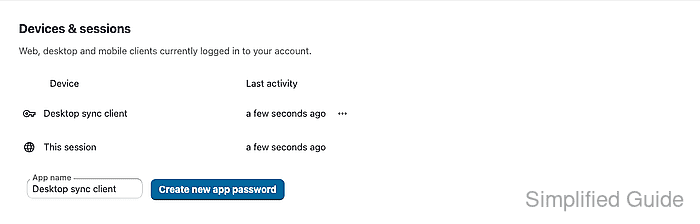
Use the row's actions menu later to rename or remove the app password when the device is retired.