The Nextcloud desktop client keeps selected server folders available from the desktop file manager and uploads local changes while the client is running. The first account setup decides which server is trusted, where the local sync folder lives, and whether all files or only selected folders are kept on the computer.
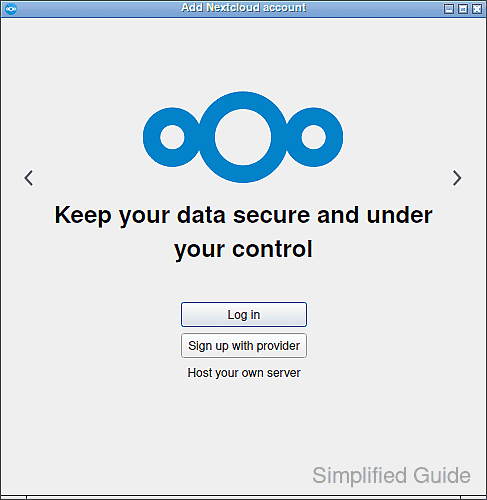
Modern Nextcloud clients use a browser authorization flow for the first connection. The client asks for the server address, opens the web login page, receives permission after Grant access, and then returns to the sync wizard to create the folder connection.
Choose the sync scope before the first download starts, especially on accounts with large shared folders. A full sync stores every selected file locally, selective sync limits the local copy to chosen remote folders, and virtual files keep placeholders on supported desktop platforms until a file is opened.
Steps to configure sync in the Nextcloud desktop client:
- Launch the Nextcloud desktop client from the desktop menu or system tray.
- Click Log in to your Nextcloud.
- Enter the Nextcloud server address.
https://cloud.example.com
- Complete the browser login and approve the client by clicking Grant access.
If browser authorization is not available, create an app password and use it only for the desktop client.
Related: How to create a Nextcloud app password - Keep the default local Nextcloud folder or choose a different empty local folder.
- Select the remote folders to sync, or choose the option that syncs everything from the server.
A full sync can download large shared folders to the local disk; use selective sync or virtual files when the account contains more data than the desktop should store.
- Click Connect to create the folder sync connection.
- Open the Nextcloud client main window and confirm the account and folder connection appear with a sync state such as Up to date or Syncing.
- Create a small test file in the local Nextcloud folder.
- Open the same folder in the web Files app and confirm the test file appears.
- Delete the temporary test file from the local folder after verification.
- Confirm the file disappears from the web Files app and the desktop client returns to Up to date.

Mohd Shakir Zakaria is a cloud architect with deep roots in software development and open-source advocacy. Certified in AWS, Red Hat, VMware, ITIL, and Linux, he specializes in designing and managing robust cloud and on-premises infrastructures.


