How to use the Nagios Core status dashboard
The Nagios Core status dashboard gives operators a browser view of current monitoring pressure before they open individual host or service pages. It shows host totals, service totals, unhandled problems, outages, and monitoring features such as checks, notifications, event handlers, and flap detection.
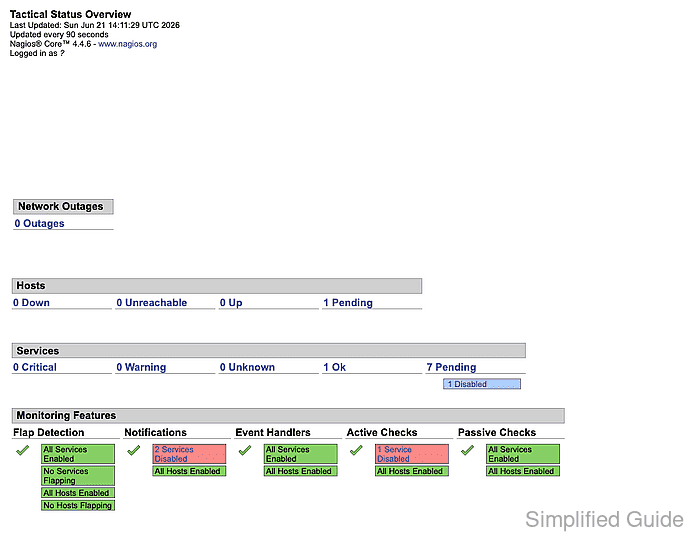
The Tactical Status Overview is generated by tac.cgi. Use it as a first screen during handoff, after a configuration reload, or before command actions such as acknowledgements, downtime, disabled checks, or notification changes.
The dashboard does not replace object-level review. Use Status Summary and Status Details to find the affected host or service after the dashboard shows a non-OK total or disabled monitoring feature.
Steps to use the Nagios Core status dashboard:
- Open the Nagios Core web interface as a user allowed to view host and service status.
http://monitor.example.net/nagios4/
The URL path is commonly /nagios4/ on Debian and Ubuntu packages. Source installs often use /nagios/ instead.
- Open Tactical Overview from the left navigation, or open tac.cgi directly.
http://monitor.example.net/nagios4/cgi-bin/tac.cgi
- Confirm that Tactical Status Overview loads with Last Updated and Updated Every fields.
- Review Network Outages and Host Status Totals before drilling into services.
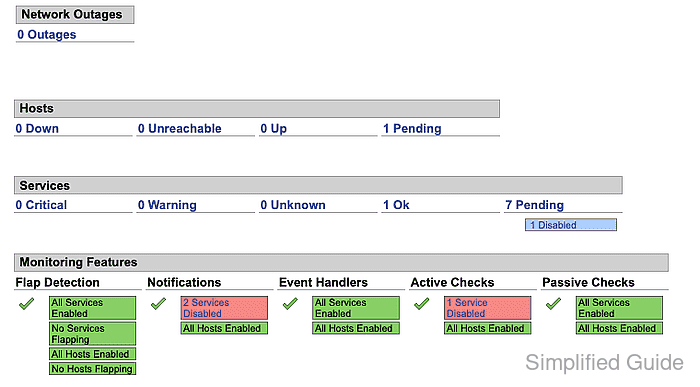
Unhandled host problems usually need ownership, downtime, or remediation. All Problems includes both handled and unhandled objects.
- Review Service Status Totals for Warning, Unknown, and Critical counts.
- Check Monitoring Features for disabled Flap Detection, Notifications, Event Handlers, Active Checks, or Passive Checks.
A disabled feature can be intentional during maintenance. Unexpected disabled checks or notifications should be reviewed on the affected host or service detail page.
- Open Status Summary to compare totals by hostgroup.
http://monitor.example.net/nagios4/cgi-bin/status.cgi?hostgroup=all&style=summary
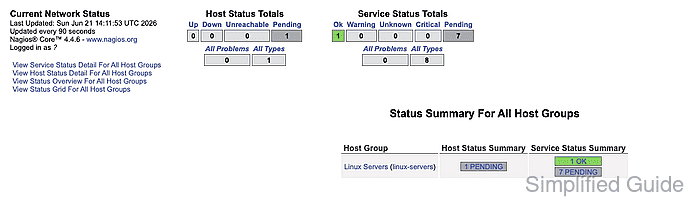
- Open the hostgroup or service total that matches the problem count.
- Confirm the dashboard review is complete when the visible totals match the expected monitoring state and every non-OK or disabled feature has a target host, service, owner, or maintenance reason.