How to submit a passive check result to Nagios Core
Passive monitoring in Nagios Core lets another process report a host or service state instead of waiting for the scheduler to run an active plugin. It fits trap handlers, local health scripts, and distributed checks where the result already exists outside the monitoring daemon.
The direct local path writes a supported external command into the Nagios Core command FIFO. On Debian and Ubuntu package installs that file is normally /var/lib/nagios4/rw/nagios.cmd; source installs often use /usr/local/nagios/var/rw/nagios.cmd instead.
The host and service names in a passive result must already exist in the running object configuration. A sender on the monitoring server can write to the command file directly, while remote senders should use a receiver such as NRDP or NSCA instead of exposing the FIFO over a network share.
Steps to submit a passive check result to Nagios Core:
- Confirm that Nagios Core accepts external commands and passive results.
$ sudo grep -E '^(check_external_commands|command_file|accept_passive_service_checks|accept_passive_host_checks)=' /etc/nagios4/nagios.cfg
check_external_commands=1
command_file=/var/lib/nagios4/rw/nagios.cmd
accept_passive_service_checks=1
accept_passive_host_checks=1
Enable external commands first when check_external_commands is 0 or the command file path is missing.
Related: How to enable external commands in Nagios Core - Check that the external command path is a writable FIFO.
$ sudo ls -ld /var/lib/nagios4/rw /var/lib/nagios4/rw/nagios.cmd
drwxrwsr-x 1 nagios www-data 4096 Jun 21 06:40 /var/lib/nagios4/rw
prw-rw---- 1 nagios www-data    0 Jun 21 06:40 /var/lib/nagios4/rw/nagios.cmd
The leading p on nagios.cmd means it is a FIFO. Keep write access limited to nagios and the trusted web server or integration account.
- Store the Unix timestamp for the submitted result.
$ now=$(date +%s)
- Write the passive service result to the command file.
$ printf '[%s] PROCESS_SERVICE_CHECK_RESULT;web01.example.net;HTTP;1;WARNING - passive queue depth above threshold\n' "$now" | sudo tee /var/lib/nagios4/rw/nagios.cmd
[1782347620] PROCESS_SERVICE_CHECK_RESULT;web01.example.net;HTTP;1;WARNING - passive queue depth above threshold
web01.example.net and HTTP must match a loaded host and service object. Service return codes are 0 for OK, 1 for WARNING, 2 for CRITICAL, and 3 for UNKNOWN. For host-state results, use PROCESS_HOST_CHECK_RESULT;<host_name>;<host_status>;<plugin_output> with host status 0 for UP, 1 for DOWN, or 2 for UNREACHABLE.
Related: How to add a service check in Nagios Core - Confirm that Nagios Core logged the passive result.
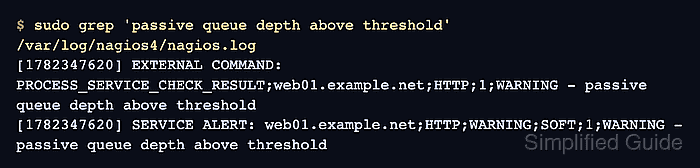
$ sudo grep 'passive queue depth above threshold' /var/log/nagios4/nagios.log
[1782347620] EXTERNAL COMMAND: PROCESS_SERVICE_CHECK_RESULT;web01.example.net;HTTP;1;WARNING - passive queue depth above threshold
[1782347620] SERVICE ALERT: web01.example.net;HTTP;WARNING;SOFT;1;WARNING - passive queue depth above threshold
The same host, service, state, and plugin output should appear on the Nagios Core service status page after the command is processed.
Related: How to check Nagios Core logs