How to troubleshoot Nagios Core notifications
Missed Nagios Core notifications usually mean an alert was filtered before a contact was selected, or the notification command ran but the message did not reach the mailbox. Starting with the event log separates those paths before changing object files or chasing mail delivery.
The Nagios Core notification path passes through global enablement, host or service filters, notification periods, state options, escalation rules, contact filters, and the notification command. On Ubuntu and Debian package installs, the main configuration is commonly /etc/nagios4/nagios.cfg, runtime state is recorded in /var/lib/nagios4/status.dat, and notification history is written to /var/log/nagios4/nagios.log.
A matching SERVICE NOTIFICATION or HOST NOTIFICATION line means Nagios Core selected a contact and command. A missing notification line means the alert was suppressed before command execution, so check source objects and runtime status together because source settings, external commands, acknowledgements, downtime, flapping, and retained state can each block the message.
Related: How to configure Nagios Core email notifications
Related: How to test Nagios Core notifications
Related: How to check Nagios Core logs
Steps to troubleshoot Nagios Core notifications:
- Confirm notification logging, global notification enablement, external commands, and the runtime file paths.
$ sudo grep -E '^(enable_notifications|log_notifications|check_external_commands|object_cache_file|status_file|command_file)=' /etc/nagios4/nagios.cfg
object_cache_file=/var/lib/nagios4/objects.cache
status_file=/var/lib/nagios4/status.dat
check_external_commands=1
command_file=/var/lib/nagios4/rw/nagios.cmd
log_notifications=1
enable_notifications=1
If enable_notifications is 0, no host or service notifications are sent. If log_notifications is 0, notification decisions are harder to audit from /var/log/nagios4/nagios.log.
Related: How to enable external commands in Nagios Core
Related: How to check Nagios Core logs - Find the alert that should have sent a notification.
$ sudo grep 'web01.example.net;HTTP' /var/log/nagios4/nagios.log
[1782092802] SERVICE ALERT: web01.example.net;HTTP;CRITICAL;HARD;1;HTTP CRITICAL - notification troubleshoot test
A HARD service or host alert without a matching SERVICE NOTIFICATION or HOST NOTIFICATION line means Nagios Core suppressed the notification before running the contact command. If a notification line exists but no message arrives, troubleshoot the notification command, local mail queue, relay, or mailbox filtering instead.
Related: How to configure Nagios Core email notifications - Validate the loaded object configuration before changing notification objects.
$ sudo nagios4 -v /etc/nagios4/nagios.cfg
Nagios Core 4.4.6
##### snipped #####
Reading configuration data...
   Read main config file okay...
   Read object config files okay...
##### snipped #####
Total Warnings: 0
Total Errors:   0

Things look okay - No serious problems were detected during the pre-flight check
Use the active main configuration file for the installation. Source installs commonly use /usr/local/nagios/etc/nagios.cfg and /usr/local/nagios/bin/nagios.
Related: How to validate the Nagios Core configuration - Check the effective service notification rules in the object cache.
$ sudo grep -B2 -A30 'service_description.*HTTP' /var/lib/nagios4/objects.cache
define service {
	host_name	web01.example.net
	service_description	HTTP
	check_period	24x7
	check_command	check_http
	contact_groups	linux-admins
	notification_period	24x7
##### snipped #####
	notification_options	r,w,u,c
	notifications_enabled	0
	notification_interval	60.000000
	first_notification_delay	0.000000
}
Use the block whose host_name and service_description match the affected object. Wrong contact_groups, notification_period, notification_options, or notifications_enabled values in /var/lib/nagios4/objects.cache must be corrected in the source object file, then validated and reloaded.
- Check the contact filters and notification command for the selected contact.
$ sudo grep -A18 'contact_name.*ops-primary' /var/lib/nagios4/objects.cache
	contact_name	ops-primary
	alias	Primary Operations Contact
	service_notification_period	24x7
	host_notification_period	24x7
	service_notification_options	r,w,u,c
	host_notification_options	r,d,u
	service_notification_commands	notify-service-by-email
	host_notification_commands	notify-host-by-email
	email	ops-primary@example.net
	minimum_importance	0
	host_notifications_enabled	1
	service_notifications_enabled	1
	can_submit_commands	1
}
If the contact period excludes the incident time, the state option is missing, notifications are disabled for the contact, or the command name is wrong, Nagios Core will not notify that contact even when the service object allows the alert.
Related: How to create a Nagios Core contact and contact group - Check runtime status for disabled notifications, acknowledgement, flapping, or downtime suppression.
$ sudo grep -B1 -A55 'service_description=HTTP' /var/lib/nagios4/status.dat
	host_name=web01.example.net
	service_description=HTTP
##### snipped #####
	current_state=2
	current_attempt=1
	max_attempts=1
	state_type=1
##### snipped #####
	current_notification_number=0
	last_notification=0
	notifications_enabled=0
	problem_has_been_acknowledged=0
	is_flapping=0
	scheduled_downtime_depth=0
state_type=1 means the service is in a hard state. In this output, downtime, flapping, and acknowledgement are not blocking the alert, but notifications_enabled=0 is suppressing service notifications at runtime.
- Re-enable service notifications for the affected service when runtime status shows they are disabled.
$ printf "[%s] ENABLE_SVC_NOTIFICATIONS;web01.example.net;HTTP\n" "$(date +%s)" | sudo tee /var/lib/nagios4/rw/nagios.cmd >/dev/null
For a host-level notification issue, use ENABLE_HOST_NOTIFICATIONS;web01.example.net instead. If /var/lib/nagios4/objects.cache also shows notifications_enabled 0, correct the source object and reload Nagios Core so the fix survives restart.
Related: How to enable external commands in Nagios Core - Send a custom notification that still respects the normal filters.
$ printf "[%s] SEND_CUSTOM_SVC_NOTIFICATION;web01.example.net;HTTP;0;ops-primary;Notification troubleshoot retest\n" "$(date +%s)" | sudo tee /var/lib/nagios4/rw/nagios.cmd >/dev/null
The option value 0 avoids forcing the notification past normal filters. Use a forced test only when the goal is to prove the command path rather than the object and contact filters.
Related: How to test Nagios Core notifications - Confirm that Nagios Core logged the notification for the affected contact and service.
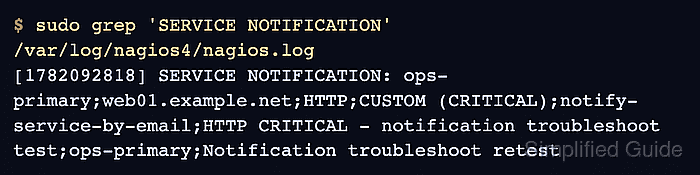
$ sudo grep 'SERVICE NOTIFICATION' /var/log/nagios4/nagios.log
[1782092818] SERVICE NOTIFICATION: ops-primary;web01.example.net;HTTP;CUSTOM (CRITICAL);notify-service-by-email;HTTP CRITICAL - notification troubleshoot test;ops-primary;Notification troubleshoot retest
If this line appears but no email arrives, Nagios Core reached the contact command. Continue with the command definition, local MTA, relay authentication, DNS, and recipient mailbox checks instead of changing service filters again.
Related: How to configure Nagios Core email notifications