How to create a Nagios Core notification escalation
Long-running alerts often need a wider audience than the first page. Nagios Core notification escalations let the monitoring scheduler add or change recipients after a host or service problem reaches a chosen notification number, so unresolved incidents can move from the first responder to a broader on-call path.
An escalation is a hostescalation or serviceescalation object definition. The object matches an existing host or service, sets the notification numbers where the escalation applies, and supplies the contacts or contact groups used while that range is active.
The service escalation for web01.example.net and HTTP starts on the third CRITICAL notification and stays active for later notifications. Include both linux-admins and oncall-managers when the first-response group should keep receiving pages after escalation; use only the higher group when the escalation should replace the original recipients.
Steps to create a Nagios Core notification escalation:
- Confirm that the local object directory is loaded by Nagios Core.
$ grep '^cfg_dir=/etc/nagios4/conf.d' /etc/nagios4/nagios.cfg
cfg_dir=/etc/nagios4/conf.d
Current Ubuntu and Debian packages include /etc/nagios4/conf.d by default. Add a cfg_dir or cfg_file entry first when local objects are stored somewhere else.
Related: How to add a Nagios Core object configuration directory - Confirm that the target service and recipient groups already exist.
The HTTP service must already notify its first-response group, and oncall-managers must contain contacts with working service notification commands.
Related: How to create a Nagios Core contact and contact group
Related: How to add a service check in Nagios Core - Create a local object file for the escalation.
$ sudoedit /etc/nagios4/conf.d/http-escalation.cfg
- Add the service escalation definition.
define serviceescalation {
    host_name                       web01.example.net
    service_description             HTTP
    first_notification              3
    last_notification               0
    notification_interval           15
    escalation_period               24x7
    escalation_options              c,r
    contact_groups                  linux-admins,oncall-managers
}
first_notification 3 starts the rule on the third notification. last_notification 0 leaves the rule active for later notifications, and escalation_options c,r limits the escalation to CRITICAL and recovery notifications.
- Validate the Nagios Core configuration.
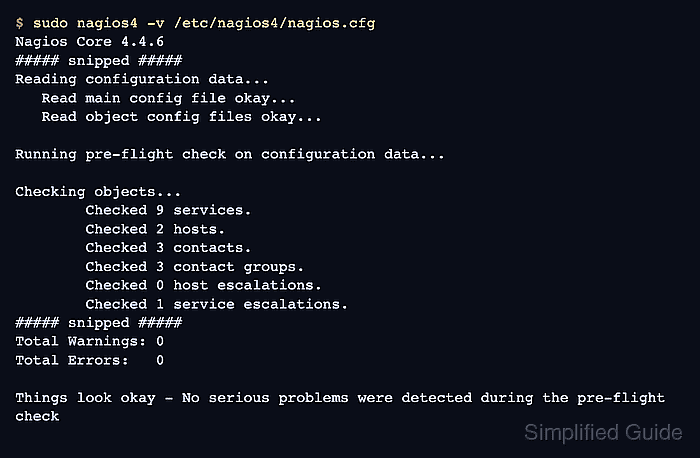
$ sudo nagios4 -v /etc/nagios4/nagios.cfg
Nagios Core 4.4.6
##### snipped #####
Reading configuration data...
   Read main config file okay...
   Read object config files okay...

Running pre-flight check on configuration data...

Checking objects...
	Checked 9 services.
	Checked 2 hosts.
	Checked 3 contacts.
	Checked 3 contact groups.
	Checked 0 host escalations.
	Checked 1 service escalations.
##### snipped #####
Total Warnings: 0
Total Errors:   0

Things look okay - No serious problems were detected during the pre-flight check
Zero errors confirm that the service, contact groups, time period, and escalation object resolve together.
Related: How to validate the Nagios Core configuration - Reload the nagios4 service after validation reports zero errors.
$ sudo systemctl reload nagios4
Ubuntu and Debian package installs use the nagios4 unit. Use the local service name or source-install control script when Nagios Core was installed outside the package layout.
Related: How to manage the Nagios Core system service - Confirm that Nagios Core remains active after the reload.
$ systemctl is-active nagios4
active
Check /var/log/nagios4/nagios.log or the journal if the service is not active after the reload.
Related: How to check Nagios Core logs - Trigger a controlled service problem that reaches the third notification.
Use a non-production service or a planned notification test window. Acknowledging the problem, disabling notifications, scheduling downtime, or recovering before the third notification prevents the escalation from firing.
- Check notification history for the normal and escalated contacts.
$ sudo grep 'web01.example.net;HTTP' /var/log/nagios4/nagios.log
[1782022036] SERVICE NOTIFICATION: ops-primary;web01.example.net;HTTP;CRITICAL;notify-service-by-email;HTTP CRITICAL - escalation test
[1782023836] SERVICE NOTIFICATION: ops-primary;web01.example.net;HTTP;CRITICAL;notify-service-by-email;HTTP CRITICAL - escalation test
[1782023836] SERVICE NOTIFICATION: ops-escalation;web01.example.net;HTTP;CRITICAL;notify-service-by-email;HTTP CRITICAL - escalation test
The later notification includes both the first-response contact and the escalation contact because the escalation definition lists both contact groups.