How to create a bar chart in Matplotlib
Bar charts make differences among categories visible through the height of separate rectangles. They suit counts, totals, and rankings where every numeric value belongs to a distinct named category.

The object-oriented Matplotlib interface keeps the chart on an explicit Axes object. ax.bar() returns a BarContainer whose rectangles can be passed directly to ax.bar_label() for value labels.
Unique category labels can go directly to ax.bar() while the numeric sequence supplies each bar height. The saved PNG should contain the same four categories, values, title, and axis labels defined in the completed script.
Related: How to create a line chart in Matplotlib
Related: How to set plot colors in Matplotlib
Related: How to set axis labels in Matplotlib
Steps to create a Matplotlib bar chart:
- Create create_bar_chart.py with the category data and drawing area.
- create_bar_chart.py
from pathlib import Path

import matplotlib.pyplot as plt

plans = ["Standard", "Pro", "Enterprise", "Education"]
signups = [180, 245, 90, 135]
colors = ["tab:blue", "tab:orange", "tab:green", "tab:red"]

fig, ax = plt.subplots(layout="constrained")
- Add the bars and chart labels below the plt.subplots() line.
bars = ax.bar(plans, signups, color=colors)
ax.bar_label(bars, padding=3)
ax.set_title("Quarterly signups by plan")
ax.set_xlabel("Plan")
ax.set_ylabel("Signups")
ax.set_ylim(0, max(signups) + 60)
The added upper limit leaves room for the numeric labels above the bars.
- Append the PNG export and runtime checks after the ax.set_ylim() line.
output = Path("plan-signups-bar-chart.png")
fig.savefig(output, dpi=160)
plt.close(fig)

print(f"bars: {len(bars)}")
print(f"labels: {', '.join(plans)}")
print(f"title: {ax.get_title()}")
print(f"saved: {output}")
print(f"png ready: {output.exists() and output.stat().st_size > 0}")
- Run the completed script from the Python environment that has Matplotlib installed.
$ python create_bar_chart.py
bars: 4
labels: Standard, Pro, Enterprise, Education
title: Quarterly signups by plan
saved: plan-signups-bar-chart.png
png ready: True
- Open plan-signups-bar-chart.png in an image viewer.
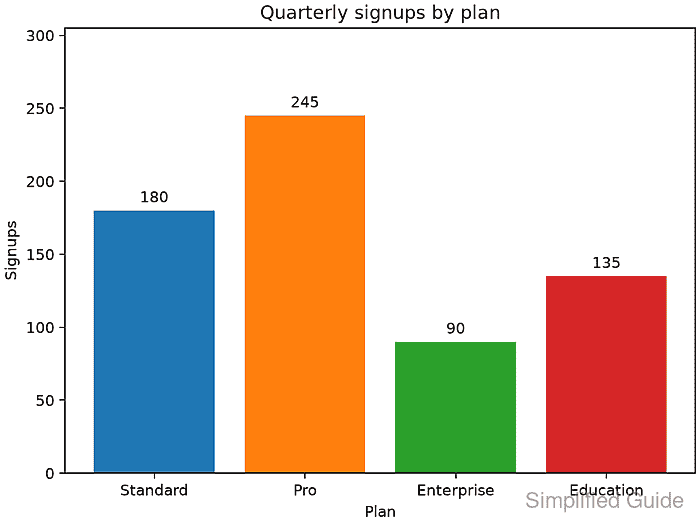
- Confirm that the chart shows four value-labeled bars with Pro as the tallest category.