How to force a Linux user to change their password at next login
Temporary passwords become long-term credentials when a local Linux account is handed back without an immediate reset requirement. Expiring the account's current password forces the next password-based login to stop at the change prompt while keeping the account, UID, home directory, and group membership intact.
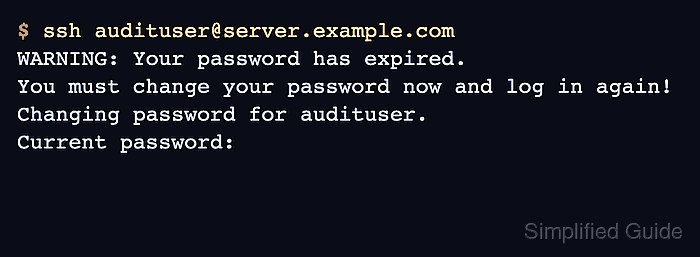
On shadow-managed systems, passwd --expire changes the password aging data instead of replacing the password hash. The account can still have a usable password, but the stored last-change date is moved far enough back that PAM requires a new password before opening the session.
This applies to local accounts stored through /etc/passwd and /etc/shadow. Directory-backed users from LDAP, Active Directory, SSSD, or another identity provider need the upstream password-reset workflow, and expiring a password does not end active sessions or revoke SSH keys.
Related: How to change a user password in Linux
Related: How to lock a user account in Linux
Related: How to audit local user accounts in Linux
Steps to force a Linux user password change at next login:
- Confirm the target account resolves on the host.
$ getent passwd audituser
audituser:x:1001:1001::/home/audituser:/bin/bash
Replace audituser with the real login name. If this command resolves the user through a directory service, make the expiry change in that identity source instead of only editing local shadow data.
- Check the current password status before changing it.
$ sudo passwd --status audituser
audituser P 2026-06-13 0 99999 7 -1
The second field shows the password state. P means a usable password hash exists, L means the password is locked, and NP means no password hash is set.
- Expire the user's password immediately.
$ sudo passwd --expire audituser
passwd: password changed.
This does not terminate active shells, scheduled jobs, or alternate credentials such as SSH keys. End active sessions separately when the handoff or incident requires it.
Related: How to force a user to log out in Linux - Verify the short password status after expiry.
$ sudo passwd --status audituser
audituser P 1970-01-01 0 99999 7 -1
The P state means the password is still usable for the forced change, and 1970-01-01 shows the last password change has been reset for immediate expiry.
- Review the full password aging state.
$ sudo chage --list --iso8601 audituser
Last password change					: password must be changed
Password expires					: password must be changed
Password inactive					: password must be changed
Account expires						: never
Minimum number of days between password change		: 0
Maximum number of days between password change		: 99999
Number of days of warning before password expires	: 7
chage reads local shadow aging data. Setting --lastday to 0 with chage is the equivalent direct aging-field change when a script needs to manage expiry through chage instead of passwd.
- Test a controlled password-based login when the handoff process allows it.
$ ssh audituser@server.example.com
WARNING: Your password has expired.
You must change your password now and log in again!
Changing password for audituser.
Current password:
Completing the password change clears the forced-change state. Stop at the prompt when only the expiry flag needs verification, or coordinate the first login with the user who should choose the replacement password.