Changing a local Linux password is common during account recovery, credential rotation, and handoffs where a user needs a known temporary login secret. The passwd command updates the password through the system authentication stack and reports whether the password database accepted the new value.
A signed-in user can run passwd for their own account and must know the current password. An administrator with sudo privileges can run passwd username for another local account and set a replacement without knowing the previous password.
The sample account name is audituser. If the account is provided by LDAP, Active Directory, SSSD, or another identity provider, reset it in that provider instead of assuming a local shadow-file change will control every login path.
Related: How to lock a user account in Linux
Tool: Secure Password Generator
Steps to change a Linux user password with passwd:
- Change the current account password when the old password is known.
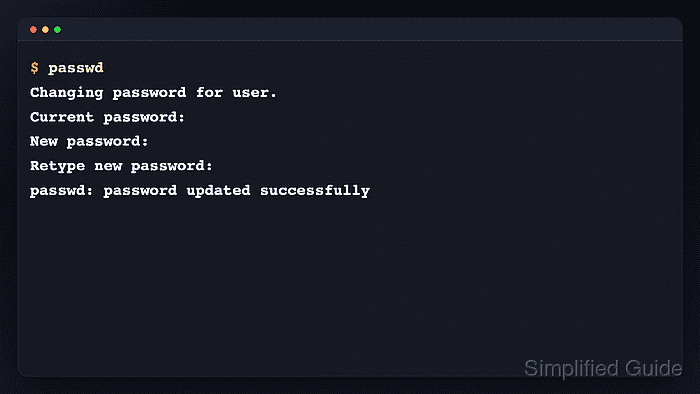
$ passwd
Changing password for audituser.
Current password:
New password:
Retype new password:
passwd: password updated successfully
Password input stays hidden while typing; normal terminals do not echo characters or placeholder marks at the prompts.
- Confirm the target account before an administrator reset.
$ getent passwd audituser
audituser:x:1001:1001::/home/audituser:/bin/bash
Replace audituser with the real login name. If this resolves a directory-backed account, use the identity provider's password-reset process instead.
- Reset the local account password as an administrator.
$ sudo passwd audituser
New password:
Retype new password:
passwd: password updated successfully
This immediately replaces the password hash for that account, but it does not end active sessions, remove saved SSH keys, or revoke other tokens.
Related: How to force a user to log out in Linux - Check the account password status after the reset.
$ sudo passwd --status audituser
audituser P 2026-06-13 0 99999 7 -1
The P status means the account has a usable password hash. The date is the last password change recorded in the local shadow database.
- Expire an administrator-set temporary password when the user must choose a private replacement at next login.
$ sudo passwd --expire audituser
passwd: password changed.
Use this only for a temporary handoff password. For login-prompt proof and full aging checks, follow the expiry procedure.
Related: How to force a Linux user to change their password at next login - Verify that the temporary password now requires a change.
$ sudo passwd --status audituser
audituser P 1970-01-01 0 99999 7 -1
The 1970-01-01 last-change value appears after --expire marks the password for immediate replacement.

Mohd Shakir Zakaria is a cloud architect with deep roots in software development and open-source advocacy. Certified in AWS, Red Hat, VMware, ITIL, and Linux, he specializes in designing and managing robust cloud and on-premises infrastructures.


