How to change system time zone in Linux
A server with the wrong time zone can make local log entries, cron runs, backups, and monitoring alerts look as if they happened at the wrong moment. Changing the system-wide Linux time zone keeps wall-clock output aligned with the place or operations team that reads those records, while UTC remains the reference point for the system clock.
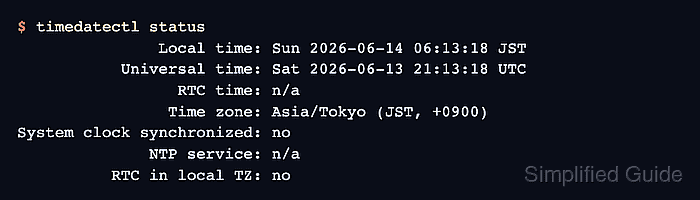
On systemd-based Linux distributions, timedatectl reads and changes the system time settings. The set-timezone command updates /etc/localtime so it points at the selected entry under /usr/share/zoneinfo, and timedatectl status shows both local time and universal time in one summary.
Use the exact Region/City identifier from timedatectl, such as Asia/Tokyo, instead of a short abbreviation unless that abbreviation appears in the system list. Changing the time zone affects local-time schedules and timestamps, so check maintenance windows before changing hosts that run cron jobs, log rotation, or time-sensitive batch work.
Steps to change system time zone in Linux:
- Check the current time settings.
$ timedatectl status
               Local time: Sat 2026-06-13 21:13:18 UTC
           Universal time: Sat 2026-06-13 21:13:18 UTC
                 RTC time: n/a
                Time zone: Etc/UTC (UTC, +0000)
System clock synchronized: no
              NTP service: n/a
          RTC in local TZ: no
The Time zone line is the field to change. The synchronization lines may show yes, no, active, inactive, or n/a depending on the host and its time-sync service.
- List the installed time zone identifiers.
$ timedatectl --no-pager list-timezones
Africa/Abidjan
Africa/Accra
Africa/Addis_Ababa
Africa/Algiers
Africa/Asmara
##### snipped #####
Asia/Kuala_Lumpur
Asia/Kuching
Asia/Kuwait
Asia/Macau
Asia/Magadan
##### snipped #####
Asia/Taipei
Asia/Tashkent
Asia/Tbilisi
Asia/Tehran
Asia/Tel_Aviv
Asia/Thimphu
Asia/Tokyo
Asia/Tomsk
Asia/Ulaanbaatar
##### snipped #####
UTC
The list comes from the installed /usr/share/zoneinfo database. Minimal systems that show only UTC may need their distribution's tzdata package installed.
- Set the new system time zone.
$ sudo timedatectl set-timezone Asia/Tokyo
Choose the intended Region/City value before applying the change. A wrong time zone shifts local timestamps and can move local-time cron jobs to an unexpected wall-clock hour.
- Confirm the selected time zone.
$ timedatectl status
               Local time: Sun 2026-06-14 06:13:18 JST
           Universal time: Sat 2026-06-13 21:13:18 UTC
                 RTC time: n/a
                Time zone: Asia/Tokyo (JST, +0900)
System clock synchronized: no
              NTP service: n/a
          RTC in local TZ: no
Local time changed to JST while universal time stayed in UTC.
- Verify the /etc/localtime target.
$ readlink /etc/localtime
../usr/share/zoneinfo/Asia/Tokyo
The target should end with the same identifier passed to timedatectl set-timezone. Recent Debian systems may not keep an /etc/timezone file, so /etc/localtime and timedatectl are the stronger checks.
- Check the local time shown to shell commands.
$ date
Sun Jun 14 06:13:18 JST 2026