Clock drift on a Linux host can make logs disagree, scheduled jobs run at surprising local times, and time-sensitive authentication fail even though the application itself is working. Enabling NTP synchronization keeps the system clock tied to an external time source instead of relying only on the machine's hardware clock.
On systemd-based distributions, timedatectl controls whether network time synchronization is enabled, and systemd-timesyncd provides a small client for hosts that only need to follow upstream time sources. systemd-timesyncd implements SNTP rather than a full NTP server stack, so it fits ordinary client synchronization but not hosts that must serve downstream clients or use advanced clock discipline.
Use one time client per host. If chronyd or ntpd already manages time on the system, keep that daemon or migrate deliberately instead of enabling systemd-timesyncd alongside it. Custom site sources should be saved as a drop-in under /etc/systemd/timesyncd.conf.d so package defaults remain intact.
Steps to synchronize Linux time with NTP:
- List installed time synchronization units.
$ systemctl list-unit-files systemd-timesyncd.service chronyd.service ntp.service --no-pager
UNIT FILE                 STATE   PRESET
systemd-timesyncd.service enabled enabled

1 unit files listed.
If chronyd.service or ntp.service appears and should manage the host, keep using that daemon or stop and disable it before enabling systemd-timesyncd. Only one time client should adjust the system clock.
- Enable network time synchronization.
$ sudo timedatectl set-ntp true
- Confirm that timedatectl reports an active time client.
$ timedatectl status
               Local time: Tue 2026-06-09 12:18:44 UTC
           Universal time: Tue 2026-06-09 12:18:44 UTC
                 RTC time: Tue 2026-06-09 12:18:44
                Time zone: Etc/UTC (UTC, +0000)
System clock synchronized: yes
              NTP service: active
          RTC in local TZ: no
System clock synchronized can remain no until the first successful poll. Check the selected source in a later step before trusting the clock.
- Create the local drop-in directory when site-specific time sources are required.
$ sudo install -d -m 0755 /etc/systemd/timesyncd.conf.d
- Save the local systemd-timesyncd source list.
$ sudoedit /etc/systemd/timesyncd.conf.d/60-local-sources.conf
[Time]
NTP=time1.example.net time2.example.net
FallbackNTP=ntp.ubuntu.com
NTP= lists preferred sources in order, while FallbackNTP= is used only when no preferred or per-link source is available.
Tool: NTP Config Generator - Restart systemd-timesyncd after changing its source list.
$ sudo systemctl restart systemd-timesyncd.service
- Check the selected time source.
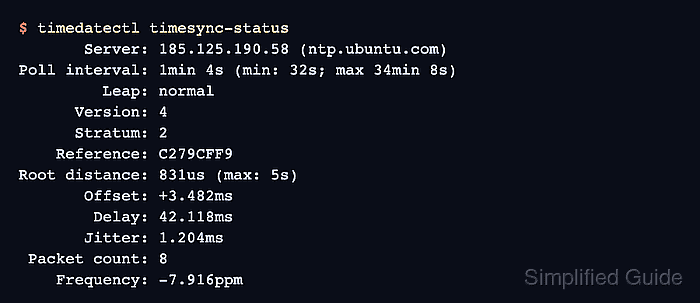
$ timedatectl timesync-status
       Server: 185.125.190.58 (ntp.ubuntu.com)
Poll interval: 1min 4s (min: 32s; max 34min 8s)
         Leap: normal
      Version: 4
      Stratum: 2
    Reference: C279CFF9
Root distance: 831us (max: 5s)
       Offset: +3.482ms
        Delay: 42.118ms
       Jitter: 1.204ms
 Packet count: 8
    Frequency: -7.916ppm
Server identifies the source currently used by systemd-timesyncd. Root distance must stay below the configured maximum, and Offset should remain within the tolerance expected for the host's workloads.
- Review recent synchronization logs when the clock does not synchronize.
$ journalctl --unit=systemd-timesyncd --since "15 minutes ago" --no-pager
Jun 09 12:17:31 server systemd[1]: Started systemd-timesyncd.service - Network Time Synchronization.
Jun 09 12:17:32 server systemd-timesyncd[742]: Contacted time server 185.125.190.58:123 (ntp.ubuntu.com).
Jun 09 12:17:32 server systemd-timesyncd[742]: Initial clock synchronization to Tue 2026-06-09 12:17:32.251 UTC.
If the logs show repeated contact failures, check DNS resolution, routing, firewall policy, and outbound UDP port 123 to the configured time sources.

Mohd Shakir Zakaria is a cloud architect with deep roots in software development and open-source advocacy. Certified in AWS, Red Hat, VMware, ITIL, and Linux, he specializes in designing and managing robust cloud and on-premises infrastructures.


