How to free disk space on Linux
A full Linux filesystem can stop package installs, log writes, uploads, queues, and database work even when the rest of the host still looks healthy. Safe cleanup starts by proving which mounted filesystem is out of space, then removing only data that is known to be disposable.
The cleanup path should stay on the affected mount point. df identifies the filesystem behind the failing path, du -x measures directory usage without crossing into other mounts, and find -xdev lists large files from the same filesystem so the removal target is based on evidence.
The examples use /var because logs, package caches, journals, and application state often collect there on servers. Replace /var with the path that is actually failing, stop before deleting live database files, container layers, virtual disks, or application-owned data, and use the application's own retention or backup process when the large path belongs to a running workload.
Steps to free disk space on Linux:
- Check the filesystem that contains the low-space path.
$ df -hP /var
Filesystem      Size  Used Avail Use% Mounted on
/dev/vda2        59G   54G  2.6G  96% /
The Mounted on value is the filesystem to recheck later. Use a path on the affected mount, such as /var, /home, /srv/data, or the directory named in the failing application error.
- Measure top-level usage under the problem path.
$ sudo du -xhd1 /var
4.0K	/var/mail
48M	/var/backups
1.1G	/var/log
4.8G	/var/cache
1.9G	/var/lib
7.9G	/var
-x keeps du on the same filesystem instead of counting mounted filesystems below the path. Start with the largest entry from this output.
Related: How to find the largest directories in Linux - Drill into the largest cleanup candidate.
$ sudo du -xhd1 /var/cache
1.4G	/var/cache/apt
3.1G	/var/cache/example-app
4.8G	/var/cache
Move down one level at a time until the output points to a cache, export, installer, rotated log set, or application directory that can be reviewed safely.
- List large regular files inside the candidate directory.
$ sudo find /var/cache -xdev -type f -size +100M -ls
2752735  122880 -rw-r--r--   1 root root 125829120 Jun 13 09:30 /var/cache/example-app/export.tar
2752784  262144 -rw-r--r--   1 root root 268435456 Jun 13 09:31 /var/cache/example-app/objects.cache
Adjust /var/cache and -size +100M to match the directory and threshold from the previous checks.
Related: How to find the largest files in Linux - Remove one confirmed disposable file.
$ sudo rm -f /var/cache/example-app/export.tar
Move the file to another filesystem instead of deleting it when the data must be kept but does not need to stay on the full mount.
rm removes the file immediately. Verify the full path, owner, and application impact before using sudo.
- Check the APT package archive cache when /var/cache/apt is one of the large paths.
$ sudo du -sh /var/cache/apt/archives
1.4G	/var/cache/apt/archives
This step applies to Debian and Ubuntu package caches. Skip it when the earlier du output does not show meaningful usage under /var/cache/apt.
- Clear downloaded APT package files.
$ sudo apt-get clean
apt-get clean removes retrieved package files from /var/cache/apt/archives and leaves installed packages in place.
- Check retained systemd journal size when /var/log is one of the large paths.
$ sudo journalctl --disk-usage
Archived and active journals take up 1.2G in the file system.
A large journal total should be compared with other log directories before cleanup.
Related: How to check systemd journal size in Linux - Rotate and vacuum old journal files only when log retention can be reduced.
$ sudo journalctl --rotate --vacuum-time=7d
Vacuuming done, freed 824.0M of archived journals from /var/log/journal.
Vacuuming the journal removes older log history that may be needed for troubleshooting, auditing, or incident review.
- Check for deleted files that are still held open when visible cleanup does not return space.
$ sudo lsof +aL1 /
COMMAND  PID USER FD   TYPE DEVICE SIZE/OFF NLINK    NODE NAME
java    2146 app  9w   REG  253,2 838860800     0 2762737 /var/log/example-app/current.log (deleted)
Replace / with the mount point from the first step when the full filesystem is not root. Space from a deleted file is released only after the process closes it, usually through a safe service reload, restart, or exit.
Related: How to check deleted files still open in Linux - Recheck the filesystem after cleanup.
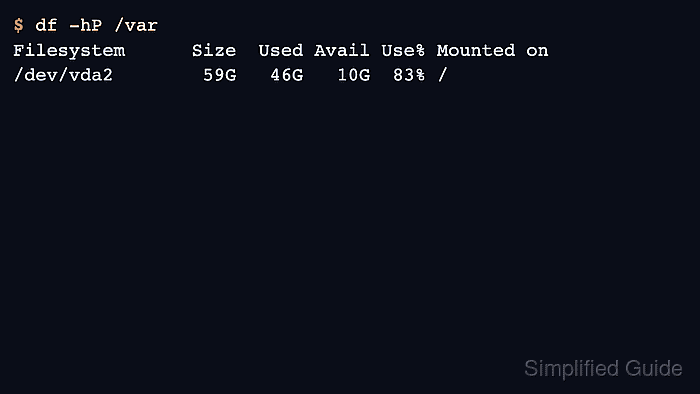
$ df -hP /var
Filesystem      Size  Used Avail Use% Mounted on
/dev/vda2        59G   46G   10G  83% /
If Use% barely changes, stop deleting files and return to the investigation path for deleted-open files, snapshots, reserved blocks, copy-on-write metadata, or usage elsewhere on the same filesystem.
Related: How to investigate low disk space in Linux