How to check 3D acceleration in Linux
Desktop stutter, slow OpenGL applications, and virtual-machine graphics problems often start with the question of whether the current Linux session is using a GPU renderer or falling back to software rendering on the CPU.
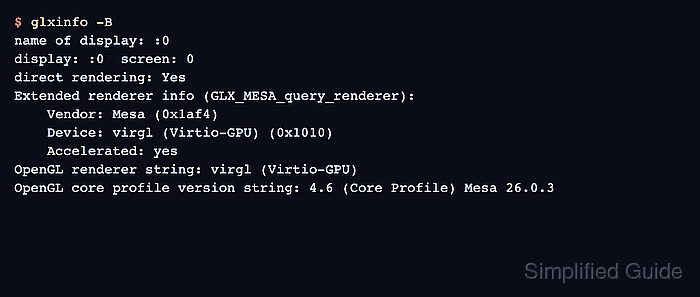
The glxinfo -B summary reads the active GLX path and reports the renderer, direct-rendering state, and Mesa acceleration flag for the display used by the terminal. On Wayland desktops, many systems still answer this check through Xwayland, so the result proves the GLX compatibility path rather than every graphics API on the machine.
Run the checks from the local graphical login that needs testing. A text console, headless SSH session, container, or Xvfb display can return a renderer such as llvmpipe even when the physical host has a capable GPU. On Debian and Ubuntu, the mesa-utils package provides both glxinfo and glxgears.
Steps to check 3D acceleration in Linux:
- Open a terminal inside the desktop session being tested.
If glxinfo returns Error: unable to open display, the command is not running with access to the active graphical display.
- Install the Mesa utility commands on Debian or Ubuntu.
$ sudo apt install mesa-utils
Use the equivalent distro package that provides glxinfo and glxgears on non-APT systems.
- Show the active OpenGL renderer with glxinfo -B.
$ glxinfo -B
name of display: :0
display: :0  screen: 0
direct rendering: Yes
Extended renderer info (GLX_MESA_query_renderer):
    Vendor: Mesa (0x1af4)
    Device: virgl (Virtio-GPU) (0x1010)
    Accelerated: yes
##### snipped #####
OpenGL renderer string: virgl (Virtio-GPU)
OpenGL core profile version string: 4.6 (Core Profile) Mesa 26.0.3
Physical systems usually show an AMD, Intel, or NVIDIA renderer. Virtual machines often show a virtual GPU renderer such as virgl, Virtio-GPU, or a vendor-specific guest graphics adapter.
- Reject software-rendering output when the renderer names llvmpipe, softpipe, or Software Rasterizer.
direct rendering: Yes
Extended renderer info (GLX_MESA_query_renderer):
    Device: llvmpipe (LLVM 21.1.8, 128 bits)
    Accelerated: no
OpenGL renderer string: llvmpipe (LLVM 21.1.8, 128 bits)
direct rendering alone is not enough. Treat the session as accelerated only when Accelerated is yes and the renderer names real or virtual GPU hardware.
- Start glxgears from the same terminal.
$ glxgears
Running synchronized to the vertical refresh.  The framerate should be
approximately the same as the monitor refresh rate.
3273 frames in 5.0 seconds = 654.527 FPS
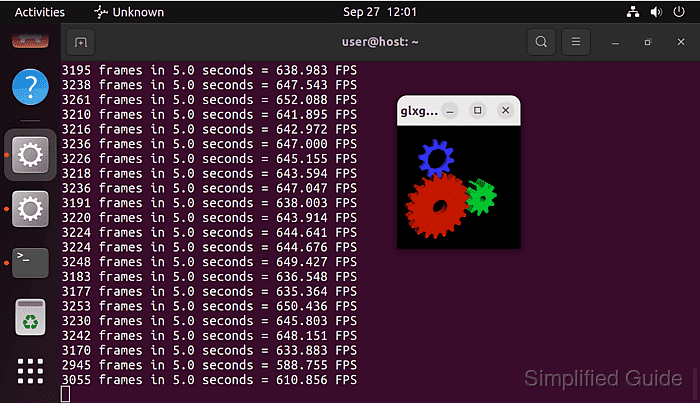
glxgears is a display sanity check, not a benchmark. Frame-rate values change with vertical sync, refresh rate, compositor settings, and virtualization.
- Stop glxgears after the gears window animates and the terminal prints a sample.
Press Ctrl+C in the same terminal to exit.
- Confirm the combined result.
3D acceleration is working for this GLX desktop path when glxinfo -B reports Accelerated: yes with a hardware or virtual GPU renderer, and glxgears opens an animated window in the same session.