How to open a shell in a Kubernetes pod
A Kubernetes pod often hides the runtime state that matters during a failed rollout or application incident. kubectl exec reaches a running container through the API server, so an operator can inspect files, environment variables, DNS behavior, and process context from the same place the workload runs.
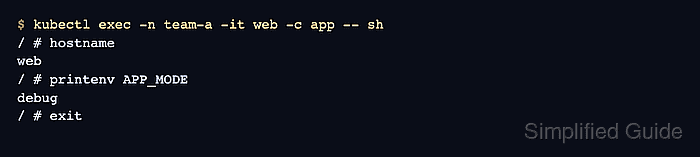
kubectl exec separates Kubernetes-side selection from the program launched in the container. Flags before -- choose the namespace, pod, and container, while the command after -- runs inside the container. Use -c when the pod has more than one container so kubectl does not attach to the wrong process image.
Shell access depends on both RBAC permission and the container image. Minimal or distroless images may not include sh or bash, and production shell sessions can change files or trigger application behavior while they are attached.
Steps to open a shell in a Kubernetes pod with kubectl:
- List pods in the target namespace.
$ kubectl get pods -n team-a
NAME   READY   STATUS    RESTARTS   AGE
web    2/2     Running   0          16s
- Check the container names when the pod might have more than one container.
$ kubectl get pod web -n team-a -o jsonpath='{.spec.containers[*].name}'
app sidecar
Use -c with the container name when this output lists more than one container.
- Open an interactive shell in the selected container.
$ kubectl exec -n team-a -it web -c app -- sh
/ # hostname
web
/ # printenv APP_MODE
debug
/ # exit
Run only the checks needed for the incident or maintenance task. Commands inside the shell run with the container's filesystem, environment, and service account context.
If the image does not include sh or bash, attach a debug container instead of changing the application image only for troubleshooting.
Related: How to debug a Kubernetes pod with an ephemeral container - Run a direct command through the same container when an interactive prompt is not needed.
$ kubectl exec -n team-a web -c app -- printenv APP_MODE
debug
Omit -t for scripts, CI jobs, and saved command evidence where no terminal is attached. Keep -it for a live shell session in a terminal.