Some Kubernetes pods run images that do not include a shell, process tools, or network utilities. An ephemeral container lets an operator add a temporary debugging container to a running pod without rebuilding the application image or logging in to the node.
kubectl debug writes to the pod's ephemeralContainers field. The debug container can share the pod's namespaces and, when the runtime supports targeting, can inspect the process namespace of a specific existing container.
Ephemeral containers are for diagnosis, not permanent workload changes. They are not restarted like regular containers, cannot define ports or probes, and cannot be removed from the pod after they are added; close the debug process when finished and recreate the workload pod if the debug record must disappear.
Related: How to open a shell in a Kubernetes pod
Related: How to view Kubernetes pod logs
Related: How to debug a Kubernetes node with kubectl
Steps to debug a Kubernetes pod with an ephemeral container:
- Identify the target container inside the pod.
$ kubectl get pod -n app-prod web -o jsonpath='{.spec.containers[*].name}{"\n"}'
web
Use the namespace that owns the pod. If the pod has more than one application container, choose the container whose process namespace or runtime context needs inspection.
- Add an ephemeral debug container to the pod.
$ kubectl debug -n app-prod pod/web --image=busybox:1.36 --target=web --container=debugger --profile=general --attach=false -- sleep 1h
Targeting container "web". If you don't see processes from this container it may be because the container runtime doesn't support this feature.
--target asks the runtime to place the debugger in the target container's process namespace. --attach=false leaves the debug container running so focused commands can be executed against it.
- Confirm that Kubernetes recorded the ephemeral container.
$ kubectl get pod -n app-prod web -o jsonpath='{.spec.ephemeralContainers[*].name}{"\n"}' debugger - Run a diagnostic command from the debug container.
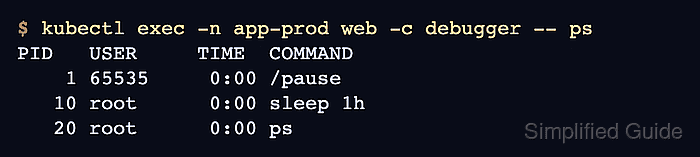
$ kubectl exec -n app-prod web -c debugger -- ps
PID   USER     TIME  COMMAND
    1 65535     0:00 /pause
   10 root      0:00 sleep 1h
   20 root      0:00 ps
The pause process belongs to the original pod container. If only the debug command appears, the container runtime may not support process namespace targeting for --target.
- Inspect the pod description when the debug container needs state or event detail.
$ kubectl describe pod -n app-prod web
Name:             web
Namespace:        app-prod
Status:           Running
##### snipped #####
Ephemeral Containers:
  debugger:
    Image:         busybox:1.36
    Command:
      sleep
      1h
    State:          Running
##### snipped #####
Events:
  Type    Reason   From     Message
  ----    ------   ----     -------
  Normal  Started  kubelet  spec.ephemeralContainers{debugger}: Container started
If the debug container is blocked by image pull, admission, or runtime policy, inspect the event message before changing the pod or namespace policy.
Related: How to check Kubernetes events - Stop the long-running debug command after the inspection is finished.
$ kubectl exec -n app-prod web -c debugger -- kill 1
For an attached shell session, exit the shell instead of killing the sleep command used in this non-interactive example.
- Verify that the debug container is no longer running.
$ kubectl get pod -n app-prod web -o jsonpath='{.status.ephemeralContainerStatuses[?(@.name=="debugger")].state.terminated.reason}{"\n"}'
Error
A stopped ephemeral container still remains in the pod's debug history. Recreate the pod from its owning workload only when that record must be removed.

Mohd Shakir Zakaria is a cloud architect with deep roots in software development and open-source advocacy. Certified in AWS, Red Hat, VMware, ITIL, and Linux, he specializes in designing and managing robust cloud and on-premises infrastructures.


