How to install JMeter on Ubuntu
Apache JMeter on Ubuntu gives QA engineers, developers, and operators a Linux client for building test plans and running repeatable load tests. Installing the upstream JMeter release keeps the launcher, libraries, and examples aligned with Apache's distribution instead of depending on older distro package builds.
JMeter is a Java application, so the Ubuntu package manager still handles the runtime and download tools. The jmeter package in Ubuntu 26.04 is materially older than Apache's current 5.6.3 release, so the application itself comes from the Apache binary archive and is unpacked under /opt.
The finished install should expose jmeter on the shell PATH and print the JMeter version banner without Java or classpath errors. Use the GUI to create and debug test plans, then run saved .jmx files from the CLI for automation or repeatable load windows.
Related: How to check the Java runtime for JMeter
Related: How to start the JMeter GUI
Related: How to run a JMeter test from the command line
Steps to install JMeter on Ubuntu:
- Open a terminal with sudo privileges.
- Refresh the package index.
$ sudo apt update
- Install the Java runtime and download tools.
$ sudo apt install --assume-yes openjdk-21-jre-headless ca-certificates curl tar
Apache JMeter 5.6.3 requires Java 8 or newer. OpenJDK 21 is available in current Ubuntu 26.04 repositories and matches the validated runtime for this page.
Related: How to check the Java runtime for JMeter - Confirm that Java starts from the shell.
$ java -version
openjdk version "21.0.11" 2026-04-21
OpenJDK Runtime Environment (build 21.0.11+10-1-26.04.2-Ubuntu)
OpenJDK 64-Bit Server VM (build 21.0.11+10-1-26.04.2-Ubuntu, mixed mode, sharing)
- Download the JMeter binary archive.
$ curl --fail --location --remote-name https://dlcdn.apache.org/jmeter/binaries/apache-jmeter-5.6.3.tgz
When Apache publishes a newer release, update 5.6.3 in the archive URL, checksum URL, extraction path, and symlink target together.
- Download the matching SHA512 checksum file.
$ curl --fail --location --remote-name https://dlcdn.apache.org/jmeter/binaries/apache-jmeter-5.6.3.tgz.sha512
- Verify the downloaded archive before extracting it.
$ sha512sum --check apache-jmeter-5.6.3.tgz.sha512
apache-jmeter-5.6.3.tgz: OK
Do not extract or run the archive if the checksum command reports a mismatch.
- Extract JMeter under /opt.
$ sudo tar --extract --gzip --file apache-jmeter-5.6.3.tgz --directory /opt
- Link the JMeter launcher into /usr/local/bin.
$ sudo ln --symbolic --force /opt/apache-jmeter-5.6.3/bin/jmeter /usr/local/bin/jmeter
The link keeps the official release directory intact while making jmeter available to normal shells.
- Confirm that the shell finds the launcher.
$ command -v jmeter
/usr/local/bin/jmeter
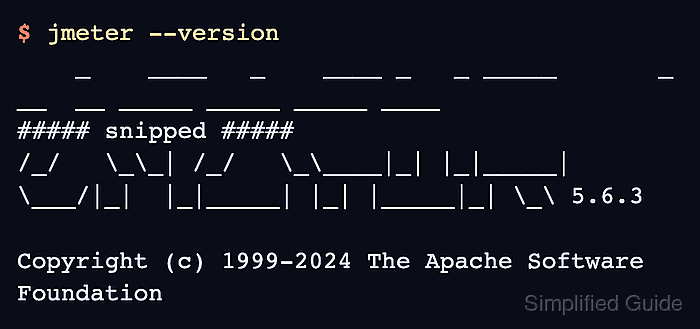
- Verify that JMeter starts and prints its version banner.
$ jmeter --version
    _    ____   _    ____ _   _ _____       _ __  __ _____ _____ _____ ____
##### snipped #####
/_/   \_\_| /_/   \_\____|_| |_|_____|  \___/|_|  |_|_____| |_| |_____|_| \_\ 5.6.3

Copyright (c) 1999-2024 The Apache Software Foundation
Startup warnings about plugin package scanning or first-run preferences can appear before the banner. The install is ready when the banner shows the expected JMeter version instead of a Java or classpath error.
Related: How to start the JMeter GUI
Related: How to run a JMeter test from the command line - Remove the downloaded archive and checksum file.
$ rm apache-jmeter-5.6.3.tgz apache-jmeter-5.6.3.tgz.sha512
This cleanup removes only the download files from the current directory. It does not remove /opt/apache-jmeter-5.6.3 or the /usr/local/bin/jmeter symlink.