How to disable heavy JMeter listeners before a load test
Visual JMeter listeners help during a small debug run, but they become expensive when the same plan is scaled for a load window. View Results Tree, Graph Results, and similar GUI listeners can keep sample details in the client process and compete with the load engine for memory and CPU.
A load-ready plan should keep samplers, assertions, timers, configuration elements, and any intentional result writers while removing visual debugging surfaces. Running the plan in CLI mode with -l writes the raw .jtl result file without needing GUI listener panels.
Keep a separate debug copy when listener details are still needed, then save a load-run copy with heavy listeners disabled or deleted. A greyed-out listener in the tree and a CLI run that creates .jtl rows show that the plan is ready for the load run.
Steps to disable heavy JMeter listeners before a load test:
- Open the debugged test plan in the JMeter GUI.
- Find visual listeners that were added for debugging under the test plan, thread group, controller, or sampler.
View Results Tree, Graph Results, and Assertion Results are common debug listeners. Keep a Backend Listener or CLI result file only when it is part of the load-run evidence.
- Disable each heavy visual listener.
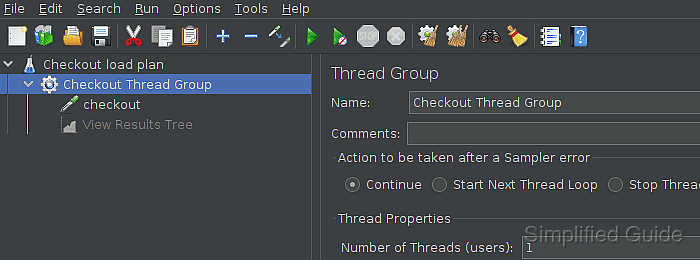
View Results Tree and other visual listeners can consume memory and CPU during a load test. Delete the listener instead when the debug data is no longer needed.
- Save the load-ready plan under a separate filename.
Use a separate file such as checkout-load.jmx when the debug copy still needs View Results Tree enabled for a small troubleshooting run.
- Run the saved plan in JMeter CLI mode with a fresh .jtl result file.
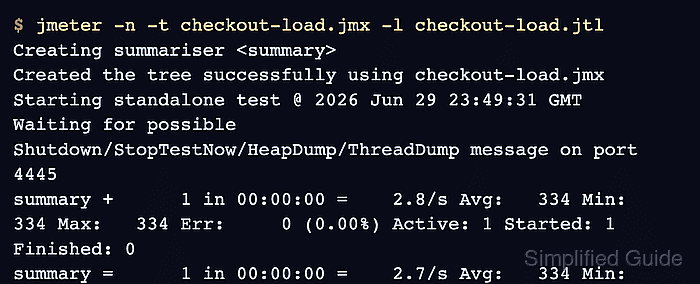
$ jmeter -n -t checkout-load.jmx -l checkout-load.jtl
Creating summariser <summary>
Created the tree successfully using checkout-load.jmx
Starting standalone test @ 2026 Jun 29 23:49:31 GMT
Waiting for possible Shutdown/StopTestNow/HeapDump/ThreadDump message on port 4445
summary +      1 in 00:00:00 =    2.8/s Avg:   334 Min:   334 Max:   334 Err:     0 (0.00%) Active: 1 Started: 1 Finished: 0
summary =      1 in 00:00:00 =    2.7/s Avg:   334 Min:   334 Max:   334 Err:     0 (0.00%)
Tidying up ...
... end of run
-n runs without the GUI, -t names the test plan, and -l writes the raw sample results. Use a new result filename for each load run.
- Check the result file for completed samples.
$ cat checkout-load.jtl
timeStamp,elapsed,label,responseCode,responseMessage,threadName,dataType,success,failureMessage,bytes,sentBytes,grpThreads,allThreads,URL,Latency,IdleTime,Connect
1782776971853,334,checkout,200,OK,Checkout Thread Group 1-1,text,true,,22,0,1,1,null,0,0,0
The success column should contain true for passing samples. Any false row needs sampler, assertion, or environment review before the load run is accepted.
Related: How to configure JMeter JTL result columns