JMeter sampler failures can hide inside a response that still returns 200 OK. View Results Tree exposes each sample, assertion result, request view, response body, and variable probe during a one-user debug run, so the failing sampler can be corrected before the plan is scaled.
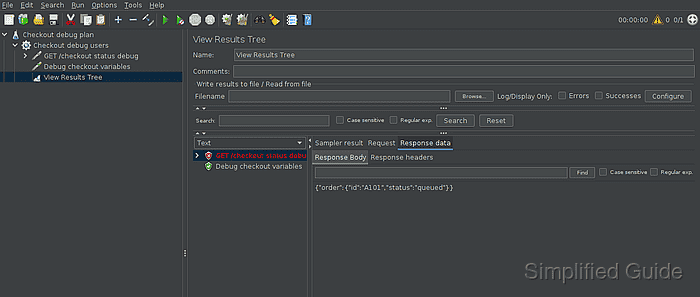
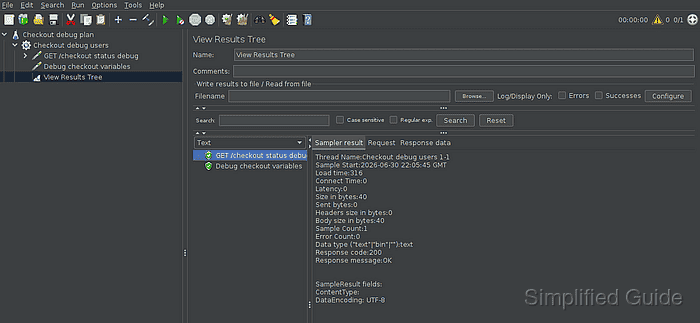
Use the listener on a validation copy of the test plan, not on the load-run copy. A red row marks a failed sampler or assertion, while the tabs on the right separate sampler metadata from the request and response content that caused the failure.
Pair View Results Tree with a Debug Sampler when extracted variables, functions, or property overrides may be part of the problem. Keep the run small while debugging, then disable or delete the visual listener and temporary sampler before saving the load-test version.
Steps to debug a JMeter sampler with View Results Tree:
- Open a validation copy of the test plan in the JMeter GUI.
- Reduce the debug scope to one user and one loop.
Number of Threads (users): 1
Loop Count: 1
Keep the debug run small enough to inspect individual samples without filling the GUI listener with load-test traffic.
- Add View Results Tree under the same temporary debug scope from Add → Listener → View Results Tree.
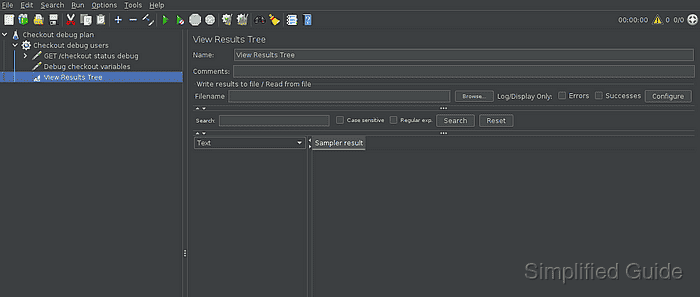
- Add a Debug Sampler after the sampler, extractor, or post-processor when variables may be involved.
Related: How to add a Debug Sampler in JMeter
- Start the one-user debug run from the JMeter toolbar.
- Select the red sampler row in View Results Tree.
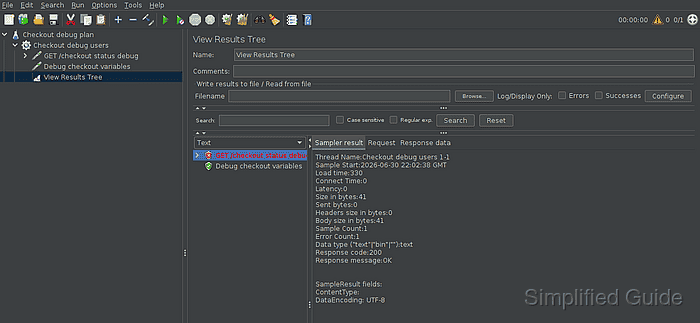
A sampler can show Response code 200 and still have Error Count 1 when an assertion fails the response content.
- Open Response data → Response Body for the failed sampler.
In this debug run, the response body contains \"status\":\"queued\" while the assertion expects \"status\":\"ready\".
- Select the Debug Sampler row when variable state may explain the mismatch.
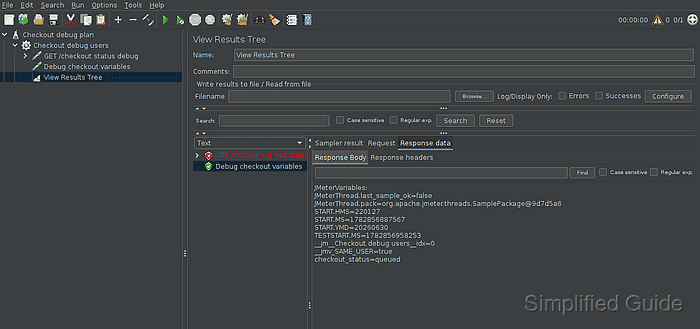
The Response Body pane lists the captured variable value, such as checkout_status=queued.
- Correct the sampler, extractor, assertion, or variable source that produced the mismatch.
- Rerun the one-user debug check and confirm the sampler row is green.
- Disable or delete View Results Tree and any temporary Debug Sampler before saving the load-run copy.
View Results Tree is for functional testing, debugging, and validation. It can consume memory and CPU when many samples are kept in the GUI.
Related: How to disable heavy JMeter listeners before a load test

Mohd Shakir Zakaria is a cloud architect with deep roots in software development and open-source advocacy. Certified in AWS, Red Hat, VMware, ITIL, and Linux, he specializes in designing and managing robust cloud and on-premises infrastructures.


