How to toggle a CSS class with JavaScript
CSS classes often carry visible component state such as selected, expanded, hidden, or highlighted. Toggling one class from JavaScript keeps the behavior small while leaving color, spacing, and layout changes in CSS.
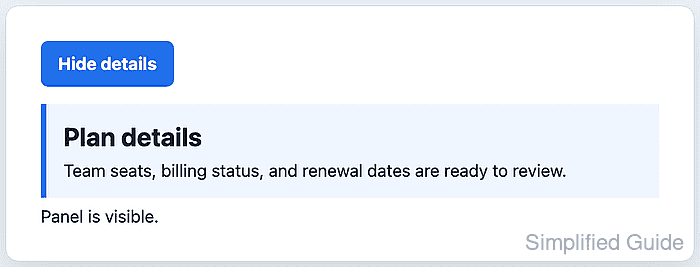
The classList property exposes an element's classes as a DOMTokenList, so scripts can add, remove, inspect, or toggle individual class names without rebuilding the whole class attribute string. Calling toggle(“is-visible”) adds the class when it is missing, removes it when it is present, and returns whether the class remains after the call.
A button can reveal and hide a details panel with that same state change. The CSS class controls the visible state, while aria-expanded, button text, and a status message keep the interaction state readable outside the visual styling.
Related: Select DOM elements with JavaScript
Related: Add a JavaScript event listener
Steps to toggle a CSS class with JavaScript:
- Add a button, target panel, and status message to the page.
- index.html
<button id="toggle-panel" type="button" aria-expanded="false" aria-controls="promo-panel">
  Show details
</button>

<section id="promo-panel" class="notice" aria-label="Account notice">
  <h2>Plan details</h2>
  <p>Team seats, billing status, and renewal dates are ready to review.</p>
</section>

<p id="toggle-status" role="status">Panel is hidden.</p>
The aria-controls value points from the button to the panel, and role=“status” lets assistive technology announce the changed state without moving focus.
- Add the default and active CSS states.
- styles.css
.notice {
  display: none;
  margin-top: 1rem;
  padding: 1rem;
  border-inline-start: 0.35rem solid #1f6feb;
  background: #eff6ff;
}

.notice.is-visible {
  display: block;
}
Keep presentation in CSS so the script only changes state. Use a page-specific class name such as is-open, is-selected, or is-visible to describe the state it controls.
- Select the button, panel, and status elements in JavaScript.
- toggle-panel.js
const toggleButton = document.querySelector("#toggle-panel");
const panel = document.querySelector("#promo-panel");
const status = document.querySelector("#toggle-status");
Check selectors against the real markup before adding the listener. A missing element produces a runtime error when the handler tries to use it.
Related: Select DOM elements with JavaScript - Add the click handler that toggles the active class.
- toggle-panel.js
toggleButton.addEventListener("click", () => {
  const isVisible = panel.classList.toggle("is-visible");

  toggleButton.setAttribute("aria-expanded", String(isVisible));
  toggleButton.textContent = isVisible ? "Hide details" : "Show details";
  status.textContent = isVisible ? "Panel is visible." : "Panel is hidden.";
});
The boolean returned by classList.toggle() reflects the final class state. Use classList.toggle(“is-visible”, shouldShow) instead when another condition already decides whether the class should be present.
Related: Add a JavaScript event listener - Load the stylesheet and deferred script from the HTML page.
- index.html
<link rel="stylesheet" href="styles.css">
<script src="toggle-panel.js" defer></script>
The defer attribute lets the browser parse the button and panel before the script runs its selectors.
- Open the page in a browser and click Show details.
- Confirm that the panel class and expanded state were added.
> document.querySelector("#promo-panel").classList.contains("is-visible") true > document.querySelector("#toggle-panel").getAttribute("aria-expanded") "true" > getComputedStyle(document.querySelector("#promo-panel")).display "block" - Click Hide details.
- Confirm that the class was removed and the panel is hidden again.
> document.querySelector("#promo-panel").classList.contains("is-visible")
false
> getComputedStyle(document.querySelector("#promo-panel")).display
"none"