How to troubleshoot a Java systemd service
A Java service that fails under systemd usually leaves two different signals: systemd records whether the process could be executed, and the Java process records its own startup errors after the JVM launches. Start with the service state and journal before changing heap flags, environment variables, or application files, because a wrong launcher path or working directory can fail before Java reads any application configuration.
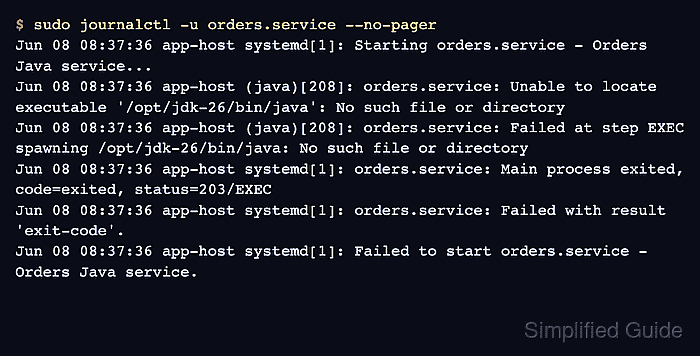
The systemd side of the failure is controlled by the loaded unit, any drop-in files, the service user, the working directory, and the exact ExecStart command. A status=203/EXEC result means systemd could not execute the configured command; Java exceptions, invalid JVM options, and missing classpath entries appear only after the Java binary starts.
The example uses orders.service and a broken Java path to show the diagnostic loop. Replace the service name, JAR path, and startup message with the failing service on the host, keep production secrets out of copied unit files or screenshots, and apply the same sequence to environment-file and working-directory failures by fixing the line named by systemctl or the journal.
Related: How to create a systemd service for a Java app
Related: How to find Java processes on Linux
Related: How to set JAVA_HOME on Linux
Steps to troubleshoot a Java systemd service:
- Check the current service state and note the first systemd-level failure code.
$ sudo systemctl status orders.service --no-pager --full
● orders.service - Orders Java service
     Loaded: loaded (/etc/systemd/system/orders.service; disabled; preset: enabled)
     Active: activating (auto-restart) (Result: exit-code) since Mon 2026-06-08 08:37:36 UTC; 57ms ago
    Process: 208 ExecStart=/opt/jdk-26/bin/java -jar /opt/orders/orders.jar (code=exited, status=203/EXEC)
   Main PID: 208 (code=exited, status=203/EXEC)
status=203/EXEC points to the command execution layer, not to application code inside the JAR. If the service shows a Java stack trace or status=1/FAILURE instead, the Java binary started and the next clue is usually in the application log or journal output.
- Read the service journal for the line that names the failing path or JVM error.
$ sudo journalctl -u orders.service --no-pager
Jun 08 08:37:36 app-host systemd[1]: Starting orders.service - Orders Java service...
Jun 08 08:37:36 app-host (java)[208]: orders.service: Unable to locate executable '/opt/jdk-26/bin/java': No such file or directory
Jun 08 08:37:36 app-host (java)[208]: orders.service: Failed at step EXEC spawning /opt/jdk-26/bin/java: No such file or directory
Jun 08 08:37:36 app-host systemd[1]: orders.service: Main process exited, code=exited, status=203/EXEC
Jun 08 08:37:36 app-host systemd[1]: orders.service: Failed with result 'exit-code'.
Jun 08 08:37:36 app-host systemd[1]: Failed to start orders.service - Orders Java service.
Use sudo journalctl -xeu orders.service when the failure is buried among repeated restarts and you need extra context from the current boot. Avoid clearing the failed state until the first failure message has been captured.
- Inspect the loaded unit exactly as systemd is using it.
$ sudo systemctl cat orders.service --no-pager
# /etc/systemd/system/orders.service
[Unit]
Description=Orders Java service

[Service]
Type=exec
User=orders
Group=orders
WorkingDirectory=/opt/orders
ExecStart=/opt/jdk-26/bin/java -jar /opt/orders/orders.jar
Restart=on-failure
RestartSec=5
StandardOutput=journal
StandardError=journal

[Install]
WantedBy=multi-user.target
systemctl cat includes drop-in files after the main unit, so it catches overrides that are not visible when only /etc/systemd/system/orders.service is opened in an editor.
- Ask systemd to validate the unit file and confirm the same Java path problem.
$ sudo systemd-analyze verify /etc/systemd/system/orders.service
orders.service: Command /opt/jdk-26/bin/java is not executable: No such file or directory
A successful systemd-analyze verify run returns no output. It can catch unit syntax errors, missing executables, bad users, and invalid directive values before another restart attempt.
- Find the Java launcher path that exists on the host.
$ command -v java
/usr/bin/java
If the service deliberately uses a private JDK, check that the path belongs to the installed runtime and that the service user can execute it. For units that build ExecStart from JAVA_HOME or an EnvironmentFile, inspect the expanded path before editing the unit.
Related: How to set JAVA_HOME on Linux
- Edit the unit or override so ExecStart uses the valid Java path and the final JAR location.
- /etc/systemd/system/orders.service
[Service]
Type=exec
User=orders
Group=orders
WorkingDirectory=/opt/orders
ExecStart=/usr/bin/java -jar /opt/orders/orders.jar
Restart=on-failure
RestartSec=5
StandardOutput=journal
StandardError=journal
Do not paste database passwords, API tokens, or private keys into a unit file while troubleshooting. If the Java service needs secrets, keep them in the application's secret store, a restricted environment file, or a systemd credential instead of copying them into support notes or screenshots.
- Validate the corrected unit, reload systemd, and restart the service.
$ sudo systemd-analyze verify /etc/systemd/system/orders.service
$ sudo systemctl daemon-reload
$ sudo systemctl restart orders.service
The first command should return no output after the bad Java path is fixed. The reload is required because systemd keeps an in-memory copy of unit files.
- Confirm that the service now runs under the expected Java command.
$ sudo systemctl status orders.service --no-pager --full
● orders.service - Orders Java service
     Loaded: loaded (/etc/systemd/system/orders.service; disabled; preset: enabled)
     Active: active (running) since Mon 2026-06-08 08:37:36 UTC; 2s ago
   Main PID: 269 (java)
      Tasks: 18 (limit: 14335)
     Memory: 54M (peak: 55.1M)
     CGroup: /system.slice/orders.service
             └─269 /usr/bin/java -jar /opt/orders/orders.jar

Jun 08 08:37:36 app-host systemd[1]: Started orders.service - Orders Java service.
Jun 08 08:37:36 app-host java[269]: orders started
The command line under CGroup should match the corrected ExecStart path. If the service is active but the application is still unreachable, continue with Java-level checks such as process discovery, thread dumps, heap settings, or application port logs instead of changing the unit again.