How to install InfluxDB 3 Core on Ubuntu
Installing InfluxDB 3 Core on Ubuntu from InfluxData's APT repository puts the influxdb3 server under APT package updates and systemd service management. This fits a VM or bare-metal host where the database should survive reboots, keep data on local storage by default, and run as an unprivileged service account.
The Linux package installs influxdb3-core, the influxdb3 CLI, a TOML configuration file, and influxdb3-core.service. The packaged configuration starts with file object storage and a local data directory, so a single-node server can start before any external object store is configured.
The systemd unit is enabled during installation but is not started by APT, so review the packaged configuration before the first start. The first local HTTP check can return 401 Unauthorized until an admin token exists; that still proves the listener is answering on port 8181.
Steps to install InfluxDB 3 Core on Ubuntu:
- Open a terminal with sudo privileges.
- Refresh the package index.
$ sudo apt update
- Install the repository setup tools.
$ sudo apt install --assume-yes ca-certificates curl gnupg
- Download the InfluxData archive signing key.
$ curl --fail --silent --show-error --location --output influxdata-archive.key https://repos.influxdata.com/influxdata-archive.key
- Check the key fingerprint.
$ gpg --show-keys --with-fingerprint influxdata-archive.key
pub   rsa4096 2023-01-18 [SC]
      24C9 75CB A61A 024E E1B6  3178 7C3D 5715 9FC2 F927
uid                      InfluxData Package Signing Key <support@influxdata.com>
sub   rsa4096 2023-01-18 [S] [expired: 2026-01-17]
sub   rsa4096 2025-07-10 [S] [expires: 2029-01-17]
Look for fingerprint 24C9 75CB A61A 024E E1B6 3178 7C3D 5715 9FC2 F927 before trusting the repository key. The downloaded archive key includes the newer signing subkey used by the package repository.
- Install the key for APT.
$ sudo gpg --dearmor --yes --output /usr/share/keyrings/influxdata-archive.gpg influxdata-archive.key
- Add the InfluxData repository.
$ echo "deb [signed-by=/usr/share/keyrings/influxdata-archive.gpg] https://repos.influxdata.com/debian stable main" | sudo tee /etc/apt/sources.list.d/influxdata.list
deb [signed-by=/usr/share/keyrings/influxdata-archive.gpg] https://repos.influxdata.com/debian stable main
- Refresh package metadata from the new repository.
$ sudo apt update
Get:1 https://repos.influxdata.com/debian stable InRelease [6922 B]
Get:2 https://repos.influxdata.com/debian stable/main amd64 Packages [27.6 kB]
##### snipped #####
Reading package lists... Done
- Install InfluxDB 3 Core.
$ sudo apt install --assume-yes influxdb3-core
The following NEW packages will be installed:
  influxdata-archive-keyring influxdb3-core
##### snipped #####
Setting up influxdb3-core (3.10.0-1) ...
- Remove the downloaded key file.
$ rm influxdata-archive.key
- Confirm that the influxdb3 binary is installed.
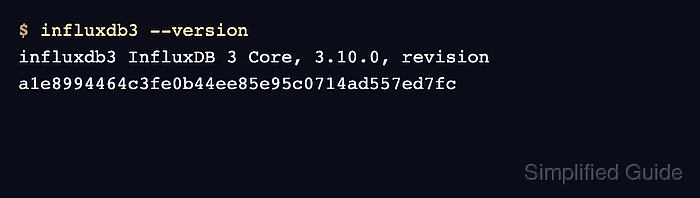
$ influxdb3 --version
influxdb3 InfluxDB 3 Core, 3.10.0, revision a1e8994464c3fe0b44ee85e95c0714ad557ed7fc
The exact version and revision change as InfluxData publishes new packages.
- Check the packaged configuration file.
$ ls -l /etc/influxdb3/influxdb3-core.conf
-rw-r--r-- 1 root influxdb3 19344 Jun 20 03:32 /etc/influxdb3/influxdb3-core.conf
Review this file before the first start if the node ID, local data directory, plugin directory, or object storage target should differ from the packaged defaults.
Related: How to configure InfluxDB 3 Core for systemd - Confirm that the packaged service is enabled for boot.
$ systemctl is-enabled influxdb3-core
enabled
- Start InfluxDB 3 Core.
$ sudo systemctl start influxdb3-core
The package does not start the service automatically so configuration can be reviewed first.
Related: How to manage the InfluxDB 3 Core service with systemctl - Confirm that the service is active.
$ systemctl is-active influxdb3-core
active
If the service does not become active, inspect sudo journalctl --unit influxdb3-core -n 100 --no-pager before changing the configuration again.
Related: How to manage the InfluxDB 3 Core service with systemctl - Check that the local HTTP listener answers.
$ curl --silent --include --request GET http://127.0.0.1:8181/ready
HTTP/1.1 401 Unauthorized
content-length: 46

{"error": "the request was not authenticated"}
A 401 Unauthorized response from InfluxDB is expected before token setup. Create an admin token before writing data or running authenticated queries.
Related: How to create an InfluxDB 3 Core admin token