How to identify image metadata with ImageMagick
Image metadata can explain why an upload was rejected, why a design handoff has the wrong dimensions, or whether a file still carries comments and format-specific properties before it is shared. ImageMagick can inspect those details from the terminal without opening the image in an editor.
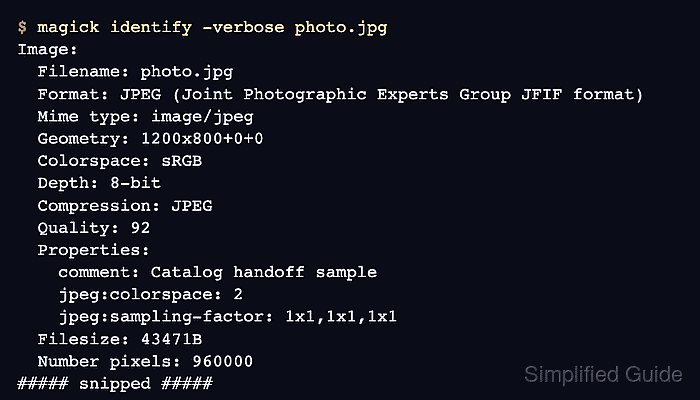
ImageMagick 7 uses the magick identify command to report image format, canvas size, colorspace, depth, compression, and other file characteristics. Adding -verbose expands the report to include channel statistics, properties, format-specific fields, and the pixel signature.
Metadata availability depends on the image format and the data embedded in the file. A JPEG from a camera may expose EXIF fields, while an exported or optimized image may only show basic format properties, comments, dimensions, and compression details.
Steps to identify image metadata with ImageMagick:
- Identify the image format and dimensions.
$ magick identify photo.jpg
photo.jpg JPEG 1200x800 1200x800+0+0 8-bit sRGB 43471B 0.000u 0:00.000
Replace photo.jpg with the image file being checked. Some systems still provide an ImageMagick 6 compatibility command named identify, but the ImageMagick 7 form is magick identify.
- Print the detailed metadata and properties report.
$ magick identify -verbose photo.jpg
Image:
  Filename: photo.jpg
  Format: JPEG (Joint Photographic Experts Group JFIF format)
  Mime type: image/jpeg
  Geometry: 1200x800+0+0
  Colorspace: sRGB
  Depth: 8-bit
##### snipped #####
  Compression: JPEG
  Quality: 92
  Orientation: Undefined
  Properties:
    comment: Catalog handoff sample
    jpeg:colorspace: 2
    jpeg:sampling-factor: 1x1,1x1,1x1
    signature: 02f005e619ed99dd84731574b244b3e72c3d9ab55e9046c88914dfb99cce08ec
  Filesize: 43471B
  Number pixels: 960000
##### snipped #####
The Properties section is where embedded comments and format-specific properties appear. The signature line is a hash of the pixel data, not an author, camera, or location field.
- Print only the fields needed for a handoff or script.
$ magick identify -format "format=%m\ngeometry=%wx%h\ncolorspace=%[colorspace]\ndepth=%z-bit\ncomment=%c\n" photo.jpg
format=JPEG
geometry=1200x800
colorspace=sRGB
depth=8-bit
comment=Catalog handoff sample
-format limits the output to selected fields, which keeps tickets, asset manifests, and batch logs from carrying the full verbose report.
- Check for exposed EXIF fields when the image should contain camera metadata.
$ magick identify -format "%[EXIF:*]" photo.jpg
No output means ImageMagick did not expose an EXIF property block for that file. Check the original image before assuming the camera, date, or location metadata was never present.
- Verify the field that matters before using or sharing the file.
$ magick identify -format "comment=%c\n" photo.jpg
comment=Catalog handoff sample
Use the narrowest field check for the decision being made, such as dimensions before a layout handoff, colorspace before print preparation, or comment and EXIF fields before publishing.