Image files can carry comments, camera fields, color profiles, and format-specific chunks that should not always travel with a public upload or client handoff. ImageMagick can write a cleaned copy from the terminal so the original remains available until the stripped output is checked.
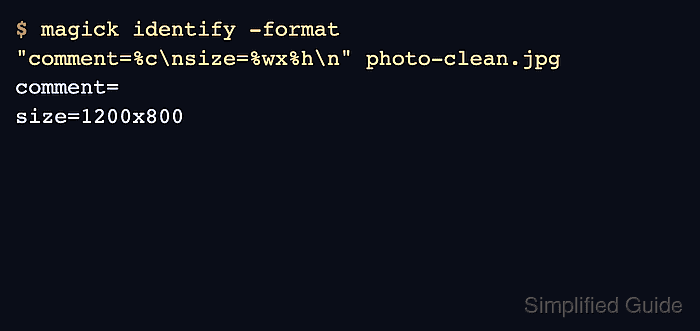
In ImageMagick 7, the magick command reads the source file, applies operators in order, and writes a separate output file when the final argument is a new filename. The -strip operator removes profiles, comments, and common metadata chunks, while -auto-orient applies any EXIF orientation before that metadata is removed.
Metadata removal can change more than privacy fields. Stripping an ICC profile removes embedded color-management data, and JPEG output is rewritten during the operation, so keep the source image until the cleaned file has been visually checked and the required metadata fields are absent.
Steps to strip image metadata with ImageMagick:
- Check the metadata field that should disappear from the source image.
$ magick identify -format "comment=%c\n" photo.jpg
comment=Catalog handoff sample
Use magick identify -verbose photo.jpg when the review needs the full metadata and profile report instead of one field.
- Write a cleaned copy with orientation applied before metadata is stripped.
$ magick photo.jpg -auto-orient -strip photo-clean.jpg
Keep -auto-orient before -strip for camera photos that rely on an EXIF orientation tag. If the image has no orientation tag, the operator does not change its orientation.
Do not overwrite the only source copy until the cleaned image has been checked. Stripping profiles can affect color-managed workflows, especially when a specific ICC profile is required.
- Verify the selected metadata field is absent in the cleaned file.
$ magick identify -format "comment=%c\n" photo-clean.jpg
comment=
A blank value after comment= means ImageMagick did not find a comment field in the cleaned output.
- Confirm the cleaned file is still a valid image with the expected format and dimensions.
$ magick identify photo-clean.jpg
photo-clean.jpg JPEG 1200x800 1200x800+0+0 8-bit sRGB 43443B 0.000u 0:00.000
- Use the cleaned image for the upload, publish, or handoff after the metadata check and visual review pass.
Keep the original file only as long as it is needed for rollback, color review, or archive policy.

Mohd Shakir Zakaria is a cloud architect with deep roots in software development and open-source advocacy. Certified in AWS, Red Hat, VMware, ITIL, and Linux, he specializes in designing and managing robust cloud and on-premises infrastructures.


