How to convert HEIC to JPG with ImageMagick
Converting HEIC photos to JPG makes images easier to open in browsers, older desktop apps, upload forms, and workflows that do not understand Apple's HEIC container. Keep the original .heic file as the source copy, then create a separate .jpg output so the conversion can be checked before anything is replaced.
ImageMagick 7 uses the magick command for both reading the HEIC input and writing the JPEG output. The local build must include HEIC and JPEG delegates, and the destination filename extension selects the output format.
Keep the original dimensions, apply orientation metadata before writing the JPG, and set an explicit quality value so repeat runs use the same encoder setting. Use a stripped sharing copy only when embedded profiles and metadata should be removed from the exported file.
Steps to convert HEIC to JPG with ImageMagick:
- Confirm that the ImageMagick build can read HEIC and write JPEG files.
$ magick -version
Version: ImageMagick 7.1.2-25 Q16-HDRI aarch64 037e46295:20260604 https://imagemagick.org
Copyright: (C) 1999 ImageMagick Studio LLC
License: https://imagemagick.org/license/
Features: Cipher DPC HDRI Modules
Delegates (built-in): bzlib freetype heic jng jpeg lcms ltdl lzma png tiff webp xml zlib zstd
Compiler: clang (21.0.0)
The Delegates line should include heic and jpeg. Install an ImageMagick build with those delegates if either format is missing.
- Identify the source HEIC file before converting it.
$ magick identify source.heic
source.heic HEIC 1200x800 1200x800+0+0 8-bit sRGB 4203B 0.000u 0:00.001
Replace source.heic with the photo that needs a JPG copy.
- Convert the HEIC file to JPG with orientation applied and a defined quality setting.
$ magick source.heic -auto-orient -quality 92 photo.jpg
-auto-orient applies camera orientation metadata before the JPG is written. -quality 92 keeps a high-quality photo export without relying on the encoder default.
- Verify that the converted file is JPEG and still has the expected dimensions.
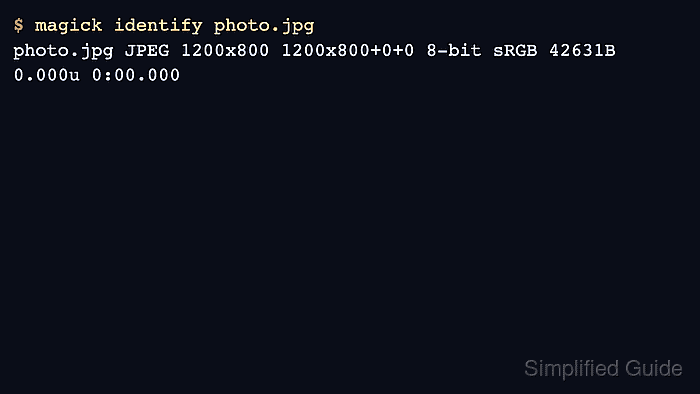
$ magick identify photo.jpg
photo.jpg JPEG 1200x800 1200x800+0+0 8-bit sRGB 42631B 0.000u 0:00.000
The format field should show JPEG. The dimensions should match the source unless the conversion command also resized, cropped, or rotated the image.
- Create a stripped JPG copy when the exported file is meant for sharing or web upload.
$ magick source.heic -auto-orient -strip -quality 88 photo-web.jpg
-strip removes profiles and metadata from the output copy. Keep the unmodified .heic source until the exported JPG has been reviewed.
- Verify the stripped output before handing off the file.
$ magick identify photo-web.jpg
photo-web.jpg JPEG 1200x800 1200x800+0+0 8-bit sRGB 27997B 0.000u 0:00.000