How to back up a Grafana server
Backing up a self-hosted Grafana server preserves the dashboards, data sources, alerting state, plugins, and local settings needed before an upgrade, migration, or recovery test. A server-level backup covers more than exported dashboard JSON because Grafana also stores users, folders, permissions, and encrypted data source fields in its database.
For packaged Linux installs, the backup set usually needs the custom configuration file, the provisioning tree, the plugin directory, and the Grafana database. The default database backend is SQLite, while instances configured for MySQL or PostgreSQL need a database-native dump instead of a copied SQLite file.
Stop grafana-server before copying the SQLite file so writes are not captured mid-transaction. Store each backup in a dated directory, verify the archive listing before moving it off the server, and keep the database artifact with the config and plugin files so a restore test can use one complete set.
Related: How to back up Grafana dashboards
Related: How to install Grafana on Ubuntu
Steps to back up a Grafana server:
- Choose the backup directory and database backend for the server.
Backup directory: /srv/grafana-backups/2026-06-20
SQLite database: /var/lib/grafana/grafana.db
External database: MySQL or PostgreSQL dump
Use one dated directory for the config, provisioning files, plugins, and the database artifact that belongs to the same backup point.
- Create the backup directory with restricted permissions.
$ sudo install -d -m 0750 /srv/grafana-backups/2026-06-20
Grafana backups can contain data source credentials, OAuth secrets, SMTP settings, and signed plugin files. Keep the directory readable only by administrators.
- Copy the Grafana configuration and provisioning files.
$ sudo cp -a /etc/grafana/grafana.ini /etc/grafana/provisioning /srv/grafana-backups/2026-06-20/
Package installs use /etc/grafana/grafana.ini for custom settings. Provisioning files below /etc/grafana/provisioning can define data sources, dashboards, alerting, and plugin app settings.
- Copy the installed plugin directory.
$ sudo cp -a /var/lib/grafana/plugins /srv/grafana-backups/2026-06-20/
The directory can be empty on servers that use only built-in plugins. Keep it in the backup set so restored servers do not depend on the plugin catalog being reachable during recovery.
Related: How to install a Grafana plugin - Stop Grafana before copying the default SQLite database.
$ sudo systemctl stop grafana-server
Skip this stop only when /etc/grafana/grafana.ini points Grafana at MySQL or PostgreSQL and a native database dump will be created instead.
Related: How to manage the Grafana service with systemctl - Copy the SQLite database file when the server uses the default database backend.
$ sudo cp -a /var/lib/grafana/grafana.db /srv/grafana-backups/2026-06-20/
Use exactly one database artifact in the backup set. Do not also create a MySQL or PostgreSQL dump unless the server is actually configured for that backend.
- Dump the MySQL database instead when Grafana is configured with type = mysql.
$ mysqldump --single-transaction --result-file=/srv/grafana-backups/2026-06-20/grafana-mysql.sql grafana
Run the dump from a shell that already has access to the Grafana database through a protected client option file, socket login, or a password prompt. Do not place the database password in the command line.
- Dump the PostgreSQL database instead when Grafana is configured with type = postgres.
$ pg_dump --format=plain --file=/srv/grafana-backups/2026-06-20/grafana-postgres.sql grafana
Run the dump as a database role that can read the Grafana database. A plain SQL dump is easy to inspect before restore planning.
- Start Grafana again if the SQLite copy stopped it.
$ sudo systemctl start grafana-server
- Confirm the Grafana service is active.
$ systemctl is-active grafana-server
active
The service should return active before the backup archive is treated as complete.
- Archive the dated backup directory.
$ sudo tar -C /srv/grafana-backups -czf /srv/grafana-backups/grafana-2026-06-20.tar.gz 2026-06-20
- List the archive contents.
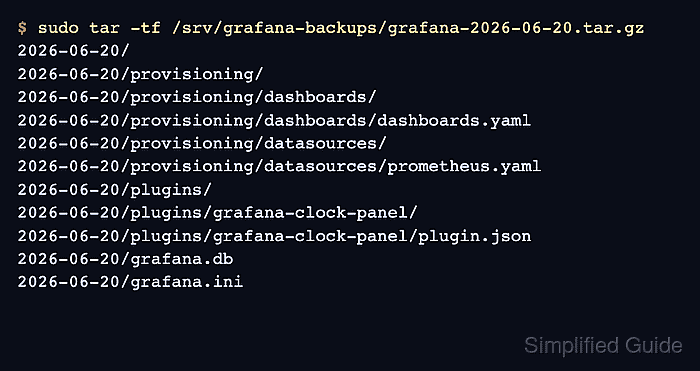
$ sudo tar -tf /srv/grafana-backups/grafana-2026-06-20.tar.gz
2026-06-20/
2026-06-20/provisioning/
2026-06-20/provisioning/dashboards/
2026-06-20/provisioning/dashboards/dashboards.yaml
2026-06-20/provisioning/datasources/
2026-06-20/provisioning/datasources/prometheus.yaml
2026-06-20/plugins/
2026-06-20/plugins/grafana-clock-panel/
2026-06-20/plugins/grafana-clock-panel/plugin.json
2026-06-20/grafana.db
2026-06-20/grafana.ini
The listing should show /grafana.ini, the provisioning directory, the plugins directory, and exactly one database artifact such as /grafana.db, /grafana-mysql.sql, or /grafana-postgres.sql.