Installing Grafana on Ubuntu gives a server-hosted web UI for dashboards, alerts, and data source connections. The supported APT repository from Grafana Labs keeps the package tied to normal Ubuntu package updates instead of a one-off downloaded .deb file.
The repository method installs the Grafana OSS package named grafana and creates the grafana-server.service systemd unit. The same repository also provides grafana-enterprise; choose only one edition on a host so later upgrades come from the same package line.
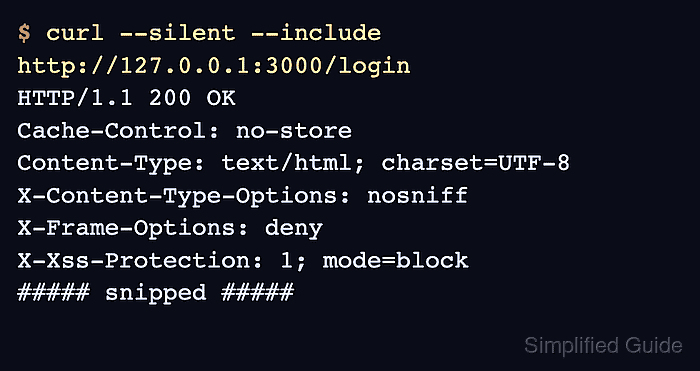
A completed install should report a Grafana version, show grafana-server active in systemd, and return the sign-in page from http://127.0.0.1:3000/login. Expose port 3000 to other clients only after the active firewall, login policy, and HTTPS plan match the server environment.
Steps to install Grafana on Ubuntu:
- Open a terminal with sudo privileges.
- Refresh the package index.
$ sudo apt update
- Install the packages needed to add the Grafana Labs APT repository.
$ sudo apt install apt-transport-https ca-certificates wget gnupg curl
curl is used later to verify that the local Grafana login page responds.
- Create the APT keyring directory.
$ sudo mkdir -p /etc/apt/keyrings
- Download the Grafana Labs signing key.
$ sudo wget -O /etc/apt/keyrings/grafana.asc https://apt.grafana.com/gpg-full.key
- Set readable permissions on the signing key.
$ sudo chmod 644 /etc/apt/keyrings/grafana.asc
- Add the stable Grafana Labs repository.
$ echo "deb [signed-by=/etc/apt/keyrings/grafana.asc] https://apt.grafana.com stable main" | sudo tee /etc/apt/sources.list.d/grafana.list
deb [signed-by=/etc/apt/keyrings/grafana.asc] https://apt.grafana.com stable main
- Refresh package metadata from the new repository.
$ sudo apt update
Get:1 https://apt.grafana.com stable InRelease [7661 B]
Reading package lists... Done
- Install Grafana OSS.
$ sudo apt install grafana
Reading package lists... Done
Building dependency tree... Done
The following NEW packages will be installed:
  grafana
##### snipped #####
Setting up grafana (13.0.2) ...
Install grafana-enterprise instead when Enterprise plugins or licensed Enterprise features are planned. Grafana Labs publishes both packages from the same repository.
- Confirm the installed binary reports a version.
$ grafana server -v
Version 13.0.2 (commit: 3fcdbc5a, branch: release-13.0.2)
The exact version changes as Grafana Labs publishes new releases. Look for a Version line from the package you installed.
- Reload systemd unit files.
$ sudo systemctl daemon-reload
- Enable and start the Grafana service.
$ sudo systemctl enable --now grafana-server
- Confirm the service is active.
$ systemctl is-active grafana-server
active
- Verify that the local login page responds.
$ curl --silent --include http://127.0.0.1:3000/login
HTTP/1.1 200 OK
Cache-Control: no-store
Content-Type: text/html; charset=UTF-8
X-Content-Type-Options: nosniff
X-Frame-Options: deny
X-Xss-Protection: 1; mode=block
##### snipped #####
Open http://server.example.com:3000/login from a browser after allowing port 3000 through the active firewall. The first local admin credentials are admin / admin unless /etc/grafana/grafana.ini sets different values.
Related: How to configure HTTPS for Grafana

Mohd Shakir Zakaria is a cloud architect with deep roots in software development and open-source advocacy. Certified in AWS, Red Hat, VMware, ITIL, and Linux, he specializes in designing and managing robust cloud and on-premises infrastructures.


