How to provision Grafana data sources from files
Provisioning Grafana data sources from files lets an administrator keep connection definitions in version control instead of adding them through one server's web UI. A YAML file under the provisioning data source directory can create or update those connections during startup, which fits container images, immutable hosts, and repeatable lab or production deployments.
Grafana reads data source provisioning files from the provisioning/datasources directory during startup. Package installs normally use /etc/grafana/provisioning/datasources, while containers use the same path inside the container when a host directory or image layer is mounted there.
A Prometheus target gives the file-backed connection a concrete health check because Grafana includes the Prometheus data source plugin by default. Replace the URL, type, and plugin-specific jsonData keys for another data source, and keep passwords or tokens under secureJsonData so Grafana stores them as encrypted fields.
Steps to provision Grafana data sources from files:
- Confirm the data source endpoint is reachable from the Grafana server.
$ curl --silent --show-error http://prometheus.example.internal:9090/-/ready
Prometheus Server is Ready.
Run this check from the Grafana host or from a shell in the Grafana container. In container networks, use the service or container hostname that Grafana can resolve, not localhost from the host.
- Create the Grafana data source provisioning directory.
$ sudo install -d -m 0755 /etc/grafana/provisioning/datasources
Packaged Grafana installations usually create this directory already; the command is harmless when the directory exists.
- Open a provisioning file for the data source.
$ sudoedit /etc/grafana/provisioning/datasources/prometheus.yaml
- Add the data source definition.
apiVersion: 1

prune: true

datasources:
  - name: Prometheus
    type: prometheus
    uid: prometheus-main
    access: proxy
    url: http://prometheus.example.internal:9090
    isDefault: true
    editable: false
    jsonData:
      httpMethod: POST
Use a stable uid so dashboards and alert rules can reference the data source reliably. With prune: true, Grafana removes provisioned data sources when they disappear from the provisioning file or when the file is removed.
Tool: YAML Validator - Restart the Grafana service to load the provisioning file.
$ sudo systemctl restart grafana-server
- Check the startup log for the provisioning line.
$ sudo journalctl -u grafana-server -b
##### snipped #####
logger=provisioning.datasources level=info msg="inserting datasource from configuration" name=Prometheus uid=prometheus-main
##### snipped #####
If the log reports a YAML parse error, fix the file and restart grafana-server again. Grafana does not load a malformed provisioning file partially.
- Confirm Grafana stored the data source as a provisioned record.
$ curl --silent --show-error --header "Authorization: Bearer $GRAFANA_TOKEN" http://grafana.example.internal:3000/api/datasources/uid/prometheus-main
{"id":1,"uid":"prometheus-main","orgId":1,"name":"Prometheus","type":"prometheus","typeLogoUrl":"public/plugins/prometheus/img/prometheus_logo.svg","access":"proxy","url":"http://prometheus.example.internal:9090","user":"","database":"","basicAuth":false,"basicAuthUser":"","withCredentials":false,"isDefault":true,"jsonData":{"httpMethod":"POST"},"secureJsonFields":{},"version":1,"readOnly":true,"apiVersion":""}
readOnly set to true means the data source is file-provisioned and cannot be edited from the Grafana UI. Use an admin session or a service account token with data source read access.
Related: How to create a Grafana service account token - Run the Grafana data source health check.
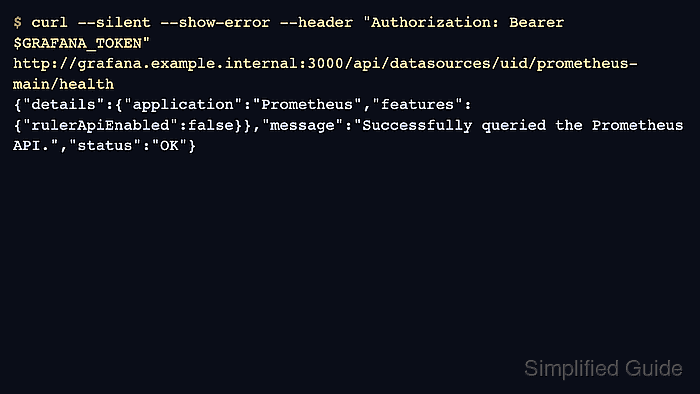
$ curl --silent --show-error --header "Authorization: Bearer $GRAFANA_TOKEN" http://grafana.example.internal:3000/api/datasources/uid/prometheus-main/health {"details":{"application":"Prometheus","features":{"rulerApiEnabled":false}},"message":"Successfully queried the Prometheus API.","status":"OK"} - Run a Prometheus query through the Grafana data source proxy.
$ curl --silent --show-error --header "Authorization: Bearer $GRAFANA_TOKEN" "http://grafana.example.internal:3000/api/datasources/proxy/uid/prometheus-main/api/v1/query?query=up"
{"status":"success","data":{"resultType":"vector","result":[{"metric":{"__name__":"up","app":"prometheus","instance":"localhost:9090","job":"prometheus"},"value":[1781907119.421,"1"]}]}}
A status value of success with an up value of 1 confirms Grafana can query the provisioned Prometheus data source through server-side proxy mode.