Provisioning a Prometheus data source in Grafana from YAML makes the connection repeatable across rebuilds, container rollouts, and configuration reviews. A file-managed data source is useful when dashboards, alert rules, and folders are already managed as code and the Prometheus endpoint should not depend on manual UI setup.
Grafana reads classic data source provisioning files from the provisioning/datasources directory and inserts or updates data sources during startup or a datasource provisioning reload. The Prometheus entry uses type prometheus, server-side access proxy, and a URL that must be reachable from the Grafana server, not only from an operator workstation.
A provisioned data source is controlled by its YAML file rather than the Grafana settings form. Keep a stable uid for dashboards, alert rules, and API checks, apply the file with a reload or service restart, and prove the connection by querying Prometheus through Grafana instead of only checking that the YAML file exists.
Steps to provision a Prometheus data source in Grafana:
- Confirm that Prometheus is reachable from the Grafana runtime.
$ curl -sS http://prometheus.example.internal:9090/-/ready
Prometheus Server is Ready.
Run this from the host, container network, or pod network where Grafana runs. A Prometheus URL that works only from a laptop can still fail after provisioning.
- Open a new datasource provisioning file.
$ sudoedit /etc/grafana/provisioning/datasources/prometheus.yml
Packaged Linux installs commonly use /etc/grafana/provisioning/datasources. Container deployments can mount the same file into /etc/grafana/provisioning/datasources inside the Grafana container.
- Add the Prometheus datasource definition.
apiVersion: 1

datasources:
  - name: Prometheus
    uid: prometheus-main
    type: prometheus
    access: proxy
    url: http://prometheus.example.internal:9090
    isDefault: true
    editable: false
    jsonData:
      httpMethod: POST
      timeInterval: 15s
uid gives dashboards, alert rules, and API checks a stable data source reference. editable: false keeps the connection file-managed in the Grafana UI.
- Validate the YAML syntax before applying it.
Valid YAML is only the parser gate; Grafana still validates the data source fields when it reloads provisioning.
Tool: YAML Validator - Reload datasource provisioning from the Grafana admin API.
$ curl -sS -X POST -u admin:admin http://localhost:3000/api/admin/provisioning/datasources/reload
{"message":"Datasources config reloaded"}
The reload endpoint requires Basic Authentication with a Grafana server admin account. Restart grafana-server instead when local policy does not allow admin API use.
Related: How to manage the Grafana service with systemctl - Check that Grafana saved the provisioned data source.
$ curl -sS -u admin:admin http://localhost:3000/api/datasources/uid/prometheus-main
{"id":1,"uid":"prometheus-main","orgId":1,"name":"Prometheus","type":"prometheus","access":"proxy","url":"http://prometheus.example.internal:9090","isDefault":true,"jsonData":{"httpMethod":"POST","timeInterval":"15s"},"version":1,"readOnly":true}
readOnly: true means Grafana recognized the data source as provisioned. Edit the YAML file rather than changing the settings form in the UI.
- Query Prometheus through the Grafana data source proxy.
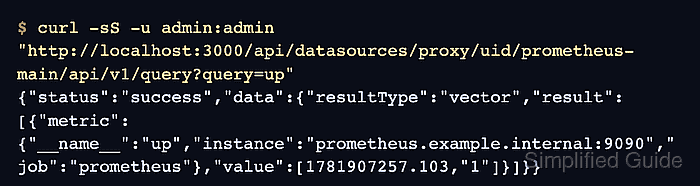
$ curl -sS -u admin:admin "http://localhost:3000/api/datasources/proxy/uid/prometheus-main/api/v1/query?query=up"
{"status":"success","data":{"resultType":"vector","result":[{"metric":{"__name__":"up","instance":"prometheus.example.internal:9090","job":"prometheus"},"value":[1781907257.103,"1"]}]}}
A vector value of 1 for the up series confirms that Grafana can reach Prometheus and that Prometheus has scraped the target.

Mohd Shakir Zakaria is a cloud architect with deep roots in software development and open-source advocacy. Certified in AWS, Red Hat, VMware, ITIL, and Linux, he specializes in designing and managing robust cloud and on-premises infrastructures.


