How to import a Grafana dashboard
Importing a Grafana dashboard adds an exported JSON file or a dashboard from grafana.com to another Grafana organization. Use it when moving a working dashboard between instances, restoring a shared dashboard, or starting from a community template instead of rebuilding every panel.
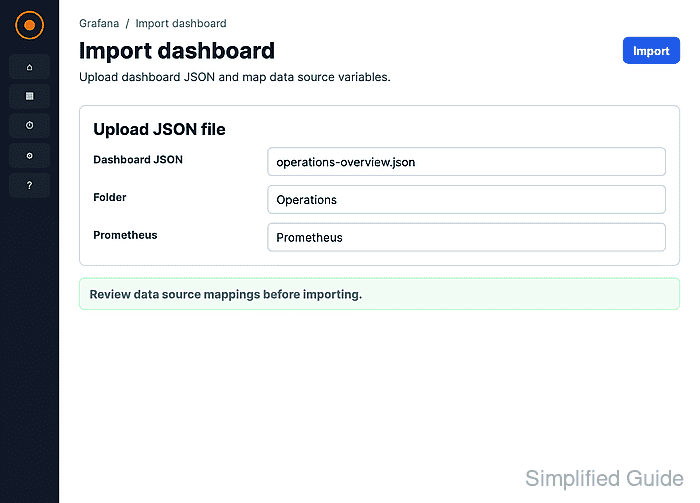
The import page accepts an uploaded .json or .txt file, a grafana.com dashboard URL or ID, or pasted dashboard JSON. The review screen lets the operator adjust the dashboard name, folder, and UID before the dashboard is created.
Dashboards exported for sharing can ask for data source mappings during import. Map each prompt to an existing data source of the same plugin type so imported panels query the intended backend instead of opening with missing data source or query errors.
Steps to import a Grafana dashboard:
- Open Dashboards and choose New → Import dashboard.
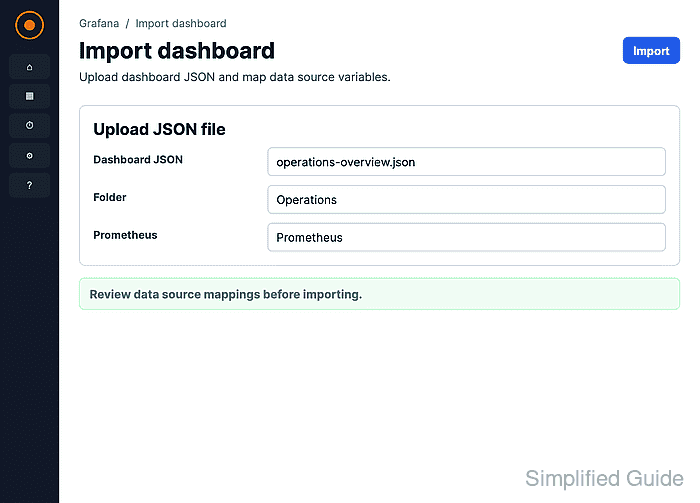
- Upload the dashboard JSON file, paste the dashboard JSON, or enter a grafana.com dashboard URL or ID.
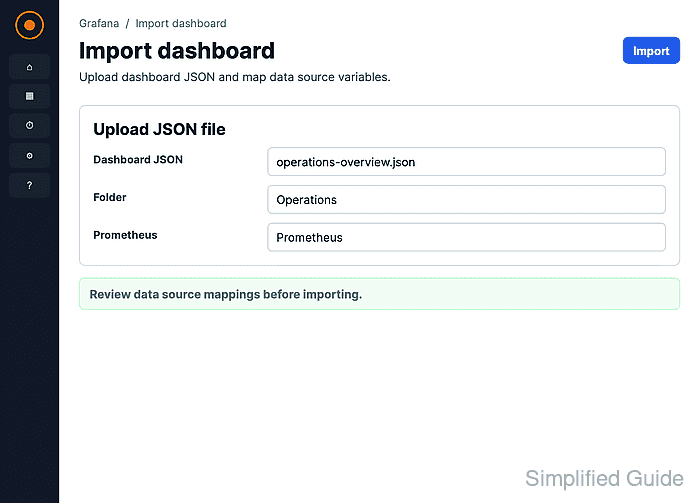
The screenshot uses a JSON export with a TestData DB data source input. A dashboard downloaded from grafana.com can show similar prompts for Prometheus, Loki, InfluxDB, or another plugin.
- Review the dashboard Name, Folder, and Unique identifier (UID).
Change the UID when the imported dashboard must remain separate from an existing dashboard that already uses the same UID.
- Select the matching data source for each required data source input.
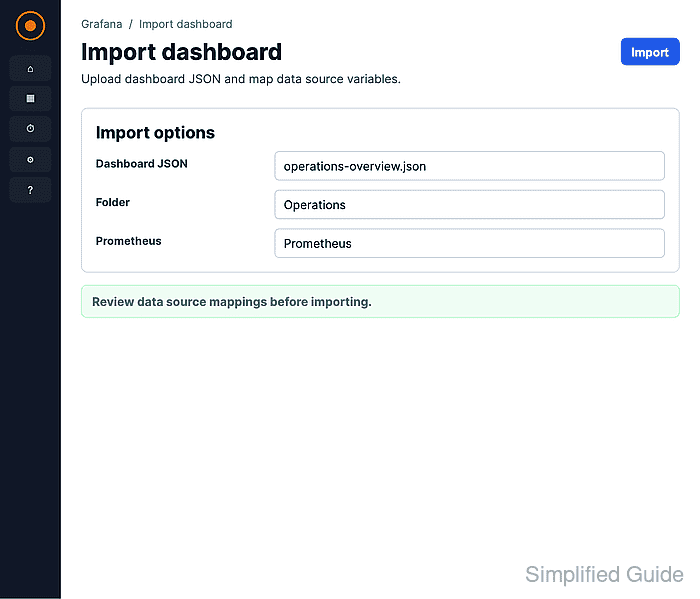
Use a data source that already passes its connection test before importing dashboards that depend on it.
Related: How to test a Grafana data source - Click Import.
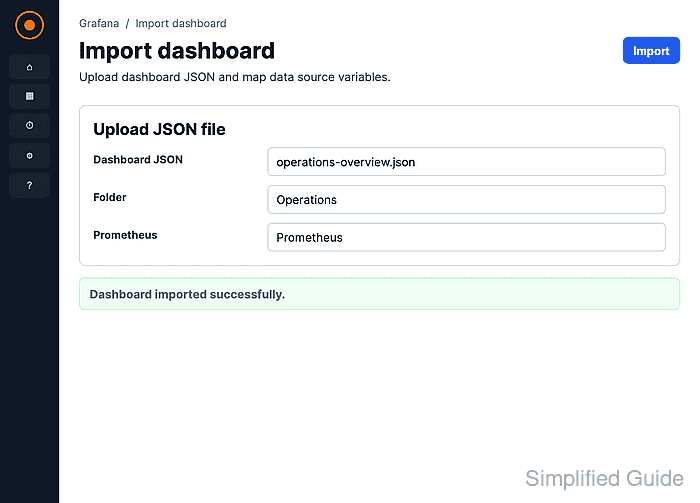
- Confirm the imported dashboard opens in the selected folder with the expected title and panels.
- Refresh the time range and confirm the panels return data instead of No data or a query error.
If a panel stays empty after the correct source is selected, inspect the panel query, template variables, and dashboard time range.
Related: How to troubleshoot a Grafana panel with no data