How to enable firewalld lockdown mode
firewalld lockdown mode restricts which local processes can change firewall configuration through the daemon. It is a legacy feature and current upstream command documentation no longer presents it as the preferred control path, so use it only on distributions that still ship the lockdown options and when polkit rules are not the chosen access-control mechanism.
Lockdown mode depends on a whitelist of users, user IDs, SELinux contexts, or command lines. Add the administrative path that must remain able to reverse the change before enabling lockdown, because a non-whitelisted caller can be blocked from turning it off through firewall-cmd.
The example keeps UID 0 and the root firewall-cmd command path available, then enables lockdown and verifies the state. Run the steps from a console or an already-approved administrative session, and keep the rollback file path /etc/firewalld/lockdown-whitelist.xml available for recovery on older systems that use that XML whitelist.
Related: Check firewalld status
Related: Enable and start the firewalld service
Related: Troubleshoot firewalld reload errors
Steps to enable firewalld lockdown mode:
- Confirm that the host supports lockdown commands.
$ sudo firewall-cmd --query-lockdown
no
If the command is rejected as an unrecognized option, do not continue with this procedure on that host. Use polkit policy or the distribution's supported firewalld access-control method instead.
- List the current lockdown whitelist before changing it.
$ sudo firewall-cmd --list-lockdown-whitelist-uids
0
UID 0 is the root user. Some distributions also whitelist NetworkManager, libvirt, or other local services through SELinux contexts.
- Add the root firewall-cmd command path when it is not already whitelisted.
$ sudo firewall-cmd --add-lockdown-whitelist-command='/usr/bin/python3 -Es /usr/bin/firewall-cmd*'
success
Older distributions may show a Python interpreter prefix for firewall-cmd whitelist entries. Match the command form documented and accepted by the target host.
- Query the whitelist entry that will allow rollback commands.
$ sudo firewall-cmd --query-lockdown-whitelist-command='/usr/bin/python3 -Es /usr/bin/firewall-cmd*'
yes
- Enable lockdown mode.
$ sudo firewall-cmd --lockdown-on
success
A missing whitelist entry can block the same administration path from disabling lockdown. Keep console access or a configuration-file recovery path before enabling it on a remote server.
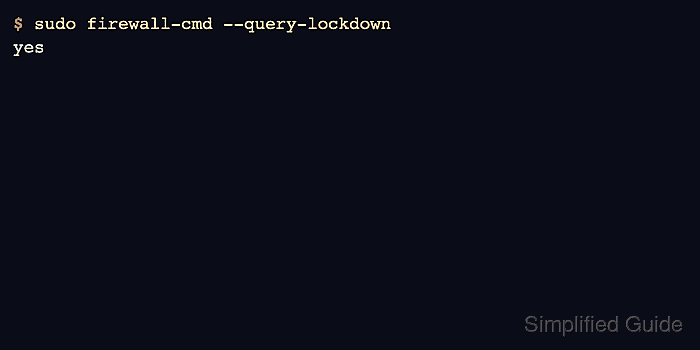
- Verify that lockdown mode is enabled.
$ sudo firewall-cmd --query-lockdown
yes
- Test a permitted administrative read after lockdown is active.
$ sudo firewall-cmd --state
running
- Record the whitelist entries for handoff.
$ sudo firewall-cmd --list-lockdown-whitelist-commands
/usr/bin/python3 -Es /usr/bin/firewall-cmd*
- Disable lockdown immediately if the expected administration path is blocked.
$ sudo firewall-cmd --lockdown-off
success
This is the recovery command, not a required final state. Leave lockdown enabled only after the whitelist and administrative access have both been verified.