How to delete a Kibana data view
Deleting an unused Kibana data view removes a stale source choice from Discover, Lens, dashboards, saved searches, and rule builders. It is useful after an index pattern, alias, or data stream has been retired and should no longer appear as a selectable data source.
A data view is a Kibana saved object that stores the source pattern plus metadata such as the default time field, runtime fields, field formatters, source filters, and field popularity data. Removing that saved object does not delete the matching Elasticsearch indices, aliases, data streams, or documents.
Deletion is permanent for the data view metadata and can break saved objects that still reference the deleted id. Use an account with the Data View Management Kibana privilege and the view_index_metadata Elasticsearch privilege on the matching targets, and send API calls through the same Kibana space, base path, TLS, and authentication layer that users reach.
Related: Create a Kibana data view
Steps to delete a Kibana data view:
- List the current data views and identify the target id.
$ curl --silent --show-error --fail "http://localhost:5601/api/data_views" | jq '{data_view: [.data_view[] | {id: .id, name: .name, title: .title, namespaces: .namespaces}]}'
{
  "data_view": [
    {
      "id": "53c03bec-89a8-4b40-8231-a9e4ef01b585",
      "name": "Application logs",
      "title": "logs-app-*",
      "namespaces": [
        "default"
      ]
    },
    {
      "id": "c224e282-2e92-4b43-9277-a8c05c20e9d9",
      "name": "Application metrics",
      "title": "metrics-app-*",
      "namespaces": [
        "default"
      ]
    }
  ]
}
Non-GET data-view API calls need the kbn-xsrf header. For another space, use /s/<space_id>/api/data_views; when Kibana runs under a base path such as /kibana, insert that prefix before /api.
- Export or replace saved objects that still depend on the target data view.
If the Data Views management page marks the entry as managed or does not show a delete action, Kibana is treating it as Elastic-managed or the current account does not have enough privileges to manage data views.
Related: Export Kibana saved objects
- Delete the data view with its id.
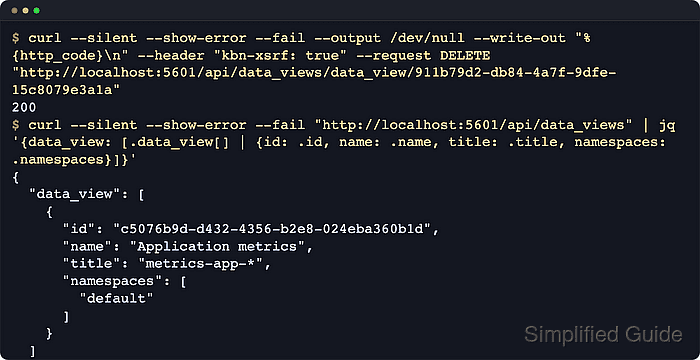
$ curl --silent --show-error --fail --output /dev/null --write-out "%{http_code}\n" --header "kbn-xsrf: true" --request DELETE "http://localhost:5601/api/data_views/data_view/53c03bec-89a8-4b40-8231-a9e4ef01b585"
200
A 2xx response with an empty body means Kibana accepted the delete request. Elastic API documentation lists 204 for this endpoint, while recent Kibana 9.4 builds can return 200.
Deletion cannot be undone and can break dashboards, Lens visualizations, saved Discover sessions, and rules that reference the deleted data view id.
- Verify the deleted entry no longer appears in the data-view list.
$ curl --silent --show-error --fail "http://localhost:5601/api/data_views" | jq '{data_view: [.data_view[] | {id: .id, name: .name, title: .title, namespaces: .namespaces}]}'
{
  "data_view": [
    {
      "id": "c224e282-2e92-4b43-9277-a8c05c20e9d9",
      "name": "Application metrics",
      "title": "metrics-app-*",
      "namespaces": [
        "default"
      ]
    }
  ]
}
The missing Application logs entry confirms Kibana removed that data view while leaving the other saved data source intact.
- Open Stack Management → Data Views and confirm the removed entry is gone.
The same management page is also reachable from the Kibana navigation menu or the global search field.
If a dashboard, Lens visualization, Discover session, or rule now fails to load, restore the affected saved objects from export or recreate the data view with the id and pattern the saved content expected.