How to create Kibana alerts from Elasticsearch data
Kibana alert rules turn Elasticsearch search results into scheduled detection checks for errors, spikes, missing events, and other conditions that should not depend on someone watching Discover or a dashboard. An Elasticsearch query rule is the general Kibana rule type for alerting on documents that match a search condition.
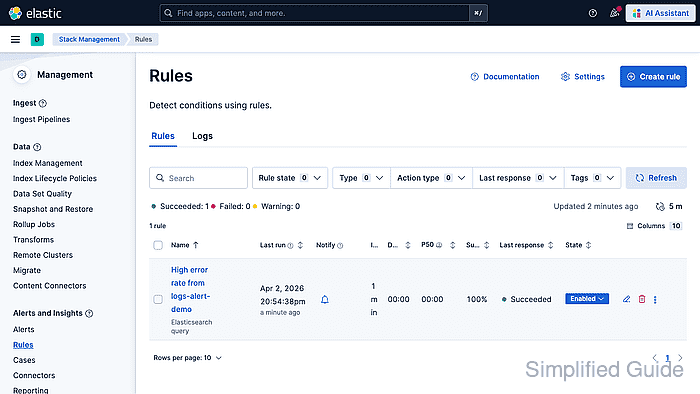
The KQL data-view path matches the same fields and time behavior used in Discover, so it is the clearest starting point when the condition already works in an interactive search. The same rule type can also use Lucene, raw Elasticsearch query DSL, or ES|QL when the condition needs a different query language.
Self-managed Kibana deployments need a permanent saved objects encryption key before alerting and actions can store rule secrets reliably. Connector availability and outbound notifications can depend on license, feature privileges, and action settings, but the rule can be saved first and connected to notifications after the query is tuned.
Related: How to create a Kibana data view
Related: How to set Kibana encryption keys
Related: How to create a Kibana webhook connector
Related: How to create a Kibana space
Steps to create Kibana alerts from Elasticsearch data:
- Open Discover and confirm the target condition returns the expected documents in the correct data view and time range.
Use the same data view, time field, and core KQL filter that the scheduled rule should evaluate.
Related: How to create a Kibana data view
- Open Stack Management → Alerts and Insights → Rules.
Rules belong to the current Kibana space, so switch spaces first when the alert should be managed outside the default space.
Related: How to create a Kibana space
- Click Create rule and select Elasticsearch query.
Kibana opens the rule configuration form for the selected rule type.
- Enter a rule name and optional tags.
Use a name that includes the detected condition and source, such as High error rate from checkout logs, so the rule is recognizable on the Rules and Alerts pages.
- Select KQL as the query type and choose the data view.
Use Lucene, DSL, or ES|QL only when that query language is already needed for the condition.
- Enter the KQL condition.
For example, use log.level : "error" and service.name : "checkout" when the rule should alert on recent checkout service error events.
- Click Test query and confirm Kibana returns matching documents for the selected time window.
A 0 matches result usually points to the data view, time picker, time field, or filter text rather than the alerting scheduler.
- Set the aggregation and threshold, such as count is above 0 over all documents.
Use Grouped Over when each host, service, or other field value should become its own alert instance; only the top groups are checked against the threshold.
- Set the rule time window, such as 5 minutes.
For ungrouped KQL, Lucene, or DSL rules, leave Exclude matches from previous run enabled unless the same documents should retrigger on every run.
- Set the check interval, such as 1 minute.
Keep the check interval shorter than the time window so scheduled runs overlap instead of leaving detection gaps.
- Add an action when notifications should leave Kibana.
Connector messages can expose document fields, hostnames, internal URLs, or ticket details, so keep the destination and template limited to the information the recipient needs.
- Select the connector and action frequency.
Actions can run for each alert or as summaries, and a custom action interval cannot be shorter than the rule interval.
- Save the rule.
Saving without actions is fine while the query and threshold are being tuned; alerts still appear in Kibana when the rule conditions are met.
- Return to the Rules page and confirm Last response changes to Succeeded after the next scheduled run.
Open the rule details page to inspect active and recovered alert rows for the current condition.
Failed or Warning responses usually point to the query, missing privileges, connector limits, or missing alerting prerequisites in kibana.yml.