How to create an Elasticsearch user for Logstash output
Creating a dedicated Elasticsearch identity for Logstash output limits write access to only the index pattern the pipeline should populate, avoiding the habit of pointing ingestion at the built-in elastic superuser.
Elasticsearch authorizes bulk indexing through roles and users exposed by the /_security/ APIs. A custom role such as logstash_writer carries the cluster and index privileges, while a dedicated user such as logstash_internal authenticates the elasticsearch output plugin. The built-in logstash_system account remains a monitoring user and is not intended for pipeline output writes.
Privilege scope must match the actual target pattern and lifecycle behavior. A daily logs-* index-mode pipeline with ILM disabled in the output block only needs template, monitor, create, and write privileges. Add the lifecycle privileges only when Logstash owns the lifecycle policy, rollover alias, or managed index setup for the target.
Steps to create an Elasticsearch user for Logstash output:
- Create a role that matches the Logstash output index pattern.
$ curl --silent --show-error --fail \
  --cacert /etc/logstash/certs/http_ca.crt \
  --user elastic:password \
  --header "Content-Type: application/json" \
  --request PUT "https://elasticsearch.example.net:9200/_security/role/logstash_writer?pretty" \
  --data '{
  "cluster": ["manage_index_templates", "monitor"],
  "indices": [
    {
      "names": ["logs-*"],
      "privileges": ["write", "create", "create_index"]
    }
  ]
}'
{
  "role" : {
    "created" : true
  }
}
Change logs-* to the actual output index or data stream pattern. Add cluster manage_ilm plus index manage and manage_ilm only when the output manages ILM.
Publicly trusted certificates and Elastic Cloud do not need the --cacert option shown here.
- Create a dedicated user and assign the new role.
$ curl --silent --show-error --fail \
  --cacert /etc/logstash/certs/http_ca.crt \
  --user elastic:password \
  --header "Content-Type: application/json" \
  --request PUT "https://elasticsearch.example.net:9200/_security/user/logstash_internal?pretty" \
  --data '{
  "password": "strong-password",
  "roles": ["logstash_writer"],
  "full_name": "Internal Logstash output user"
}'
{
  "created" : true
}
Credentials passed on the command line can be exposed via shell history or process listings on multi-user systems.
- Confirm the user is enabled and mapped to the expected role.
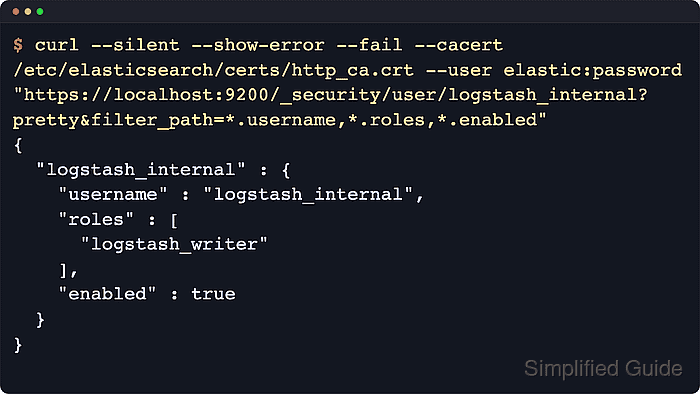
$ curl --silent --show-error --fail \ --cacert /etc/logstash/certs/http_ca.crt \ --user elastic:password \ "https://elasticsearch.example.net:9200/_security/user/logstash_internal?pretty&filter_path=*.username,*.roles,*.enabled" { "logstash_internal" : { "username" : "logstash_internal", "roles" : [ "logstash_writer" ], "enabled" : true } } - Check the dedicated user's privileges against the output pattern.
$ curl --silent --show-error --fail \
  --cacert /etc/logstash/certs/http_ca.crt \
  --user logstash_internal:strong-password \
  --header "Content-Type: application/json" \
  --request POST "https://elasticsearch.example.net:9200/_security/user/_has_privileges?pretty" \
  --data '{
  "cluster": ["manage_index_templates", "monitor"],
  "index": [
    {
      "names": ["logs-*"],
      "privileges": ["write", "create", "create_index"]
    }
  ]
}'
{
  "username" : "logstash_internal",
  "has_all_requested" : true,
  "cluster" : {
    "manage_index_templates" : true,
    "monitor" : true
  },
  "index" : {
    "logs-*" : {
      "create" : true,
      "create_index" : true,
      "write" : true
    }
  },
  "application" : { }
}
The _has_privileges API lets the output user check its own assigned privileges without writing a test document into the target index pattern.
- Store the output password in the Logstash keystore.
$ sudo -E /usr/share/logstash/bin/logstash-keystore --path.settings /etc/logstash add LOGSTASH_INTERNAL_PASSWORD
Using bundled JDK: /usr/share/logstash/jdk
Enter value for LOGSTASH_INTERNAL_PASSWORD:
Added 'LOGSTASH_INTERNAL_PASSWORD' to the Logstash keystore.
Enter the same password used when creating logstash_internal. The key name must match the placeholder in the output block.
- Update the Logstash elasticsearch output to use the dedicated user and the cluster CA certificate.
output {
  elasticsearch {
    hosts => ["https://elasticsearch.example.net:9200"]
    ssl_enabled => true
    ssl_certificate_authorities => ["/etc/logstash/certs/http_ca.crt"]
    user => "logstash_internal"
    password => "${LOGSTASH_INTERNAL_PASSWORD}"
    ilm_enabled => false
    index => "logs-%{+YYYY.MM.dd}"
  }
}
The ssl_certificate_authorities path must be readable by the logstash service account when the cluster uses a private or self-signed HTTP certificate.
ilm_enabled ⇒ false keeps the explicit daily logs-YYYY.MM.dd target in effect. Remove that setting and add the matching ILM privileges only when the output should manage rollover through ILM.
- Test the Logstash pipeline configuration using a temporary path.data directory.
$ sudo -u logstash /usr/share/logstash/bin/logstash --path.settings /etc/logstash --path.data /tmp/logstash-configtest --config.test_and_exit
Using bundled JDK: /usr/share/logstash/jdk
Configuration OK
[2026-04-02T08:11:41,726][INFO ][logstash.runner          ] Using config.test_and_exit mode. Config Validation Result: OK. Exiting Logstash
Configuration validation confirms pipeline syntax and plugin settings, not Elasticsearch credentials or index privileges.
- Restart the Logstash service to load the updated pipeline credentials.
$ sudo systemctl restart logstash
- Review recent Logstash logs for authentication or authorization failures.
$ sudo journalctl --unit logstash --since "5 minutes ago" --no-pager
Jun 18 09:42:11 logstash-host logstash[21457]: [2026-06-18T09:42:11,351][INFO ][logstash.outputs.elasticsearch][main] Elasticsearch pool URLs updated {:changes=>{:removed=>[], :added=>[https://elasticsearch.example.net:9200/]}}
Jun 18 09:42:11 logstash-host logstash[21457]: [2026-06-18T09:42:11,884][INFO ][logstash.javapipeline    ][main] Pipeline started {"pipeline.id"=>"main"}
##### snipped #####
Authentication failures typically show 401 or 403 responses, while index privilege problems usually mention missing rights to create the index, write documents, or manage ILM.
- Verify matching indices are receiving documents with a separate read-capable credential.
$ curl --silent --show-error --fail \
  --cacert /etc/logstash/certs/http_ca.crt \
  --user reader_user:reader-password \
  "https://elasticsearch.example.net:9200/logs-*/_count?pretty"
{
  "count" : 1,
  "_shards" : {
    "total" : 1,
    "successful" : 1,
    "skipped" : 0,
    "failed" : 0
  }
}
The dedicated Logstash output user can stay write-only. Use a separate account with read and view_index_metadata privileges when verifying indexed documents.