How to add the AWS integration to Elastic Agent with Fleet
Adding the AWS integration to a Fleet-managed Elastic Agent policy lets Elastic collect selected AWS metrics and logs without hand-writing Beats configuration. Use it when a monitored account needs CloudWatch metrics, S3-backed logs, or service-specific telemetry routed through the same policy that manages enrolled agents.
The AWS integration can collect from many services, but the first rollout should enable one small data set before expanding the policy. Starting with EC2 metrics keeps the setup focused on CloudWatch API access, region selection, policy distribution, and indexed metric documents.
Fleet saves the integration policy in Kibana, distributes it through Fleet Server, and the enrolled agent calls AWS APIs from its host environment. The AWS principal must have the permissions for the selected data streams, and CloudWatch requests can create AWS charges, so keep regions, collection period, and enabled services narrow until the first data stream is confirmed.
Steps to add AWS integration to Elastic Agent with Fleet:
- Choose the Fleet policy that should collect AWS telemetry.
The policy should already have at least one enrolled agent that can reach AWS APIs and send data to Elasticsearch.
Related: How to create an Elastic Agent policy in Fleet
Related: How to install a Fleet-managed Elastic Agent - Prepare an AWS principal for the first enabled data stream.
{
  "Version": "2012-10-17",
  "Statement": [
    {
      "Effect": "Allow",
      "Action": [
        "cloudwatch:GetMetricData",
        "cloudwatch:ListMetrics",
        "ec2:DescribeInstances",
        "ec2:DescribeRegions",
        "iam:ListAccountAliases",
        "sts:GetCallerIdentity",
        "tag:GetResources"
      ],
      "Resource": "*"
    }
  ]
}
This example is scoped to EC2 metrics. Add only the extra permissions required by the AWS services and log sources enabled later.
- Open Kibana → Management → Fleet → Agent policies.
- Open the target policy.
- Click Add integration.
- Search for AWS and select the AWS integration.
- Click Add AWS.
- Enter an integration name such as aws-prod-observability.
- Set the data stream namespace for the environment, such as production or default.
The namespace becomes part of data stream names such as metrics-aws.ec2_metrics-production.
- Choose the AWS credential method used by the agent host.
Use access keys, temporary credentials, a shared credentials file, a role ARN, or the agent host's EC2 instance profile. Leave the credential fields empty only when the agent runs on an EC2 instance with the intended instance profile.
- Enable only Collect EC2 metrics for the first rollout.
- Set the AWS regions that should be queried for EC2 metrics.
Leaving every region enabled can increase CloudWatch API calls and make first-run troubleshooting harder.
- Review Collection Period and Data Granularity before saving.
Longer periods reduce API call volume when near-real-time metrics are not required.
- Select the existing Fleet policy if Kibana asks where to add the integration.
- Click Save and continue.
- Open the policy's Integrations list and confirm that AWS appears on the policy.
- Open Fleet → Agents and confirm that an agent on the policy returns to Healthy after the policy revision is applied.
If the agent becomes Unhealthy or Degraded, open the agent details page and inspect the integration unit message before enabling more AWS services.
Related: How to monitor Elastic Agent health in Fleet - Query an AWS metrics data stream after one or two collection periods.
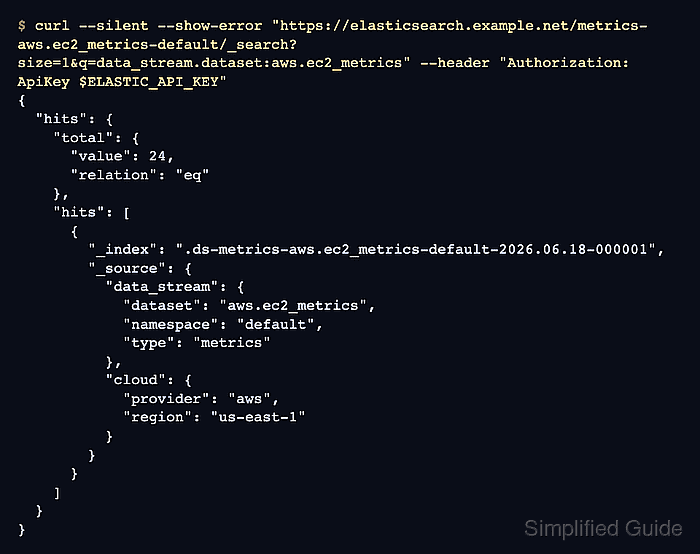
$ curl --silent --show-error "https://elasticsearch.example.net/metrics-aws.ec2_metrics-default/_search?size=1&q=data_stream.dataset:aws.ec2_metrics" --header "Authorization: ApiKey $ELASTIC_API_KEY"
{
  "hits": {
    "total": {
      "value": 24,
      "relation": "eq"
    },
    "hits": [
      {
        "_index": ".ds-metrics-aws.ec2_metrics-default-2026.06.18-000001",
        "_source": {
          "data_stream": {
            "dataset": "aws.ec2_metrics",
            "namespace": "default",
            "type": "metrics"
          },
          "cloud": {
            "provider": "aws",
            "account": {
              "id": "123456789012"
            },
            "region": "us-east-1"
          }
        }
      }
    ]
  }
}
Use the namespace selected in the integration policy. The account ID shown here is a sanitized placeholder.
- Open Analytics → Discover and filter for data_stream.dataset : "aws.ec2_metrics".
- Confirm that the documents include cloud.provider set to aws, the expected cloud.region values, and the selected data stream namespace.