How to install a newer Debian kernel from backports
Installing a newer Debian kernel from backports lets a stable host pick up newer hardware support or kernel fixes without moving the whole system to testing. The change selects only the matching kernel packages from stable-backports while normal package selection continues to prefer stable packages.
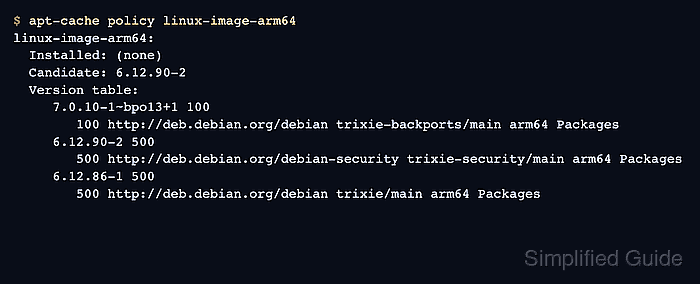
On Debian 13 stable, the matching backports suite is trixie-backports. Kernel metapackages are architecture-specific, so a 64-bit ARM host uses linux-image-arm64 and linux-headers-arm64, while a common 64-bit PC uses linux-image-amd64 and linux-headers-amd64.
Kernel package installation changes the next boot, not the kernel currently running. Keep the previous kernel available, confirm that the bootloader sees the new image, and verify the running release with uname -r only after the reboot.
Related: How to enable Debian backports
Related: How to install a package from Debian backports
Related: How to update GRUB on Debian
Related: Show the kernel version in Linux
Steps to install a Debian backports kernel:
- Check the Debian release codename.
$ cat /etc/os-release
PRETTY_NAME="Debian GNU/Linux 13 (trixie)"
NAME="Debian GNU/Linux"
VERSION_ID="13"
VERSION="13 (trixie)"
VERSION_CODENAME=trixie
##### snipped #####
The backports suite must match the installed release codename. Use trixie-backports on Debian 13 stable.
- Check the package architecture.
$ dpkg --print-architecture
arm64
Use the matching kernel metapackages for this value. The examples use arm64; use linux-image-amd64 and linux-headers-amd64 on common 64-bit PC systems.
- Check the currently running kernel.
$ uname -r
6.12.0-13-arm64
This value is the kernel that booted now. It does not show every kernel package installed under /boot.
- Refresh package metadata after enabling backports.
$ sudo apt update
Get:1 http://deb.debian.org/debian trixie-backports InRelease [54.0 kB]
Hit:2 http://deb.debian.org/debian trixie InRelease
Hit:3 http://deb.debian.org/debian trixie-updates InRelease
Hit:4 http://deb.debian.org/debian-security trixie-security InRelease
Get:5 http://deb.debian.org/debian trixie-backports/main arm64 Packages [292 kB]
Reading package lists...
Building dependency tree...
Reading state information...
All packages are up to date.
A successful refresh should contact the matching backports suite. Enable it first if trixie-backports does not appear.
Related: How to enable Debian backports - Check the backports kernel metapackages.
$ apt-cache policy linux-image-arm64 linux-headers-arm64
linux-image-arm64:
  Installed: (none)
  Candidate: 6.12.90-2
  Version table:
     7.0.10-1~bpo13+1 100
        100 http://deb.debian.org/debian trixie-backports/main arm64 Packages
     6.12.90-2 500
        500 http://deb.debian.org/debian-security trixie-security/main arm64 Packages
     6.12.86-1 500
        500 http://deb.debian.org/debian trixie/main arm64 Packages
linux-headers-arm64:
  Installed: (none)
  Candidate: 6.12.90-2
  Version table:
     7.0.10-1~bpo13+1 100
        100 http://deb.debian.org/debian trixie-backports/main arm64 Packages
     6.12.90-2 500
        500 http://deb.debian.org/debian-security trixie-security/main arm64 Packages
     6.12.86-1 500
        500 http://deb.debian.org/debian trixie/main arm64 Packages
Priority 100 is normal for backports. The stable candidate remains preferred until the backports suite is selected explicitly.
- Simulate the backports kernel install.
$ sudo apt --simulate install -t trixie-backports linux-image-arm64 linux-headers-arm64
Reading package lists...
Building dependency tree...
Reading state information...
Installing:
  linux-headers-arm64  linux-image-arm64

Installing dependencies:
  apparmor  binutils  dracut  linux-image-7.0.10+deb13-arm64
  linux-modules-7.0.10+deb13-arm64  linux-headers-7.0.10+deb13-arm64
##### snipped #####
Summary:
  Upgrading: 0, Installing: 102, Removing: 0, Not Upgrading: 0
Inst linux-image-arm64 (7.0.10-1~bpo13+1 Debian Backports:stable-backports [arm64])
Inst linux-headers-arm64 (7.0.10-1~bpo13+1 Debian Backports:stable-backports [arm64])
Stop if APT proposes removing storage, network, bootloader, driver, or virtualization packages outside the intended kernel change.
- Install the backports kernel image and matching headers.
$ sudo apt install -t trixie-backports linux-image-arm64 linux-headers-arm64
Reading package lists...
Building dependency tree...
Reading state information...
Installing:
  linux-headers-arm64  linux-image-arm64

Installing dependencies:
  linux-image-7.0.10+deb13-arm64  linux-modules-7.0.10+deb13-arm64
##### snipped #####
Setting up linux-image-7.0.10+deb13-arm64 (7.0.10-1~bpo13+1) ...
Setting up linux-image-arm64 (7.0.10-1~bpo13+1) ...
Setting up linux-headers-arm64 (7.0.10-1~bpo13+1) ...
- Confirm that the backports kernel metapackages are installed.
$ dpkg-query -W linux-image-arm64 linux-headers-arm64
linux-headers-arm64	7.0.10-1~bpo13+1
linux-image-arm64	7.0.10-1~bpo13+1
- Regenerate the GRUB boot menu on GRUB hosts.
$ sudo update-grub
Sourcing file `/etc/default/grub'
Generating grub configuration file ...
Found linux image: /boot/vmlinuz-7.0.10+deb13-arm64
Found initrd image: /boot/initrd.img-7.0.10+deb13-arm64
Found linux image: /boot/vmlinuz-6.12.0-13-arm64
Found initrd image: /boot/initrd.img-6.12.0-13-arm64
done
The older kernel entry should remain visible as a rollback choice. Hosts using another bootloader need the equivalent boot-entry refresh.
Related: How to update GRUB on Debian - Reboot during the maintenance window.
$ sudo reboot
Do not reboot a remote host unless console, hypervisor, serial, rescue, or another out-of-band access path is available.
- Check the running kernel after logging back in.
$ uname -r
7.0.10+deb13-arm64
The release should match the backports kernel package selected earlier. If the old release appears, choose the new kernel from the boot menu or inspect the bootloader configuration.
Related: Show the kernel version in Linux - Confirm that APT tracks the installed backports metapackage.
$ apt-cache policy linux-image-arm64
linux-image-arm64:
  Installed: 7.0.10-1~bpo13+1
  Candidate: 7.0.10-1~bpo13+1
  Version table:
 *** 7.0.10-1~bpo13+1 100
        100 http://deb.debian.org/debian trixie-backports/main arm64 Packages
        100 /var/lib/dpkg/status
     6.12.90-2 500
        500 http://deb.debian.org/debian-security trixie-security/main arm64 Packages
     6.12.86-1 500
        500 http://deb.debian.org/debian trixie/main arm64 Packages
Keep at least one known-good previous kernel installed until the new boot has passed normal service checks.