How to test Checkmk notification rules
Testing Checkmk notification rules shows which rule chain, recipients, and notification method would apply to a simulated host or service event. Use the notification test before changing alert routing for a team, adding an escalation, or confirming that a new rule does not match more objects than intended.
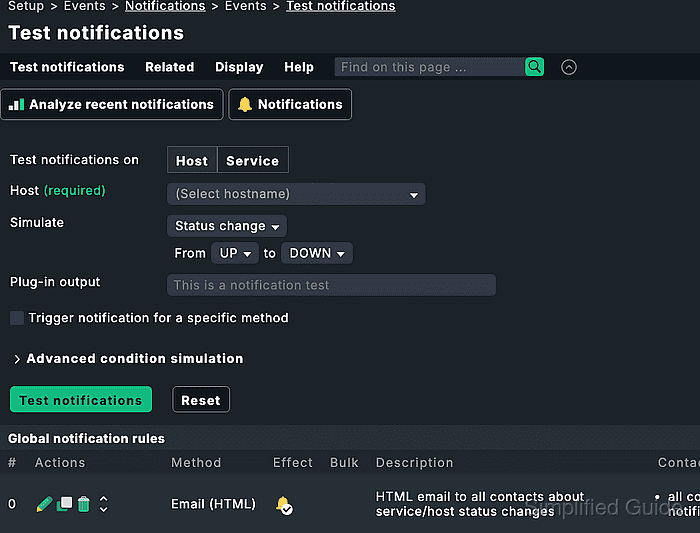
The test tool lives under Setup → Events → Test notifications and can simulate either a host event or a service event. It evaluates the same notification rules, contact selections, time periods, and escalation counters that Checkmk uses when the monitoring core creates a raw notification.
Keep the first pass simulation-only unless the selected contact, method, and target object are safe for a real message. When the test is allowed to send, the result should show that notifications were sent and the recipient should receive the alert through the selected method.
Related: How to create a Checkmk notification rule
Related: How to create a Checkmk user
Steps to test Checkmk notification rules:
- Open Setup → Events → Test notifications.
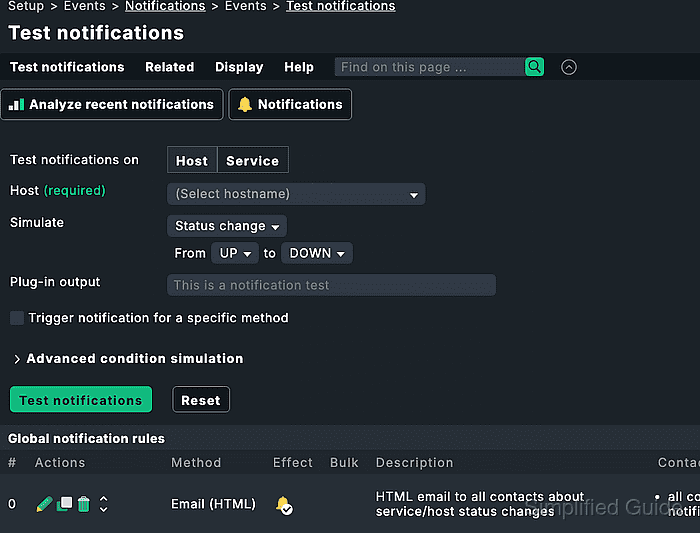
- Select Host or Service for the event type.
- Select the host, or select the host and service, that should exercise the rule being tested.
Use a lab object or a narrowly scoped production object so the result reflects the contact assignments and labels that the rule is expected to match.
- Select the event that should trigger the notification rule, such as a host state change to DOWN or a service state change to CRIT.
- Enter a short Plugin output message for the simulated event.
The plugin output appears in the notification context and helps identify the test when reviewing the result or a delivered message.
- Leave Send out notification for specific method disabled for a simulation-only test.
Enable sending only when the selected method and recipients are safe for a real notification.
- Expand Advanced condition simulation when the rule depends on time periods or repeated notification numbers.
- Set the simulated time or notification number only when the rule uses those conditions.
Escalation rules can depend on the notification counter, while time-period rules depend on the simulated event time.
- Click Test notifications.
- Check Test results for the number of matching notification rules and resulting notifications.
If sending was enabled, the summary should state that notifications have been sent out.
- Expand the notification context for a generated notification when the result does not match the expected rule.
The context shows the environment values that the rule evaluation used, including host, service, event, contact, and notification method fields.
- Check Predicted notifications for the expected recipient and method.
- Check Global notification rules for the rule that matched and any rules that did not match.
A non-matching rule usually points to event type, folder, host label, service name, contact, time-period, or notification-number conditions that do not line up with the simulated event.
- Confirm real delivery outside Checkmk when sending was enabled.
For email, confirm that the recipient received the message. For traceable SMTP delivery, the service or host notification history and the site /var/log/notify.log can show whether the method reported success.