How to issue a wildcard certificate with Certbot
When every first-level hostname under a domain needs TLS, a wildcard certificate avoids maintaining separate certificates for each new application, tenant, or temporary service name. Certbot can request that certificate only after the certificate authority can verify a DNS-01 challenge for the domain.
A Certbot DNS plugin performs that challenge through the DNS provider API. The plugin creates the _acme-challenge TXT record, waits for the configured propagation window, asks the ACME server to validate the record, and removes the temporary record after the order finishes.
The example uses the Debian and Ubuntu APT package names with the Cloudflare DNS plugin. Use the matching provider plugin and credential flag for another DNS provider, and request both example.com and *.example.com when the certificate must cover the zone apex because the wildcard name does not match the bare domain.
Steps to issue a wildcard certificate with Certbot:
- Open a terminal on the host that will store the Certbot certificate lineage.
- Install Certbot, the Cloudflare DNS plugin, and DNS lookup tools.
$ sudo apt install --assume-yes certbot python3-certbot-dns-cloudflare dnsutils
Reading package lists... Done
Building dependency tree... Done
The following NEW packages will be installed:
  certbot dnsutils python3-certbot-dns-cloudflare python3-cloudflare
##### snipped #####
Setting up python3-certbot-dns-cloudflare ...
For another DNS provider, install that provider's Certbot DNS plugin and use its matching credential flag in the certificate commands.
- Confirm that the zone is delegated to the DNS provider handled by the plugin.
$ dig +short NS example.com
arvind.ns.cloudflare.com.
nina.ns.cloudflare.com.
Replace example.com with the public zone you control. The Cloudflare plugin can update only zones that are active in Cloudflare DNS, so use the provider-specific plugin that matches the authoritative nameservers for the zone.
- Create the Certbot configuration directory with root-only access.
$ sudo install -d -m 700 /etc/letsencrypt
- Create a root-owned credential file for the DNS plugin.
$ sudo install -m 600 -o root -g root /dev/null /etc/letsencrypt/cloudflare.ini
- Add a DNS API token that can edit the zone's TXT records.
$ sudoedit /etc/letsencrypt/cloudflare.ini
dns_cloudflare_api_token = <cloudflare-api-token>
Use a token scoped to the needed zone and DNS record edits. A broad DNS account token can change unrelated records if the host is compromised.
- Confirm that only root can read the credential file.
$ sudo ls -l /etc/letsencrypt/cloudflare.ini
-rw------- 1 root root 67 Jun 18 09:20 /etc/letsencrypt/cloudflare.ini
- Confirm that Certbot can load the DNS plugin.
$ certbot plugins
Saving debug log to /var/log/letsencrypt/letsencrypt.log
##### snipped #####
* dns-cloudflare
Description: Obtain certificates using a DNS TXT record (if you are using Cloudflare for DNS).
Interfaces: Authenticator, Plugin
##### snipped #####
- Test the wildcard order against the Let's Encrypt staging service.
$ sudo certbot certonly \
  --dns-cloudflare \
  --dns-cloudflare-credentials /etc/letsencrypt/cloudflare.ini \
  --dns-cloudflare-propagation-seconds 60 \
  --dry-run \
  --non-interactive \
  --agree-tos \
  --email admin@example.com \
  --no-eff-email \
  -d example.com \
  -d '*.example.com'
Saving debug log to /var/log/letsencrypt/letsencrypt.log
Simulating a certificate request for example.com and *.example.com
Waiting 60 seconds for DNS changes to propagate
The dry run was successful.
Quote the wildcard name so the local shell does not expand *.example.com before Certbot receives it. If DNS-01 validation fails, check the current identifier and TXT value before retrying the order.
- Request the production wildcard certificate.
$ sudo certbot certonly \
  --dns-cloudflare \
  --dns-cloudflare-credentials /etc/letsencrypt/cloudflare.ini \
  --dns-cloudflare-propagation-seconds 60 \
  --cert-name example.com-wildcard \
  --non-interactive \
  --agree-tos \
  --email admin@example.com \
  --no-eff-email \
  -d example.com \
  -d '*.example.com'
Saving debug log to /var/log/letsencrypt/letsencrypt.log
Requesting a certificate for example.com and *.example.com
Waiting 60 seconds for DNS changes to propagate
Successfully received certificate.
Certificate is saved at: /etc/letsencrypt/live/example.com-wildcard/fullchain.pem
Key is saved at:         /etc/letsencrypt/live/example.com-wildcard/privkey.pem
example.com covers the bare domain, while *.example.com covers names such as app.example.com. The wildcard does not cover deeper names such as api.dev.example.com.
Use staging until DNS and credential errors are fixed. Repeated failed production orders can consume Let's Encrypt authorization-failure and certificate rate limits.
- Confirm that Certbot saved the wildcard certificate lineage.
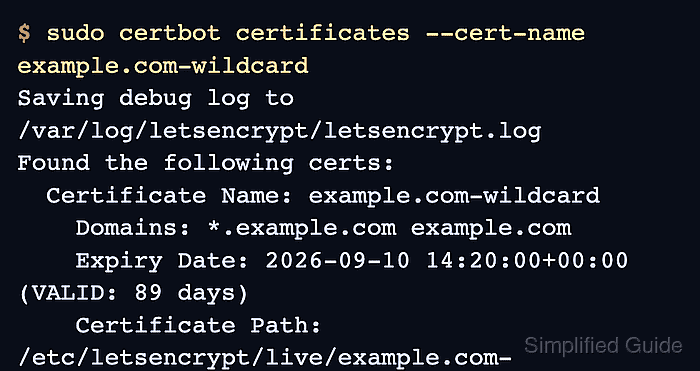
$ sudo certbot certificates --cert-name example.com-wildcard
Saving debug log to /var/log/letsencrypt/letsencrypt.log
Found the following certs:
  Certificate Name: example.com-wildcard
    Domains: *.example.com example.com
    Expiry Date: 2026-09-10 14:20:00+00:00 (VALID: 89 days)
    Certificate Path: /etc/letsencrypt/live/example.com-wildcard/fullchain.pem
    Private Key Path: /etc/letsencrypt/live/example.com-wildcard/privkey.pem
Use these paths in the web server, load balancer, mail server, or other TLS service that will present the certificate.
- Test unattended renewal for the saved certificate.
$ sudo certbot renew --cert-name example.com-wildcard --dry-run
Saving debug log to /var/log/letsencrypt/letsencrypt.log
Processing /etc/letsencrypt/renewal/example.com-wildcard.conf
Simulating renewal of an existing certificate for example.com and *.example.com
Congratulations, all simulated renewals succeeded:
  /etc/letsencrypt/live/example.com-wildcard/fullchain.pem (success)
Certbot records the DNS plugin and credential-file path in the renewal configuration, so the dry run should recreate the DNS-01 challenge without manual TXT record edits.