How to secure an Nginx site with Certbot and HTTPS
An Nginx site is only secure after the public hostname, certificate, server block, redirect, and renewal path all agree. A certificate file on disk does not protect users if the wrong virtual host answers, an alias is missing from the certificate, or plain HTTP still reaches the application without a deliberate redirect.
Certbot's Nginx plugin can request a certificate, prove domain control with HTTP-01, edit the matching server block, and keep the certificate on Certbot's renewal schedule. The host still needs working public DNS, reachable HTTP on port 80, and a server block whose server_name values match the names being placed on the certificate.
The commands use the Debian and Ubuntu Nginx layout, the distro packages certbot and python3-certbot-nginx, and the nginx service name. Replace site.example.net and www.site.example.net with the real names, and keep wildcard certificates, private-only hosts, or blocked port 80 on a DNS-based validation workflow instead.
Related: Test Nginx configuration
Related: Redirect HTTP to HTTPS in Nginx
Steps to secure an Nginx site with Certbot and HTTPS:
- Confirm that the domain resolves to the server that runs Nginx.
$ getent ahosts site.example.net
203.0.113.10   STREAM site.example.net
203.0.113.10   DGRAM
203.0.113.10   RAW
Check every name that will appear on the certificate. If the name also has an .AAAA record, that IPv6 address must reach the same Nginx site or HTTP-01 validation can fail from validators that choose IPv6.
- Confirm that the public HTTP site answers on port 80.
$ curl -I http://site.example.net/
HTTP/1.1 200 OK
Server: nginx/1.28.3 (Ubuntu)
##### snipped #####
HTTP-01 starts on port 80. A private-only site, closed firewall, ISP block, or CDN rule that hides /.well-known/acme-challenge/ from the public Internet needs to be fixed before using the Nginx plugin.
- Confirm that Nginx has a matching server block for the names being secured.
$ sudo nginx -T
nginx: the configuration file /etc/nginx/nginx.conf syntax is ok
nginx: configuration file /etc/nginx/nginx.conf test is successful
# configuration file /etc/nginx/sites-enabled/site.example.net:
server {
    listen 80;
    server_name site.example.net www.site.example.net;
    root /var/www/site.example.net;
}
##### snipped #####
If server_name is missing or points at a different hostname, certbot –nginx may update the wrong block or stop before installation.
- Refresh the package index.
$ sudo apt update
Hit:1 http://archive.ubuntu.com/ubuntu resolute InRelease
Get:2 http://archive.ubuntu.com/ubuntu resolute-updates InRelease [137 kB]
##### snipped #####
Reading package lists... Done
- Install Certbot and the Nginx plugin.
$ sudo apt install --assume-yes certbot python3-certbot-nginx
The following NEW packages will be installed:
  certbot python3-certbot-nginx
##### snipped #####
Other install methods, such as snap or pip, can use different timer paths and plugin packaging. Keep the later renewal checks aligned with the install method actually used on the host.
- Confirm that Certbot can see the Nginx plugin.
$ certbot plugins
Saving debug log to /var/log/letsencrypt/letsencrypt.log
##### snipped #####
* nginx
Description: Nginx Web Server plugin
Interfaces: Authenticator, Installer, Plugin
Entry point: EntryPoint(name='nginx',
value='certbot_nginx._internal.configurator:NginxConfigurator',
group='certbot.plugins')
##### snipped #####
- Request and install the certificate with an explicit HTTP-to-HTTPS redirect.
$ sudo certbot --nginx -d site.example.net -d www.site.example.net --redirect -m admin@example.net --agree-tos
Saving debug log to /var/log/letsencrypt/letsencrypt.log
Requesting a certificate for site.example.net and www.site.example.net
Successfully received certificate.
Certificate is saved at: /etc/letsencrypt/live/site.example.net/fullchain.pem
Key is saved at:         /etc/letsencrypt/live/site.example.net/privkey.pem
Deploying certificate
Successfully deployed certificate for site.example.net to /etc/nginx/sites-enabled/site.example.net
Congratulations! You have successfully enabled HTTPS on https://site.example.net and https://www.site.example.net
The Nginx installer currently uses HTTP-01 on port 80. The --redirect flag makes the redirect decision explicit; use --no-redirect only when another layer owns the redirect or HTTP must remain reachable during a staged cutover.
Use --test-cert for a staging rehearsal before live issuance. Staging certificates are not browser-trusted and should not replace the production certificate on a public site.
- Test the Nginx configuration after Certbot edits it.
$ sudo nginx -t
nginx: the configuration file /etc/nginx/nginx.conf syntax is ok
nginx: configuration file /etc/nginx/nginx.conf test is successful
Do not reload a broken SSL server block. Fix certificate paths, duplicate listeners, or server block conflicts before applying the change.
- Reload Nginx when the syntax test passes.
$ sudo systemctl reload nginx
- Confirm that the Nginx service stayed active after reload.
$ systemctl is-active nginx
active
- Verify that the HTTPS site responds.
$ curl -I https://site.example.net/
HTTP/1.1 200 OK
Server: nginx/1.28.3 (Ubuntu)
##### snipped #####
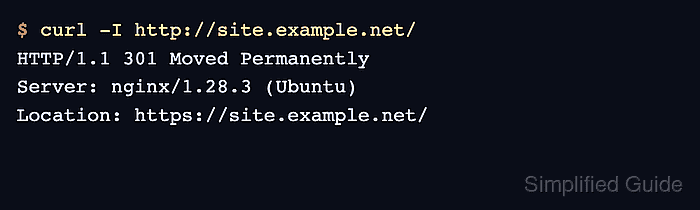
- Verify that plain HTTP redirects to the HTTPS hostname.
$ curl -I http://site.example.net/
HTTP/1.1 301 Moved Permanently
Server: nginx/1.28.3 (Ubuntu)
Location: https://site.example.net/
Tool: HTTP Redirect Checker
- Confirm that Certbot records the certificate with the expected names and expiry.
$ sudo certbot certificates
Saving debug log to /var/log/letsencrypt/letsencrypt.log
Certificate Name: site.example.net
    Domains: site.example.net www.site.example.net
    Expiry Date: 2026-09-09 12:34:56+00:00 (VALID: 89 days)
    Certificate Path: /etc/letsencrypt/live/site.example.net/fullchain.pem
    Private Key Path: /etc/letsencrypt/live/site.example.net/privkey.pem
The certificate name is used for Certbot housekeeping and path names. It does not need to match every domain on the certificate, but the Domains line must include every hostname that users will reach over HTTPS.
- Run a renewal dry run.
$ sudo certbot renew --dry-run
Saving debug log to /var/log/letsencrypt/letsencrypt.log
##### snipped #####
Congratulations, all simulated renewals succeeded:
  /etc/letsencrypt/live/site.example.net/fullchain.pem (success)
--dry-run uses the Let's Encrypt staging service for renewal testing. It can temporarily modify and roll back web server configuration while proving that future renewal should work.
- Check the packaged renewal timer when Certbot was installed from distro packages.
$ systemctl list-timers certbot.timer
NEXT                        LEFT     LAST PASSED UNIT          ACTIVATES
Fri 2026-06-12 08:17:00 UTC 11h left -    -      certbot.timer certbot.service
If the install method uses a different scheduler, check that scheduler instead of forcing certbot.timer to exist. Add HSTS only after every served hostname has working HTTPS and the rollback impact is understood.