How to troubleshoot Certbot rate limit errors
A Certbot rate limit error means the request reached the certificate authority, but the production ACME API refused to create or validate another order for the same account, identifier, domain, or API endpoint yet. Repeating the same production command usually burns more quota or returns the same reset time, so identify the exact limit before trying another live issuance.
Production ACME rate limits are not all the same. A failed-authorization or consecutive-authorization limit points to an HTTP-01, TLS-ALPN-01, or DNS-01 validation problem; an exact-set or registered-domain limit points to repeated issuance; an overall request limit usually points to automation making too many API calls from one IP address.
Certbot can retest most renewal and issuance flows against the ACME staging environment with --dry-run or --test-cert. Use staging while fixing challenge reachability or renewal options, then retry production only after the staging command succeeds and the production error's reset time has passed.
Steps to troubleshoot Certbot rate limit errors:
- Save the exact rate limit message from the failed Certbot run.
$ sudo certbot certonly --nginx -d www.example.com
Saving debug log to /var/log/letsencrypt/letsencrypt.log
Requesting a certificate for www.example.com
An unexpected error occurred:
too many failed authorizations for "www.example.com" in the last 1h0m0s, retry after 2026-06-12 15:34:00 UTC
Ask for help or search for solutions at https://community.letsencrypt.org.
Do not keep rerunning the same production command while the limit is active. Use the saved terminal output, Certbot's debug log, or one carefully captured failure as the diagnostic input.
- Match the message to the limit it names.
too many failed authorizations                    validation failures
too many consecutive authorization failures       identifier pause
too many certificates already issued for exact set  duplicate issuance
too many certificates already issued for example.com registered-domain issuance
HTTP 503 with Retry-After                           overall request limit
Common production limits include 5 authorization failures per identifier per account per hour, 1,152 consecutive authorization failures per identifier per account before Let's Encrypt pauses issuance for that identifier, 5 certificates for the same exact identifier set every 7 days, and 50 certificates per registered domain every 7 days. New-order account limits and request-per-IP limits can also appear on busy automation.
- List the local certificate names before changing the request.
$ sudo certbot certificates
Saving debug log to /var/log/letsencrypt/letsencrypt.log

Found the following certs:
  Certificate Name: www.example.com
    Domains: www.example.com example.com
    Expiry Date: 2026-08-25 06:50:00+00:00 (VALID: 73 days)
    Certificate Path: /etc/letsencrypt/live/www.example.com/fullchain.pem
    Private Key Path: /etc/letsencrypt/live/www.example.com/privkey.pem
The exact-set limit ignores capitalization and domain order. Reissuing example.com,www.example.com// and www.example.com,example.com// still counts as the same set.
- Stop production retries if the error is a failed authorization or consecutive authorization limit.
- Fix the validation path used by the original command.
For HTTP-01 and TLS-ALPN-01, check public DNS, firewall rules, ports 80 and 443, virtual-host routing, and redirects for the affected name. For DNS-01, check the TXT record name, token value, delegated zone, and propagation delay before another validation attempt.
Tool: ACME HTTP-01 Readiness Validator
Tool: ACME DNS Challenge Readiness Check - Retest the original validation flow against staging.
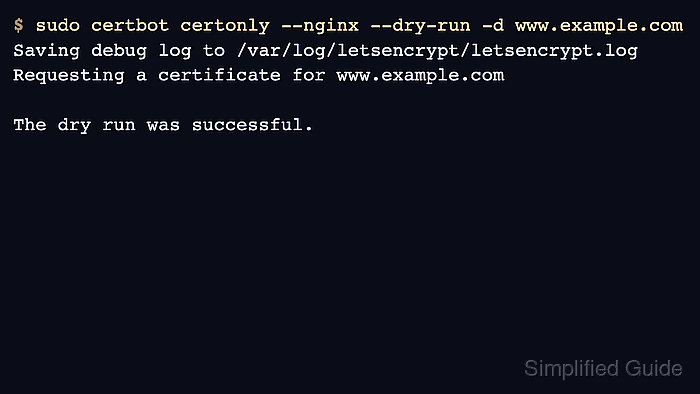
$ sudo certbot certonly --nginx --dry-run -d www.example.com
Saving debug log to /var/log/letsencrypt/letsencrypt.log
Requesting a certificate for www.example.com

The dry run was successful.
--dry-run uses the Let's Encrypt staging server unless a custom --server value is set on the command line or in cli.ini. Remove or override any production-only custom server setting before relying on a dry run as a staging test.
- Wait for the reset time when the message includes retry after.
Revoking or deleting certificates does not reset Let's Encrypt rate limits. It can remove a working certificate while leaving the issuance quota unchanged.
- Reduce repeated issuance if the error names an exact-set or registered-domain limit.
Use the existing certificate when it is still valid, avoid --force-renewal during troubleshooting, and keep the same identifier set for normal renewals. Changing the set of names may avoid the exact-set limit, but it creates a new order and still counts against other production limits.
- Retry production once after staging succeeds and the reset time has passed.
$ sudo certbot renew --cert-name www.example.com
Saving debug log to /var/log/letsencrypt/letsencrypt.log
Renewing an existing certificate for www.example.com and example.com

Successfully renewed certificate for www.example.com.
For a new certificate, rerun the original certbot certonly or installer command once, without --dry-run, after the staging check succeeds.
- Confirm that Certbot now has a valid certificate for the affected name.
$ sudo certbot certificates
Saving debug log to /var/log/letsencrypt/letsencrypt.log

Found the following certs:
  Certificate Name: www.example.com
    Domains: www.example.com example.com
    Expiry Date: 2026-09-10 11:22:00+00:00 (VALID: 89 days)
    Certificate Path: /etc/letsencrypt/live/www.example.com/fullchain.pem
    Private Key Path: /etc/letsencrypt/live/www.example.com/privkey.pem