How to assume an IAM role using AWS CLI
Cross-account or elevated AWS CLI work should not depend on another set of long-lived keys. An AWS CLI role profile lets a saved source identity request temporary STS credentials for a target IAM role before the account-sensitive command runs.
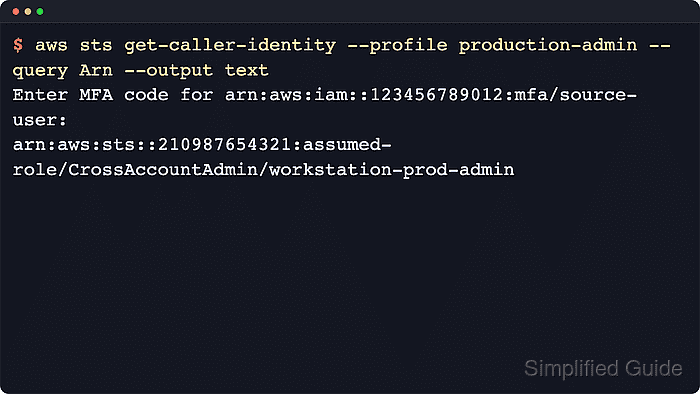
Role profiles are stored in ~/.aws/config and need role_arn plus either source_profile or credential_source. When the profile is selected with --profile or AWS_PROFILE, the CLI calls STS AssumeRole, caches temporary credentials under ~/.aws/cli/cache, and signs the service request as the assumed role.
The source identity still needs permission for sts:AssumeRole, and the target role trust policy must allow that principal. The AWS account root user cannot assume roles this way. Role chaining limits sessions to one hour, and settings such as external_id, mfa_serial, and duration_seconds should match the role owner's trust policy and session-duration rules.
Steps to assume an IAM role with an AWS CLI profile:
- Confirm that the source profile resolves the identity allowed to assume the role.
$ aws sts get-caller-identity --profile source-user --query Arn --output text
arn:aws:iam::123456789012:user/source-user
The returned Arn should be the principal named in the target role trust policy or in the policy that grants sts:AssumeRole.
Related: How to configure multiple AWS CLI profiles
Related: How to log in to AWS CLI with IAM Identity Center - Save the target role ARN in a new profile.
$ aws configure set role_arn arn:aws:iam::210987654321:role/CrossAccountAdmin --profile production-admin
Get the exact role ARN from the role owner. aws configure set writes role settings to the shared config file, not the shared credentials file.
Related: How to find the AWS CLI config file location - Point the role profile at the source profile.
$ aws configure set source_profile source-user --profile production-admin
Use credential_source instead of source_profile only when the source credentials should come from Environment, Ec2InstanceMetadata, or EcsContainer. The two settings cannot be used in the same role profile.
- Save a role session name for audit logs.
$ aws configure set role_session_name workstation-prod-admin --profile production-admin
The session name appears as the final segment of the assumed-role ARN and can be visible in CloudTrail in the target account.
- Save the default Region for commands that use the role profile.
$ aws configure set region us-west-2 --profile production-admin
Commands can still override this value with --region or Region environment variables when one request needs another Region.
Related: How to set the default Region in AWS CLI - Add trust-policy extras only when the role owner requires them.
$ aws configure set external_id vendor-customer-42 --profile production-admin
Set external_id for third-party cross-account roles, mfa_serial for roles that require MFA, and duration_seconds only within the role's maximum session duration. A chained role session cannot exceed 3600 seconds.
- Inspect the saved role profile.
$ cat ~/.aws/config
[profile source-user]
region = us-west-2
[profile production-admin]
role_arn = arn:aws:iam::210987654321:role/CrossAccountAdmin
source_profile = source-user
role_session_name = workstation-prod-admin
region = us-west-2
external_id = vendor-customer-42
If AWS_CONFIG_FILE is set, inspect that override path instead of ~/.aws/config.
- Confirm that the profile resolves through AssumeRole.
$ aws configure list --profile production-admin
NAME       : VALUE                    : TYPE             : LOCATION
profile    : production-admin         : manual           : --profile
access_key : ****************ROLE     : assume-role      :
secret_key : ****************0001     : assume-role      :
region     : us-west-2                : config-file      : ~/.aws/config
The TYPE column should show assume-role for the access key and secret key. If the role has mfa_serial, the CLI prompts for the current MFA code when it refreshes temporary credentials.
- Run a caller identity check through the role profile.
$ aws sts get-caller-identity --profile production-admin --query Arn --output text
arn:aws:sts::210987654321:assumed-role/CrossAccountAdmin/workstation-prod-admin
The returned ARN should use the target account, target role name, and saved session name before service commands run with --profile production-admin.
Related: How to check the current caller identity in AWS CLIIf the command returns the original user or a different role, clear exported raw credential variables such as AWS_ACCESS_KEY_ID, AWS_SECRET_ACCESS_KEY, and AWS_SESSION_TOKEN before testing again.
Related: How to use AWS CLI environment variables