How to configure credential_process in AWS CLI
An AWS CLI profile that depends on a vault, sign-in bridge, or workforce identity helper should not need another static access key in the shared credential file. credential_process points that profile at an external command, so the CLI and compatible AWS SDKs can ask the helper for credentials when the profile is used.
The setting belongs in the shared config file under the target profile. The AWS CLI runs the configured command exactly as written, reads JSON from STDOUT, and uses the returned AccessKeyId, SecretAccessKey, optional SessionToken, and optional Expiration values for credential resolution.
Prefer IAM Identity Center, role assumption, aws login, or an attached compute role when those flows fit the workload. Use an external process only when a separate helper must supply credentials, secure the helper and config file, keep secrets out of STDERR, and remember that the AWS CLI does not cache external-process credentials for the helper.
Steps to configure credential_process in AWS CLI:
- Run the credential helper by itself.
$ /usr/local/bin/aws-creds-helper --profile developer
{
  "Version": 1,
  "AccessKeyId": "ASIAIOSFODNN7EXAMPLE",
  "SecretAccessKey": "coreSecretExample0000000000000000000000001",
  "SessionToken": "AQoDYXdzEJrEXAMPLESESSIONTOKEN",
  "Expiration": "2030-01-01T00:00:00Z"
}
The helper must write JSON to STDOUT with Version set to 1. Expiration makes temporary credentials refreshable by rerunning the helper before they expire.
Tool: JSON ValidatorDo not write access keys, session tokens, or failure diagnostics that contain secrets to STDERR because CLI and SDK logs can capture that stream.
- Save the helper command in the target profile.
$ aws configure set credential_process "/usr/local/bin/aws-creds-helper --profile developer" --profile developer
This writes credential_process under [profile developer] in the shared config file, not in the shared credentials file.
Use a full path or a helper name that is already in PATH. Do not use $HOME, %USERPROFILE%, or ~ inside the configured command string.
- Read back the saved helper command.
$ aws configure get credential_process --profile developer
/usr/local/bin/aws-creds-helper --profile developer
- Inspect the profile section in the shared config file.
$ cat ~/.aws/config
[profile developer]
credential_process = /usr/local/bin/aws-creds-helper --profile developer
The default config path is ~/.aws/config on Linux and macOS and %UserProfile%\\.aws\\config on Windows. Use AWS_CONFIG_FILE only when a script or task should read a different config file.
Related: How to find the AWS CLI config file location - Check the winning credential source for the profile.
$ aws configure list --profile developer
NAME       : VALUE                    : TYPE             : LOCATION
profile    : developer                : manual           : --profile
access_key : ****************MPLE     : custom-process   :
secret_key : ****************0001     : custom-process   :
region     : <not set>                : None             : None
custom-process confirms that the profile is resolving credentials through the configured helper.
If this output shows env or shared-credentials-file instead, another credential source is winning. Remove or change that source only after confirming it is not needed by other profiles or shells.
- Export the resolved credentials in process format.
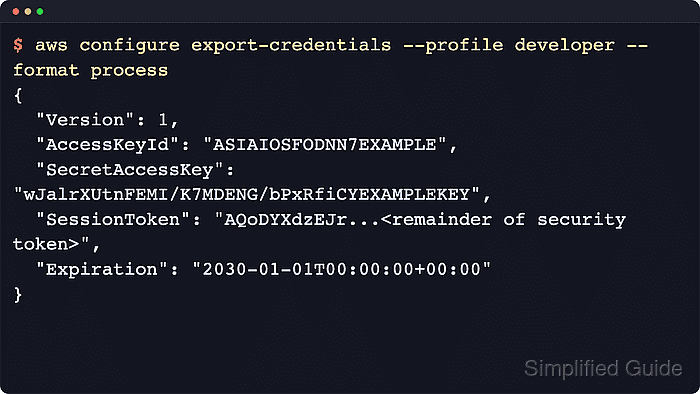
$ aws configure export-credentials --profile developer --format process
{
  "Version": 1,
  "AccessKeyId": "ASIAIOSFODNN7EXAMPLE",
  "SecretAccessKey": "coreSecretExample0000000000000000000000001",
  "SessionToken": "AQoDYXdzEJrEXAMPLESESSIONTOKEN",
  "Expiration": "2030-01-01T00:00:00+00:00"
}
aws configure export-credentials uses the normal credential resolution chain and prints the process JSON format expected by credential_process consumers.
A process profile can reuse a working aws login or other AWS CLI sign-in by setting credential_process = aws configure export-credentials --profile signin --format process.
Related: How to configure multiple AWS CLI profiles