How to install the Appium iOS driver
Appium can start without iOS automation support, but an iOS session fails before the app launches when the XCUITest driver is missing from the Appium extension home. Installing the Appium iOS driver adds the managed driver package that lets the server route iOS, iPadOS, and tvOS session commands into Apple's XCUITest and WebDriverAgent stack.
The Appium extension CLI installs this official driver with the xcuitest key. Appium reads managed drivers from APPIUM_HOME, or from ~/.appium when the variable is unset, so the install, list, and server-start checks must use the same shell environment.
Use a macOS host with Xcode selected before relying on the driver for real simulator or device sessions. The package can be installed and loaded by the Appium server without a connected device, but simulator launches, WebDriverAgent builds, and real-device sessions need Apple's command-line tools and target SDKs.
Related: How to install Appium
Related: How to use APPIUM_HOME for Appium extensions
Related: How to run Appium driver doctor checks
Steps to install the Appium iOS driver:
- Open a terminal on the macOS host that will run Appium.
- Confirm the active Appium server version.
$ appium --version
3.5.0
XCUITest driver 10.x and newer require Appium 3. If this command shows 2.x, install a compatible older driver or upgrade the Appium server first.
Related: How to install Appium - Confirm Xcode is selected for command-line use.
$ xcodebuild -version
Xcode 16.4
Build version 16F6
If xcodebuild is missing or points at the wrong Xcode app, the driver can install but iOS sessions will fail when WebDriverAgent or simulator tooling is needed.
- List the driver catalog from the Appium home you will use.
$ appium driver list
- Listing available drivers (rerun with --verbose for more info)
- uiautomator2 [not installed]
- xcuitest [not installed]
##### snipped #####
Set APPIUM_HOME before this command if the project uses a separate extension directory. Use the same value for every later appium driver and server command.
Related: How to use APPIUM_HOME for Appium extensions - Install the official XCUITest driver.
$ appium driver install xcuitest
- Checking if 'appium-xcuitest-driver' is compatible
- Installing 'xcuitest'
- Validating 'xcuitest'
Driver xcuitest@11.11.2 successfully installed
- automationName: XCUITest
- platformNames: ["iOS","tvOS"]
The exact driver version changes over time. The automationName value shown here is the capability value used by iOS sessions.
- Confirm that xcuitest is installed in the same Appium home.
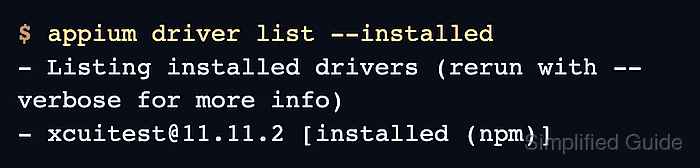
$ appium driver list --installed
- Listing installed drivers (rerun with --verbose for more info)
- xcuitest@11.11.2 [installed (npm)]
- Start Appium once from the same shell.
$ appium --address 127.0.0.1 --port 4723
[Appium] Welcome to Appium v3.5.0
[Appium] The APPIUM_HOME environment variable: /Users/mobile/.appium
[Appium] Attempting to load driver xcuitest...
[Appium] XCUITestDriver has been successfully loaded in 0.342s
[Appium] Appium REST http interface listener started on http://127.0.0.1:4723
[Appium] Available drivers:
[Appium]   - xcuitest@11.11.2 (automationName 'XCUITest')
The load message proves the Appium server can discover the installed iOS driver. Run appium driver doctor xcuitest next if simulator SDKs, signing, or optional real-device tooling still need validation.
Related: How to run Appium driver doctor checks - Stop the verification server with Ctrl-C.