How to run an Appium session on an Android real device
Physical Android devices expose USB authorization, device serial selection, lock-screen state, and installed-app behavior that emulator-only checks can miss. Running an Appium session on a real device confirms that adb can see authorized hardware and that the UiAutomator2 driver can open an Android app on that device.
Appium 3 sessions use W3C capabilities and the server root URL by default. For UiAutomator2, appium:udid selects the physical device from adb devices -l output, while appium:appPackage and appium:appActivity name the Android app that should launch when the session starts.
The device must have Developer options and USB debugging enabled, and the workstation must be trusted from the device prompt before adb reports the state as device. Keep the screen unlocked for the first smoke test, use a known package such as com.android.settings to prove the connection, and disable USB debugging again on shared or production phones when testing is finished.
Steps to run an Appium session on an Android real device:
- Enable USB debugging on the Android device and accept the workstation authorization prompt.
On Android 4.2 and later, Developer options stays hidden until it is enabled from the device settings. The device must be unlocked when the RSA trust prompt appears.
- List the connected device with adb.
$ adb devices -l
List of devices attached
R5CT31AB2XM    device usb:1-1 product:oriole model:Pixel_6 device:oriole transport_id:4
The state must be device. If the row shows unauthorized, unlock the phone and accept the debugging prompt before starting Appium.
- Start the Appium server with the UiAutomator2 driver available.
$ appium server --port 4723
[Appium] Welcome to Appium v3.5.0
[Appium] Attempting to load driver uiautomator2...
[Appium] Appium REST http interface listener started on http://0.0.0.0:4723
Leave this terminal open while the client script creates the session.
Related: How to start the Appium server - Create a one-device Python smoke test.
$ cat > real-device-session.py <<'PY'
from appium import webdriver
from appium.options.android import UiAutomator2Options

options = UiAutomator2Options().load_capabilities({
    "platformName": "Android",
    "appium:automationName": "UiAutomator2",
    "appium:udid": "R5CT31AB2XM",
    "appium:appPackage": "com.android.settings",
    "appium:appActivity": ".Settings",
    "appium:noReset": True,
})

driver = webdriver.Remote("http://127.0.0.1:4723", options=options)
print(f"Session: {driver.session_id}")
print(f"Current package: {driver.current_package}")
driver.quit()
PY
Replace R5CT31AB2XM with the serial from adb devices -l. Replace com.android.settings and .Settings with the tested app package and launch activity after the real-device connection works.
- Run the smoke test.
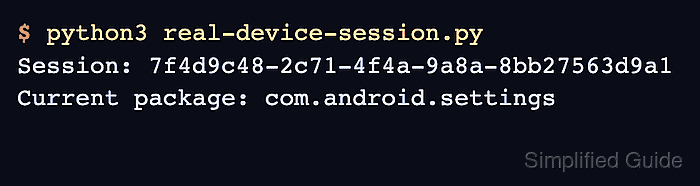
$ python3 real-device-session.py
Session: 7f4d9c48-2c71-4f4a-9a8a-8bb27563d9a1
Current package: com.android.settings
The session ID confirms that Appium created a WebDriver session, and the current package confirms that the Android Settings app opened on the physical device.
- Remove the smoke test file if it was only created for connection validation.
$ rm real-device-session.py