How to install Anaconda on Windows
Installing Anaconda Distribution on Windows 11 gives a workstation the conda package manager, the base environment, and Anaconda Navigator for users who prefer a desktop interface. The graphical installer is the clearest path for a single user because it creates Start menu shortcuts and opens Navigator after a successful install.
The Windows installer is distributed as a 64-bit .exe from anaconda.com/download. Running it from Downloads avoids the permission issue Anaconda documents for the Favorites folder, and installing for Just Me keeps the files in the user's profile unless an administrator is intentionally deploying for all users.
Conda tools on Windows are normally opened through Anaconda Prompt or Anaconda Navigator instead of adding Anaconda to the system PATH. Choose an install folder without spaces or non-ASCII characters, then verify that Navigator launches and Anaconda Prompt reports the base environment.
Related: Install Miniconda
Related: How to create an environment in Anaconda Navigator
Related: How to install a package in Anaconda Navigator
Related: How to uninstall Anaconda
Steps to install Anaconda Distribution on Windows:
- Open the official Anaconda download page.
https://www.anaconda.com/download
- Sign in or register when prompted, then download the Windows 64-Bit Graphical Installer for Anaconda Distribution.
- Open the Downloads folder.
- Double-click the downloaded Anaconda3 .exe installer.
Do not launch the installer from Favorites because Anaconda documents permission errors from that location.
- Click Next on the setup welcome screen.
- Click I Agree after reviewing the Anaconda Terms of Service.
https://www.anaconda.com/legal
- Select Just Me for a normal single-user install.
Use All Users only when an administrator is managing the workstation. Anaconda recommends reinstalling as Just Me if an All Users install hits permission errors.
- Click Next.
- Select an install location without spaces or special characters.
C:\Users\user\Anaconda3
If the Windows username contains spaces or non-ASCII characters, use a short path such as C:\anaconda3 instead of the profile default.
- Click Next.
- Leave Add Anaconda3 to my PATH environment variable unchecked.
Open Anaconda Prompt from the Start menu when you need conda. Adding Anaconda to PATH can make other Python tools use the Anaconda interpreter unexpectedly.
- Leave Register Anaconda3 as my default Python selected unless another Python install must remain the default for file associations and launchers.
- Click Install.
- Wait for the installer to finish copying files.
Show details displays the packages being installed, but it is not required for a normal install.
- Click Next twice.
- Click Finish to close the installer.
- Open Anaconda Navigator from the Start menu if it does not open automatically.
- Confirm that Navigator opens to the home screen.
- Open Anaconda Prompt from the Start menu.
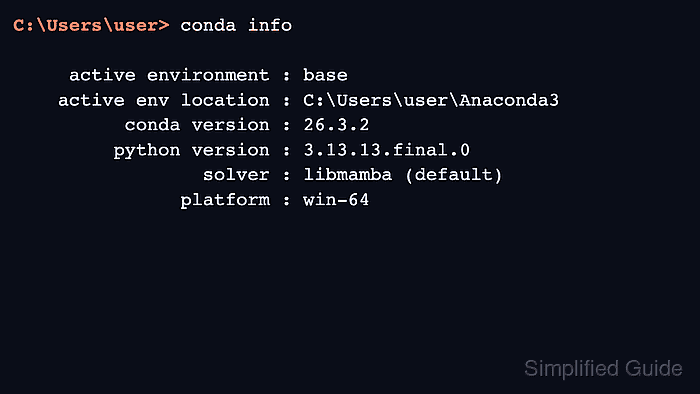
- Confirm that Conda sees the base environment.
C:\Users\user> conda info

     active environment : base
    active env location : C:\Users\user\Anaconda3
          conda version : 26.3.2
         python version : 3.13.13.final.0
                 solver : libmamba (default)
               platform : win-64
##### snipped #####
The prompt may start with (base) in Anaconda Prompt. The exact conda and Python versions change with the installer release, but the active environment should be base and the path should match the folder selected during installation.
- Confirm that Navigator is installed in base.
C:\Users\user> conda list anaconda-navigator

# packages in environment at C:\Users\user\Anaconda3:
#
# Name                    Version                   Build  Channel
anaconda-navigator        2.6.6           py313haa95532_0
The version changes with the installer release. A package row for anaconda-navigator confirms the desktop app is part of the Anaconda Distribution install.