Creating a separate environment in Anaconda Navigator keeps a project away from the packages and interpreter used by base. The desktop flow is suited to users who need a Python or R environment but do not want to type conda create commands in a terminal.
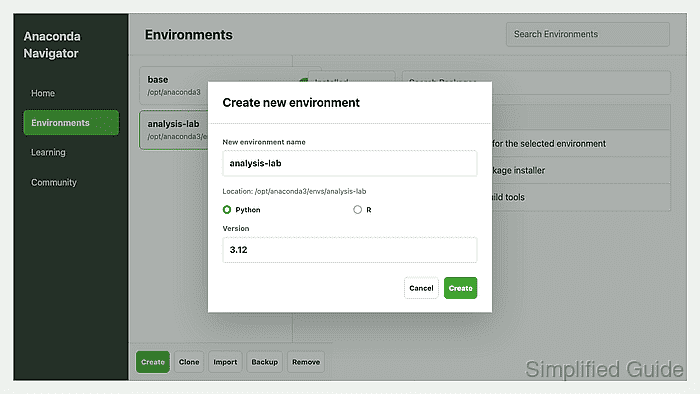
Navigator creates environments from the Environments page. The Create new environment dialog asks for a name, shows the target environment location as the name is entered, and lets the user choose a Python or R interpreter with a matching version.
The new environment appears in the environments list after Navigator finishes solving and installing the interpreter packages. Opening the activation options from the environment row confirms the environment can be used through a terminal or interpreter; IPython Console and Jupyter Notebook appear only when their required packages are installed.
Related: How to install Anaconda on Windows
Related: Create an environment with conda
Related: How to install a package in Anaconda Navigator
Steps to create an environment in Anaconda Navigator:
- Open Anaconda Navigator.
- Select Environments from the left-hand navigation.
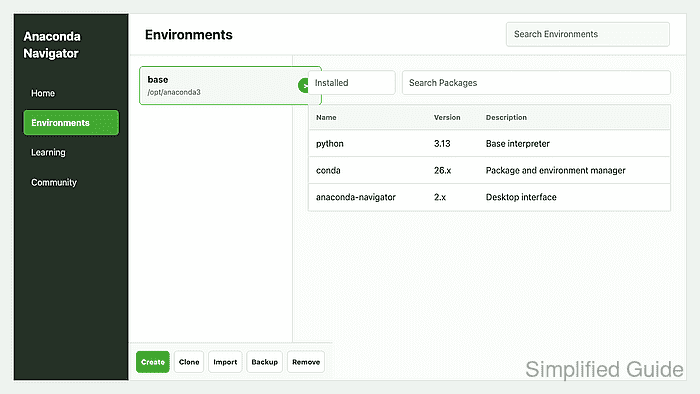
- Click Create at the bottom of the environments list.
- Enter a descriptive value in New environment name.
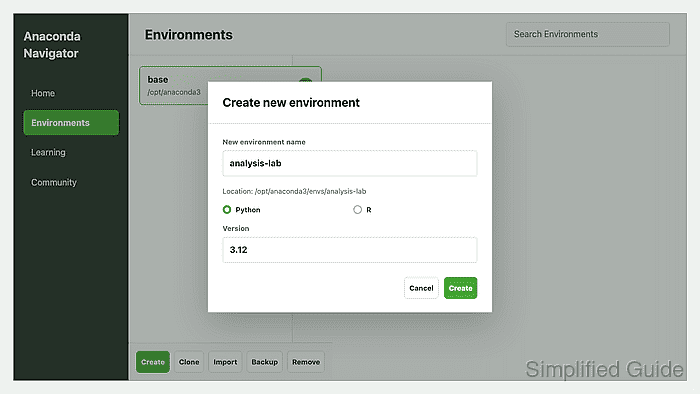
Navigator displays the environment location below the name field as the name is typed. Use a short project name such as analysis-lab and avoid spaces when the environment will also be used from a terminal.
- Select Python for a Python project or R for an R project.
- Open the Version dropdown and select the interpreter version needed by the project.
Choose the version required by the project or course materials. Packages are built for specific interpreter versions, so the selection affects which packages can be installed later.
- Click Create.
- Wait for the new environment to appear in the environments list.
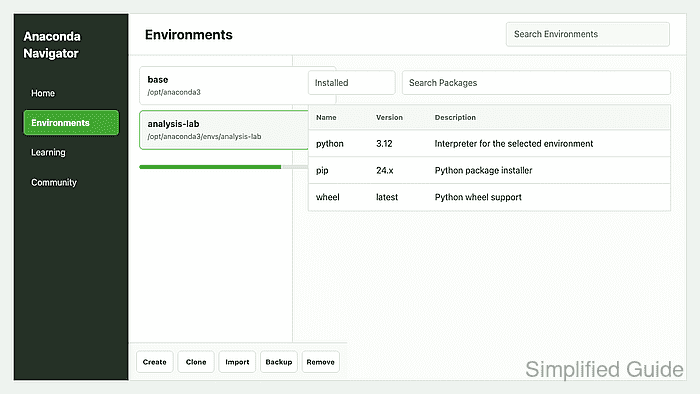
Navigator may show a progress bar while conda solves dependencies and installs the interpreter package.
- Select the new environment in the environments list.
- Open the activation options beside the environment name.
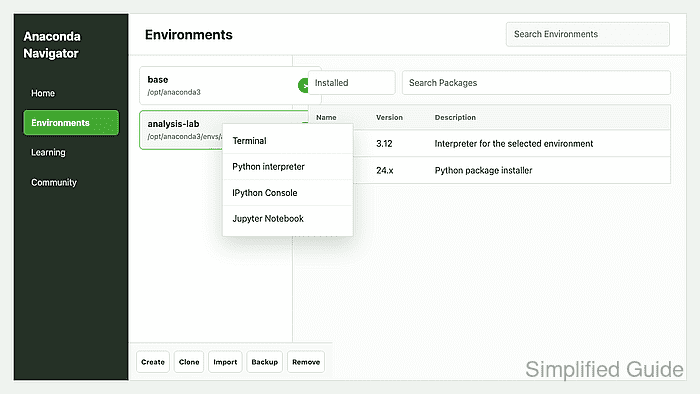
- Select Terminal or Python interpreter to confirm the environment opens.
Terminal and Python interpreter do not require extra packages. IPython Console requires ipython, and Jupyter Notebook requires notebook in the selected environment.

Mohd Shakir Zakaria is a cloud architect with deep roots in software development and open-source advocacy. Certified in AWS, Red Hat, VMware, ITIL, and Linux, he specializes in designing and managing robust cloud and on-premises infrastructures.


