Updating a WordPress theme with WP-CLI replaces the installed theme package from the shell while keeping the slug and version change visible. It fits maintenance windows, scripted upkeep, and hosts where wp-admin access is unavailable or intentionally avoided.
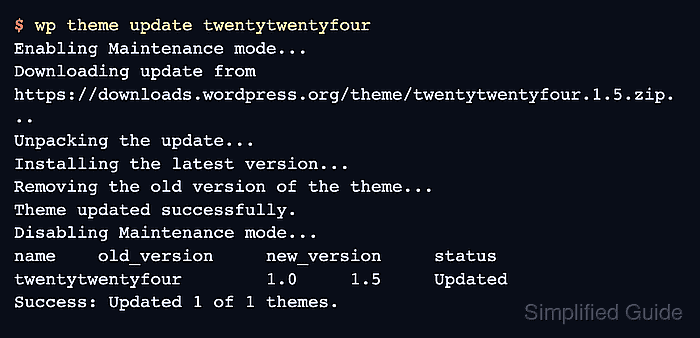
WP-CLI loads the WordPress install from the current document root or the supplied --path value. The wp theme list output shows each theme slug, active state, installed version, and pending update version, while wp theme update downloads the current package for the selected slug.
Theme updates replace files under /wp-content/themes/ and can affect templates, styles, block patterns, and bundled assets immediately when the active theme changes. Start from the intended site context, keep a rollback copy outside the web root, preview the target slug with --dry-run, and test the front end before closing the change window.
Steps to update a WordPress theme with WP-CLI:
- Change into the exact WordPress document root.
$ cd /var/www/example.com/public_html
In automation or shared shell sessions, add --path=/var/www/example.com/public_html to each wp command instead of relying on the inherited working directory.
Related: How to use WP-CLI safely on a production WordPress site - Confirm that WP-CLI is targeting the intended site.
$ wp option get home
https://www.example.com
On multisite, add --url=https://www.example.com to the remaining site-specific commands.
- List installed themes and identify the slug with an available update.
$ wp theme list --fields=name,status,update,version,update_version
name               status    update     version  update_version
twentytwentyfive  inactive  none       1.5
twentytwentyfour  active    available  1.0      1.5
twentytwentythree inactive  none       1.6
Use the slug from the name column, not the display name shown in wp-admin. The update and update_version columns show whether WP-CLI sees a pending package for that theme.
- Create a backup directory outside the public document root.
$ mkdir -p ~/backups/wordpress
Do not store rollback archives under the public document root. Theme archives may expose custom templates, private assets, license files, or deployment details.
- Archive the current theme directory before replacing it.
$ tar -czf ~/backups/wordpress/twentytwentyfour-pre-update.tar.gz wp-content/themes/twentytwentyfour
Direct edits inside the parent theme directory are overwritten by the update. Keep custom code in a child theme or version control instead of relying on the packaged theme directory as the source of truth.
Related: How to back up a WordPress site
- Preview the target theme update by slug.
$ wp theme update twentytwentyfour --dry-run
Available theme updates:
name              status  version  update_version
twentytwentyfour  active  1.0      1.5
The --dry-run preview confirms the slug and target version before the theme directory is replaced.
- Update the target theme by slug.
$ wp theme update twentytwentyfour
Enabling Maintenance mode...
Downloading update from https://downloads.wordpress.org/theme/twentytwentyfour.1.5.zip...
Unpacking the update...
Installing the latest version...
Removing the old version of the theme...
Theme updated successfully.
Disabling Maintenance mode...
name              old_version  new_version  status
twentytwentyfour  1.0          1.5          Updated
Success: Updated 1 of 1 themes.
WordPress can enter maintenance mode while an active theme package is replaced.
- Verify that the theme no longer reports a pending update.
$ wp theme list --name=twentytwentyfour --fields=name,status,update,version,update_version
name              status  update  version  update_version
twentytwentyfour  active  none    1.5
An update value of none confirms that WP-CLI no longer sees a newer package for that slug.
- Test the public front page and at least one URL that uses a theme-specific template.
If the active theme breaks layout or rendering after the update, restore the archived theme directory or roll back from the full-site backup before applying unrelated fixes.

Mohd Shakir Zakaria is a cloud architect with deep roots in software development and open-source advocacy. Certified in AWS, Red Hat, VMware, ITIL, and Linux, he specializes in designing and managing robust cloud and on-premises infrastructures.


