Updating WordPress plugins with WP-CLI applies an available plugin release from the shell, which is useful during maintenance windows, scripted upkeep, or dashboard outages. The shell path keeps the plugin slug, preview result, and final version change visible before the site returns to normal traffic.
WP-CLI loads the WordPress install from the current document root or the supplied --path value, then checks installed plugin versions against the packages available for those plugin slugs. On multisite, the --url value controls which site context is used for site-specific plugin state, while network-active plugins need separate review before broad changes.
Plugin updates write new files under /wp-content/plugins/ and can affect admin screens, frontend output, scheduled jobs, or plugin-managed database behavior immediately. Start from the exact site context, keep a rollback point outside the web root, preview the target slug with --dry-run, and test the feature that depends on the updated plugin before closing the change.
Steps to update WordPress plugins with WP-CLI:
- Change into the exact WordPress document root.
$ cd /var/www/example.com/public_html
In automation or shared shell sessions, add --path=/var/www/example.com/public_html to each wp command instead of relying on the inherited working directory.
Related: How to use WP-CLI safely on a production WordPress site - Confirm that WP-CLI is targeting the intended site.
$ wp option get home
https://www.example.com
On multisite, add --url=https://www.example.com to the remaining site-specific commands.
- List installed plugins and identify the slug with an available update.
$ wp plugin list --fields=name,status,update,version,update_version
name            status    update     version  update_version
akismet         inactive  none       5.7
classic-editor  active    available  1.6.5    1.7.0
hello           inactive  none       1.7.2
Use the slug from the name column, not the display name shown in wp-admin. The update and update_version columns show whether WP-CLI sees a pending package for that plugin.
- Create a backup directory outside the public document root.
$ mkdir -p ~/backups/wordpress
Do not store rollback exports under the public document root. A downloadable database dump can expose users, password hashes, emails, and private content.
- Export a database rollback copy before replacing plugin files.
$ wp db export ~/backups/wordpress/pre-plugin-update.sql
Success: Exported to '/home/user/backups/wordpress/pre-plugin-update.sql'.
A database export does not save the old plugin directory. Use the normal full-site backup or host snapshot when the site needs file-level rollback as well.
Related: How to back up a WordPress site - Preview the target plugin update by slug.
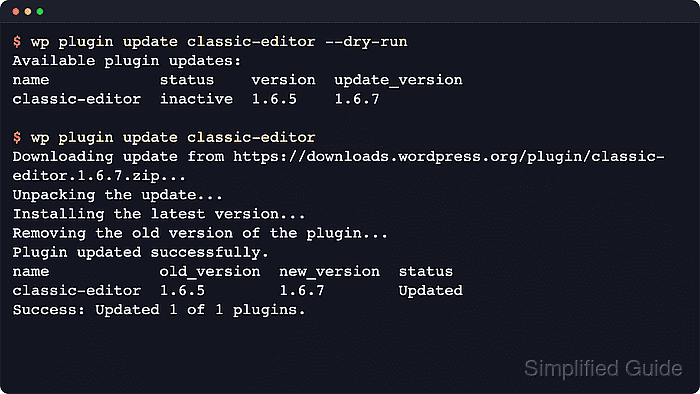
$ wp plugin update classic-editor --dry-run
Available plugin updates:
name            status  version  update_version
classic-editor  active  1.6.5    1.7.0
For a broader maintenance window, preview the batch with wp plugin update --all --dry-run or wp plugin update --all --dry-run --exclude=plugin-slug when one plugin must stay pinned.
- Update the target plugin by slug.
$ wp plugin update classic-editor
Enabling Maintenance mode...
Downloading update from https://downloads.wordpress.org/plugin/classic-editor.1.7.0.zip...
Unpacking the update...
Installing the latest version...
Removing the old version of the plugin...
Plugin updated successfully.
Disabling Maintenance mode...
name            old_version  new_version  status
classic-editor  1.6.5        1.7.0        Updated
Success: Updated 1 of 1 plugins.
WordPress can enter maintenance mode during active plugin updates while the package is replaced. If a plugin should not update in the same window, keep it out of the slug list or use --exclude=<slug> with a batch command.
- Verify that the plugin no longer reports a pending update.
$ wp plugin list --name=classic-editor --fields=name,status,update,version,update_version
name            status  update  version  update_version
classic-editor  active  none    1.7.0
An update value of none confirms that WP-CLI no longer sees a newer package for that slug.
- Test the admin screen, public URL, form, checkout path, or scheduled job that depends on the updated plugin.
If the site fails after the update, disable the changed plugin or restore the rollback point before applying unrelated fixes.